How to Use Different Page Numbering in Word
TL;DR
Apply unique page numbering formats in Word by creating section breaks to separate document parts. This allows for omitting numbers on the cover page, using Roman numerals for the table of contents, and standard numbering for the rest. Proper unlinking of sections ensures each section retains its own numbering style without interference.
Transcript
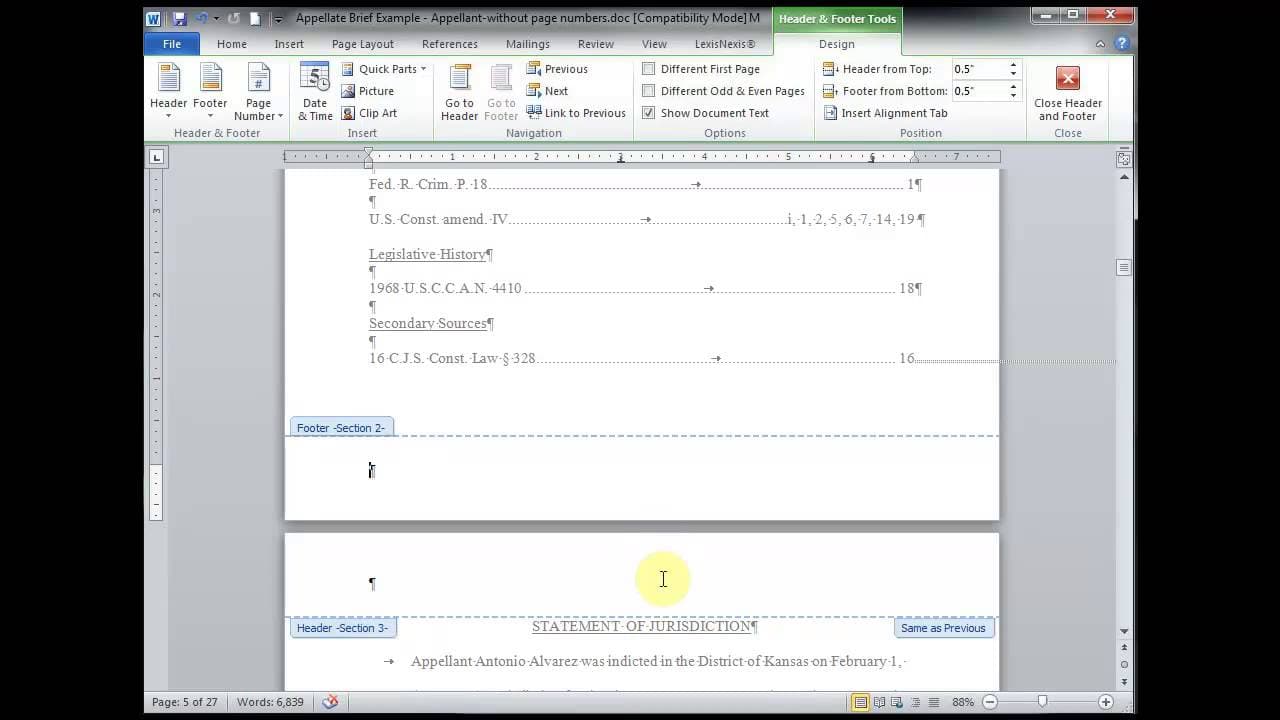
in this video you're going to learn how to use different page numbering schemes throughout your brief I'm using Office 2010 but you can also follow along using Office 2007 here I have a brief with no page numbers and my main goal to accomplish is that I want no page number on the cover page small Roman numerals for my table of conte... Read More
Key Insights
- The video demonstrates how to use different page numbering schemes in a Word document, specifically using Office 2010, but applicable to Office 2007 as well.
- To achieve different page numbering, the document is divided into sections using section breaks, allowing for independent numbering schemes in each section.
- The speaker emphasizes the importance of turning on hidden character symbols to view section breaks, which aids in the accurate placement of these breaks.
- The process involves inserting section breaks at specific points, such as after the cover page and table of authorities, to ensure no page numbers appear on the cover page.
- Unlinking sections in the footer is crucial to prevent the continuation of previous page number formats, ensuring each section can have its own numbering style.
- The video highlights the importance of using the page number formatting tool rather than directly changing the footer's page number format to avoid errors.
- Roman numerals are used for the table of contents and table of authorities, while regular numbers start from the main document's statement of jurisdiction.
- The tutorial concludes by demonstrating the final document, showcasing the correct application of various page numbering formats across different sections.
Install to Summarize YouTube Videos and Get Transcripts
Explore YouTube Video Summarizer or Get YouTube Transcript Extractor
Questions & Answers
Q: How do you begin setting up different page numbering in a Word document?
To begin setting up different page numbering in a Word document, you first need to activate hidden character symbols to visualize section breaks. Then, insert section breaks at strategic points, such as after the cover page, by navigating to the 'Page Layout' tab, selecting 'Breaks', and choosing 'Next Page' under Section Breaks.
Q: Why is it important to unlink sections in the footer?
Unlinking sections in the footer is crucial because it prevents the continuation of the previous section's page numbering format into the new section. This unlinking allows each section to have its own independent numbering scheme, which is essential for documents requiring different formats, such as legal briefs or academic papers.
Q: What is the recommended method for formatting page numbers?
The recommended method for formatting page numbers is to use the page number formatting tool rather than manually changing the page numbers in the footer. This tool ensures that the formatting is applied consistently across the document, avoiding common errors that can occur when formatting is done directly in the footer.
Q: How are Roman numerals used in the document?
In the document, Roman numerals are used for the table of contents and table of authorities sections. This is achieved by inserting section breaks and using the page number formatting tool to select the sub Roman numeral format, allowing these sections to be distinctly numbered from the rest of the document.
Q: What should you do if the page numbers start incorrectly?
If the page numbers start incorrectly, you should use the page number formatting tool to adjust the starting number. This tool allows you to set the correct starting number for each section, ensuring that the numbering aligns with the document's intended structure and format.
Q: What is the role of hidden characters in this process?
Hidden characters play a vital role in this process by making section breaks visible, which helps in accurately placing and managing these breaks. This visibility ensures that section breaks are correctly inserted and that the document's structure supports the desired page numbering formats.
Q: How does the tutorial ensure no page number appears on the cover page?
The tutorial ensures no page number appears on the cover page by inserting a section break at the bottom of the cover page. This action creates a new section starting on the next page, allowing the cover page to remain numberless while enabling page numbering to begin on subsequent sections.
Q: What is the final outcome of following the tutorial's steps?
The final outcome of following the tutorial's steps is a well-organized Word document with distinct page numbering formats applied to different sections. The cover page has no number, the table of contents and table of authorities use Roman numerals, and the main document starts with regular numbering, enhancing the document's readability and professionalism.
Summary & Key Takeaways
-
The video tutorial by Jewel Makda explains how to apply different page numbering formats within a single Word document. By using section breaks, users can separate parts of the document to apply distinct numbering schemes, such as omitting numbers on the cover page and using Roman numerals for the table of contents.
-
To ensure proper page numbering, the tutorial advises turning on hidden characters to view section breaks and unlinking sections in the footer. This approach allows each section to maintain its own numbering style without interference from previous sections.
-
The tutorial provides a step-by-step guide to inserting section breaks and formatting page numbers using the page number formatting tool. This method prevents errors and ensures a well-organized document with different numbering formats, enhancing the document's professional appearance.
Read in Other Languages (beta)
Share This Summary 📚
Summarize YouTube Videos and Get Video Transcripts with 1-Click
Try YouTube Summary with ChatGPT & Claude or YouTube Transcript Generator