How to Create a Drawing Application with Kivy Python
TL;DR
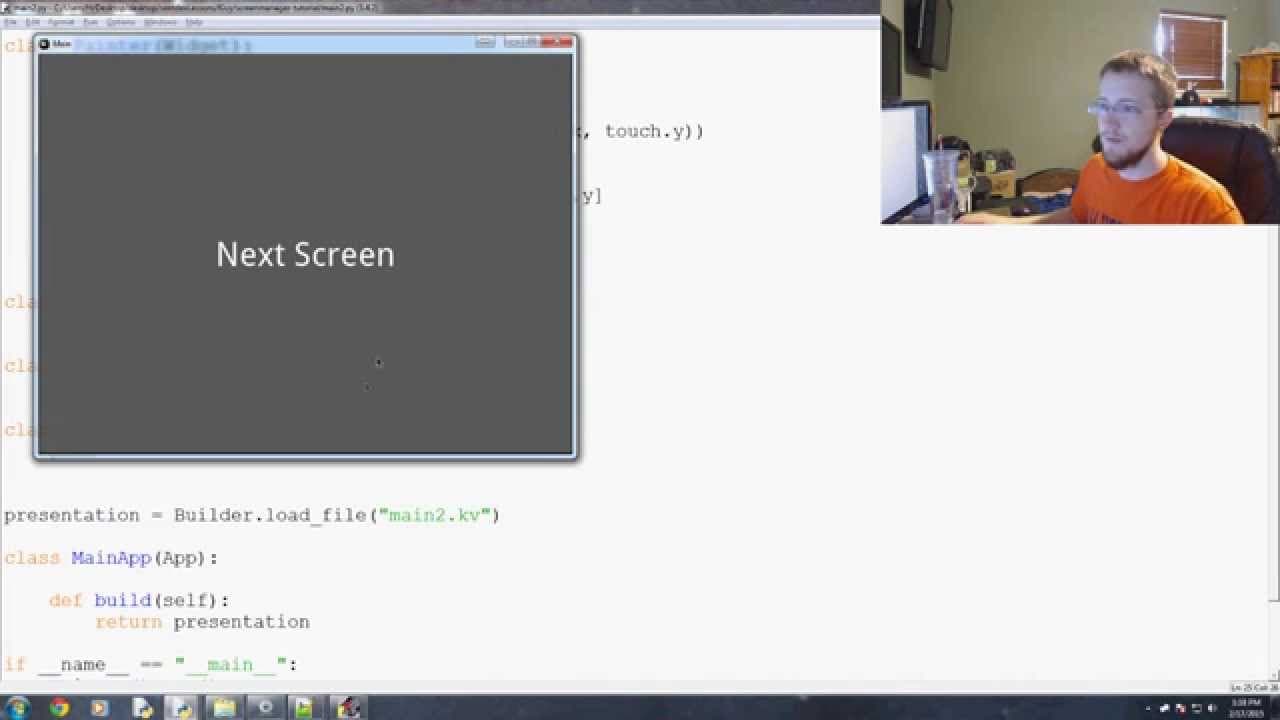
To create a drawing application using Kivy in Python, implement a custom widget inheriting from the widget class and define touch event methods for drawing on the canvas. Integrate this widget into a screen manager for easy navigation between multiple app screens. Start simple and gradually enhance the app with additional features like navigation buttons.
Transcript
everybody what is going on welcome to the 11th Cavey basics tutorial video in this video we're gonna be talking about adding our I don't know drawing application to this little application here and using the buttons to go back and forth between the application and say the home screen or whatever you could envision it being a game or I don't know st... Read More
Key Insights
- 🈸 The tutorial demonstrates how to incorporate a drawing application into a Cavey Basics app.
- 👨💻 The necessary imports and code changes are explained in detail to implement the drawing functionality.
- 😀 The tutorial showcases the process of adding the drawing widget to another screen in the app.
- 🎮 The next video will cover the addition of navigation buttons for screen transition.
- 🫵 The tutorial encourages viewers to try adding their own buttons and provides resources for further guidance.
- 😀 The video emphasizes the simplicity and flexibility of adding various functionalities to the Cavey Basics app.
- 👨💻 The narrator highlights the importance of understanding the source of code components, distinguishing between personal and pre-defined code.
Install to Summarize YouTube Videos and Get Transcripts
Explore YouTube Video Summarizer or Get YouTube Transcript Extractor
Questions & Answers
Q: How do you add a drawing application to an existing app in Cavey Basics?
To add a drawing application, you need to create a new class called "Painter" that inherits from the "Widget" class. You'll also need to import required modules, such as "widget" and "line". The on_touch_down function is used to initiate drawing.
Q: How can you navigate between screens in the app?
To navigate between screens, you can create a new screen and add the painter widget to it using the key V file. By doing so, the painter widget will be displayed on the new screen.
Q: Can you explain the use of the on_touch_down function?
The on_touch_down function is responsible for capturing the touch events on the screen. In this case, it is used to start the drawing process by creating a line object using the touch coordinates.
Q: How can you add navigation buttons to the app?
The next video will demonstrate how to add navigation buttons to go back and forth between screens. The button will be placed in a specific location on the screen.
Summary & Key Takeaways
-
The video tutorial focuses on adding a drawing application to an existing app and using buttons for navigation between screens.
-
The narrator explains the necessary imports and code changes required to implement the drawing application.
-
The tutorial shows how to incorporate the drawing widget into another screen of the app.
Read in Other Languages (beta)
Share This Summary 📚
Summarize YouTube Videos and Get Video Transcripts with 1-Click
Try YouTube Summary with ChatGPT & Claude or YouTube Transcript Generator
Explore More Summaries from sentdex 📚




Summarize YouTube Videos and Get Video Transcripts with 1-Click
Try YouTube Summary with ChatGPT & Claude or YouTube Transcript Generator