Programming OMRON MicroHAWK inspection platform using AutoVISION.
TL;DR
Learn how to use Auto Vision to develop a machine vision application in minutes.
Transcript
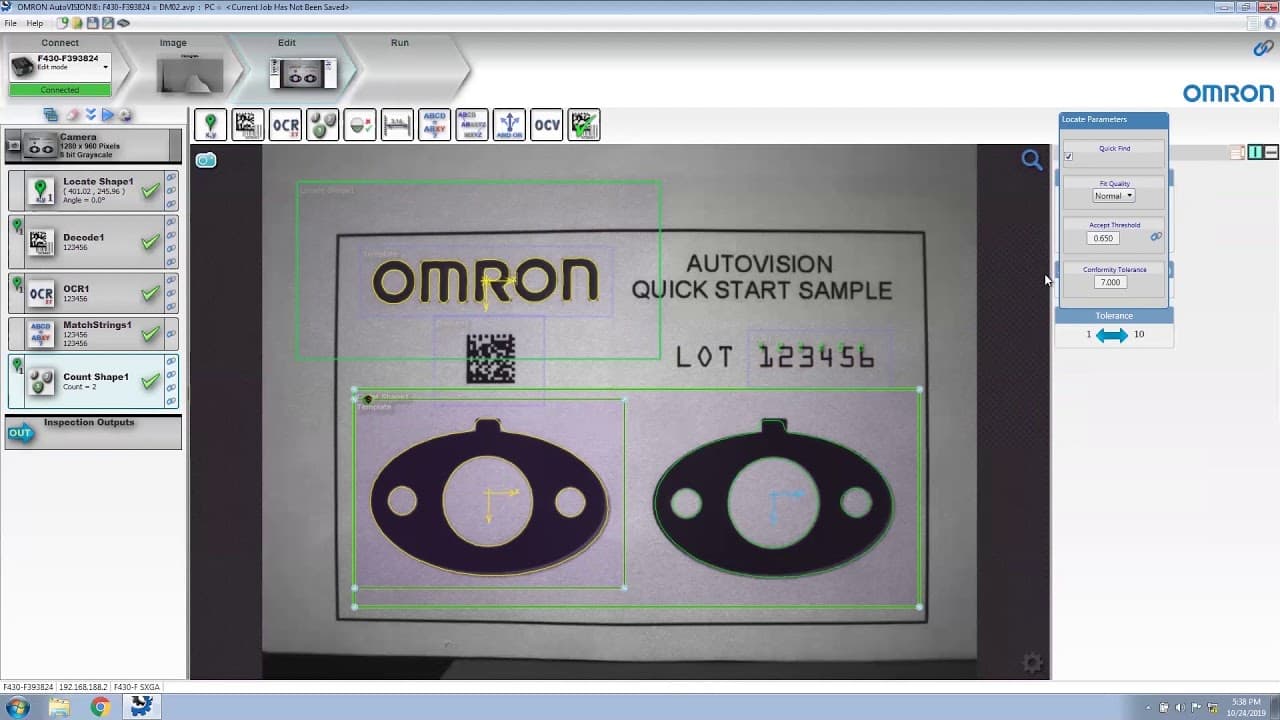
hi and welcome to this auto vision quick start video in this video we will use auto vision to develop a machine vision application in a few minutes let's start auto vision now that auto vision has started we need to select the device on this system you can see an emulator and an f430f smart camera we will select the smart camera for this applicatio... Read More
Key Insights
- 👻 Auto Vision allows users to develop machine vision applications quickly and easily.
- 🚗 Focus and lighting settings can be adjusted using the auto calibration feature.
- 🔄 Vision tools like locate, decode, OCR, match, count shape, presence, width, and count can be used for various inspection tasks.
Install to Summarize YouTube Videos and Get Transcripts
Explore YouTube Video Summarizer or Get YouTube Transcript Extractor
Questions & Answers
Q: What is the first step in using Auto Vision to develop a machine vision application?
The first step is to select the device, either an emulator or a smart camera, in the connect view.
Q: How can focus and lighting settings be adjusted in Auto Vision?
The easiest method is to click on the auto calibration button, which automatically sets the parameters based on the image. Another picture can be taken to confirm the settings.
Q: How can vision tools be added to a job in Auto Vision?
By clicking on the edit button, vision tools can be added to the job. The tool list on the left shows the tools present, and their settings can be adjusted on the right side.
Q: How can inspection results be communicated to another device in Auto Vision?
By configuring digital outputs, inspection results can be communicated. Output 1 can indicate the inspection is done, output 2 can indicate a passed inspection, and output 3 can indicate a failed inspection.
Key Insights:
- Auto Vision allows users to develop machine vision applications quickly and easily.
- Focus and lighting settings can be adjusted using the auto calibration feature.
- Vision tools like locate, decode, OCR, match, count shape, presence, width, and count can be used for various inspection tasks.
- Digital outputs can be configured to communicate inspection results to other devices.
Summary & Key Takeaways
-
The video provides a step-by-step guide on using Auto Vision to develop a machine vision application.
-
The process involves selecting a device, adjusting focus and lighting settings, adding vision tools, and configuring inspection outputs.
-
The video showcases the use of tools like locate, decode, OCR, match, count shape, presence, width, and count in a sample inspection application.
Read in Other Languages (beta)
Share This Summary 📚
Summarize YouTube Videos and Get Video Transcripts with 1-Click
Try YouTube Summary with ChatGPT & Claude or YouTube Transcript Generator