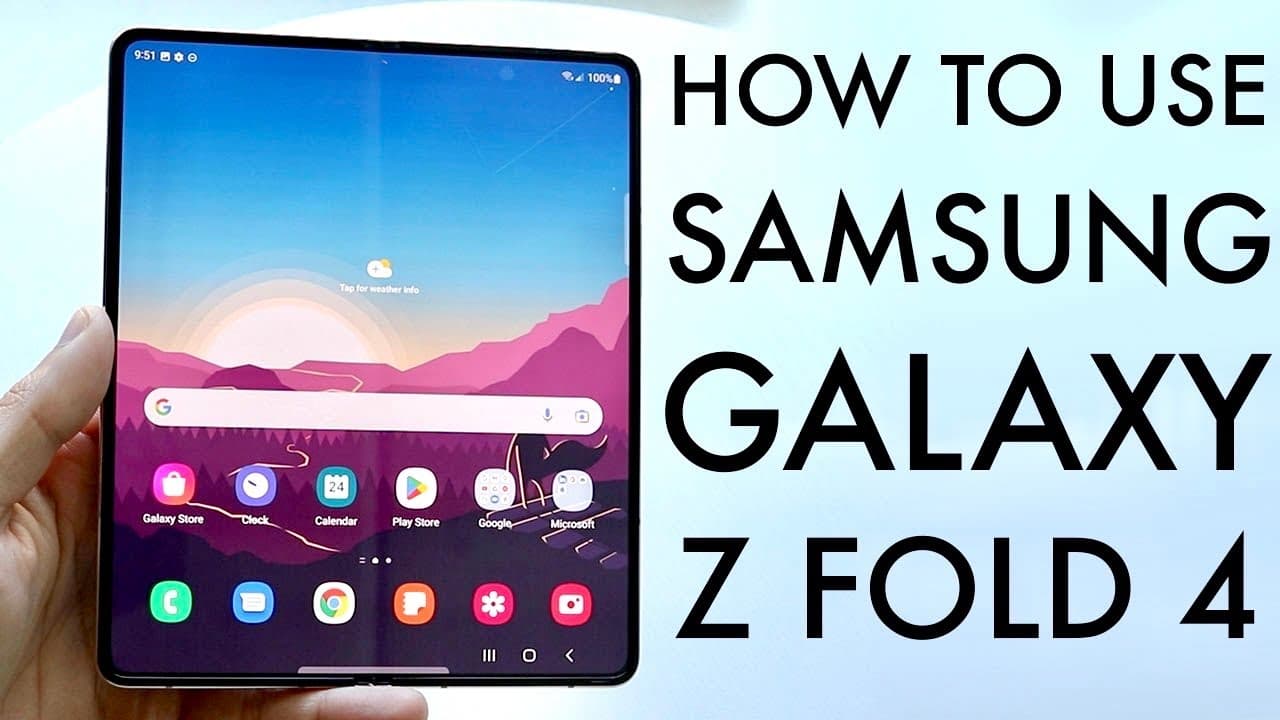
How To Use Samsung Galaxy Z Fold 4! (Complete Beginners Guide)
TL;DR
A comprehensive guide on setting up and using the Samsung Galaxy Z4.
Transcript
congratulations you may have just ended up buying and purchasing a samsung galaxy z4 now i'm going to go and give you a quick breakdown on exactly how to use this phone because it is a little bit complicated but i'll go ahead and try my best to break it down now first of all having this phone unfolded we'll go ahead and kind of get a better idea of... Read More
Key Insights
- 🌥️ The Samsung Galaxy Z4 features an advanced folding mechanism and offers both an external display and a larger internal display for enhanced multitasking.
- 🤌 Users should handle the folding and unfolding of the device carefully to avoid potential pinches or damage to the hinges.
- ☠️ The phone includes a 120Hz refresh rate panel, which enhances the viewing experience, making interactions smoother and more responsive.
- 😒 Inserting a SIM card is straightforward, but requires the use of a SIM eject tool, which is typically included in the packaging.
- 🏛️ The Galaxy Z4 provides various built-in functionalities, such as quick toggles for settings, screenshot capabilities, and screen recording options, adding to its utility.
- 😨 Installing and removing cases adds protection to the device, but it should be approached with care due to the folding design.
- 👻 The S Pen provides added versatility for users, allowing them to take notes and navigate the interface with precision beyond finger touch.
Install to Summarize YouTube Videos and Get Transcripts
Explore YouTube Video Summarizer or Get YouTube Transcript Extractor
Questions & Answers
Q: What is the first step to setting up my Samsung Galaxy Z4?
The first step in setting up your Samsung Galaxy Z4 is to insert your SIM card. Locate the SIM card slot on the top edge of the phone, use the provided SIM card eject tool, and carefully insert your SIM card to activate cellular services.
Q: How do I take a screenshot on my Samsung Galaxy Z4?
Taking a screenshot on the Galaxy Z4 is easy. Simply press and hold the power button and the volume down button simultaneously. You'll see a visual indication that a screenshot has been taken, and it can be accessed later in your gallery.
Q: Can I use the S Pen while my Galaxy Z4 is folded?
No, you cannot use the S Pen when the Galaxy Z4 is in a folded state. The S Pen requires the device to be unfolded, allowing for proper interaction and usage without causing damage to the display.
Q: How do I customize the S Pen settings on my smartphone?
To customize the S Pen settings, first unfold your Galaxy Z4 and locate the pencil icon on the right side of the display. Tap it to access the customization options, where you can adjust settings for your S Pen, such as enabling error actions or customizing quick toggles.
Q: What should I be cautious about when using the Galaxy Z4 near water?
Although the Galaxy Z4 has some level of water resistance, users should still exercise caution. Avoid exposing the phone to excessive water or submerging it, as the design includes openings that may allow moisture to enter, potentially damaging the internal components.
Q: How do I check for software updates on my Galaxy Z4?
To check for software updates, go to the settings application on your Galaxy Z4. Scroll down to find the software update panel, tap on it, and click on "Download and Install." Keeping your device updated is crucial for optimal performance and security.
Summary & Key Takeaways
-
This content provides a detailed breakdown of the Samsung Galaxy Z4, focusing on its main features, including its displays, buttons, and camera setup. It emphasizes the importance of understanding the hardware for effective use.
-
The guide explains how to insert a SIM card, navigate the interface, and effectively unfold and fold the device to avoid any damage. Proper usage techniques are essential for maintaining the phone's longevity.
-
Additional features such as screen recording, taking screenshots, using the S Pen, and installing cases are explored, offering users advanced functionalities that enhance their overall experience with the Galaxy Z4.
Read in Other Languages (beta)
Share This Summary 📚
Summarize YouTube Videos and Get Video Transcripts with 1-Click
Try YouTube Summary with ChatGPT & Claude or YouTube Transcript Generator
Explore More Summaries from Simple Alpaca 📚

Summarize YouTube Videos and Get Video Transcripts with 1-Click
Try YouTube Summary with ChatGPT & Claude or YouTube Transcript Generator