5 Common Lightroom Classic Questions
TL;DR
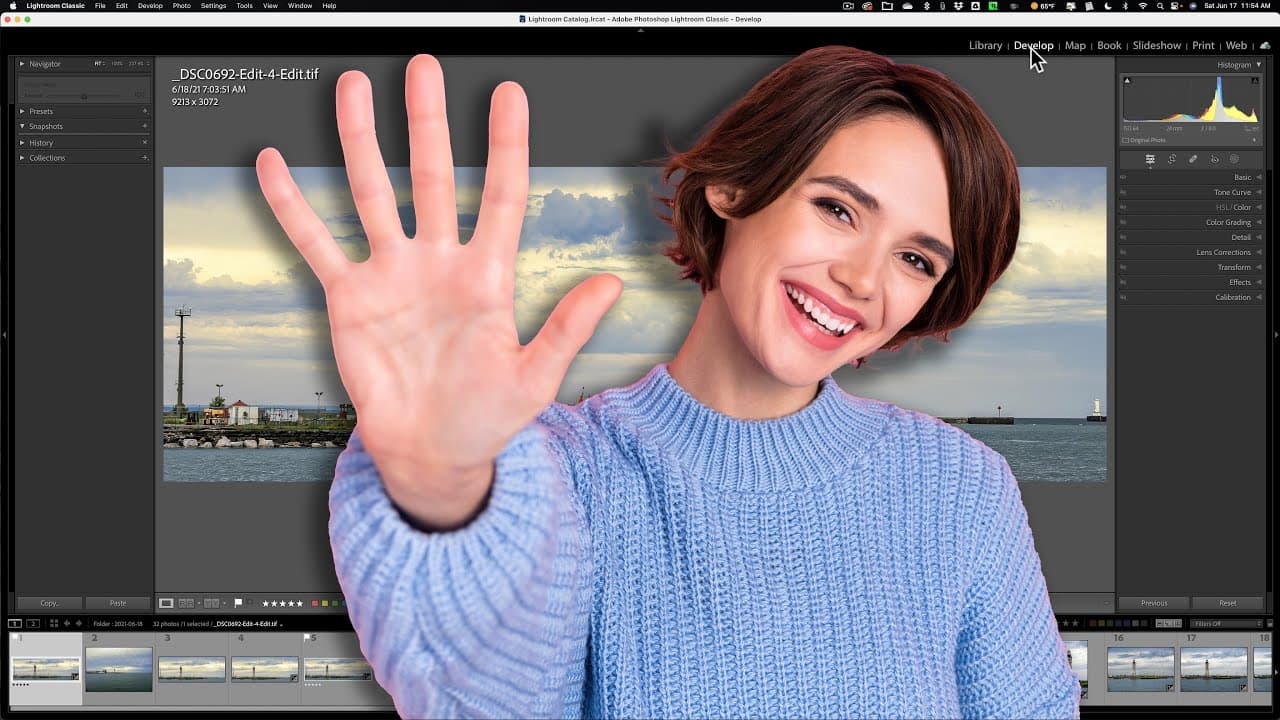
Anthony Moriganti answers common questions about Lightroom Classic in a single video.
Transcript
hi everyone Anthony moriganti here those of you that follow my channel know that several years ago I had a video series called Lightroom questions and answers I haven't done any videos in that Series in a long time today I want to do this single video and answer some of the more common questions I've been receiving recently about Lightroom classic ... Read More
Key Insights
- 👤 Lightroom Classic users can prevent accidental scrolling by adjusting the swipe settings in Lightroom preferences.
- 📁 To import both JPEG and RAW files simultaneously, ensure the "treat JPEG files next to raw files as separate photos" option is checked in preferences.
- ⌛ Excessive resource usage in Lightroom Classic during idle time can be resolved by disabling the "replace embedded previews with standard previews during idle time" option.
- 🕵️ The automatic opening of the import dialog when a memory card is detected can be disabled in preferences.
- 🤩 The red and blue clipping indicators in Lightroom Classic can be easily toggled on or off by pressing the J key.
Install to Summarize YouTube Videos and Get Transcripts
Explore YouTube Video Summarizer or Get YouTube Transcript Extractor
Questions & Answers
Q: How can I prevent accidental scrolling in the library module of Lightroom Classic?
To prevent accidental scrolling, go to Lightroom preferences, navigate to the interface tab, and uncheck the "swipe between images using Mouse/trackpad" option.
Q: How can I ensure Lightroom Classic imports both RAW and JPEG files from a memory card?
In Lightroom preferences, under the general tab, ensure that the "treat JPEG files next to raw files as separate photos" option is checked. This will import both file formats simultaneously.
Q: Why does Lightroom Classic use excessive resources when idle?
Lightroom may use resources when idle due to the "replace embedded previews with standard previews during idle time" option being checked. Disabling this option in preferences should solve the issue.
Q: How can I prevent Lightroom Classic from automatically opening the import dialog when a memory card is detected?
In Lightroom preferences, uncheck the "show import dialog when a memory card is detected" option to manually open the import dialog when desired.
Q: How can I remove the red or blue indicators on my images in Lightroom Classic?
The red and blue indicators, known as clipping indicators, can be removed by pressing the J key on your computer. Pressing J toggles the display of these indicators.
Key Insights:
- Lightroom Classic users can prevent accidental scrolling by adjusting the swipe settings in Lightroom preferences.
- To import both JPEG and RAW files simultaneously, ensure the "treat JPEG files next to raw files as separate photos" option is checked in preferences.
- Excessive resource usage in Lightroom Classic during idle time can be resolved by disabling the "replace embedded previews with standard previews during idle time" option.
- The automatic opening of the import dialog when a memory card is detected can be disabled in preferences.
- The red and blue clipping indicators in Lightroom Classic can be easily toggled on or off by pressing the J key.
- Preferences in Lightroom Classic offer various customization options for a smoother user experience.
Summary & Key Takeaways
-
Anthony Moriganti addresses common issues for Lightroom Classic users, such as accidental scrolling in the library module and importing JPEG files.
-
He explains how to disable accidental scrolling by adjusting the settings in Lightroom preferences.
-
He also discusses how to import both JPEG and RAW files simultaneously and troubleshoots an issue with Lightroom using excessive resources during idle time.
Read in Other Languages (beta)
Share This Summary 📚
Summarize YouTube Videos and Get Video Transcripts with 1-Click
Try YouTube Summary with ChatGPT & Claude or YouTube Transcript Generator