How to Create a Chained Instrument Rack in Ableton Live
TL;DR
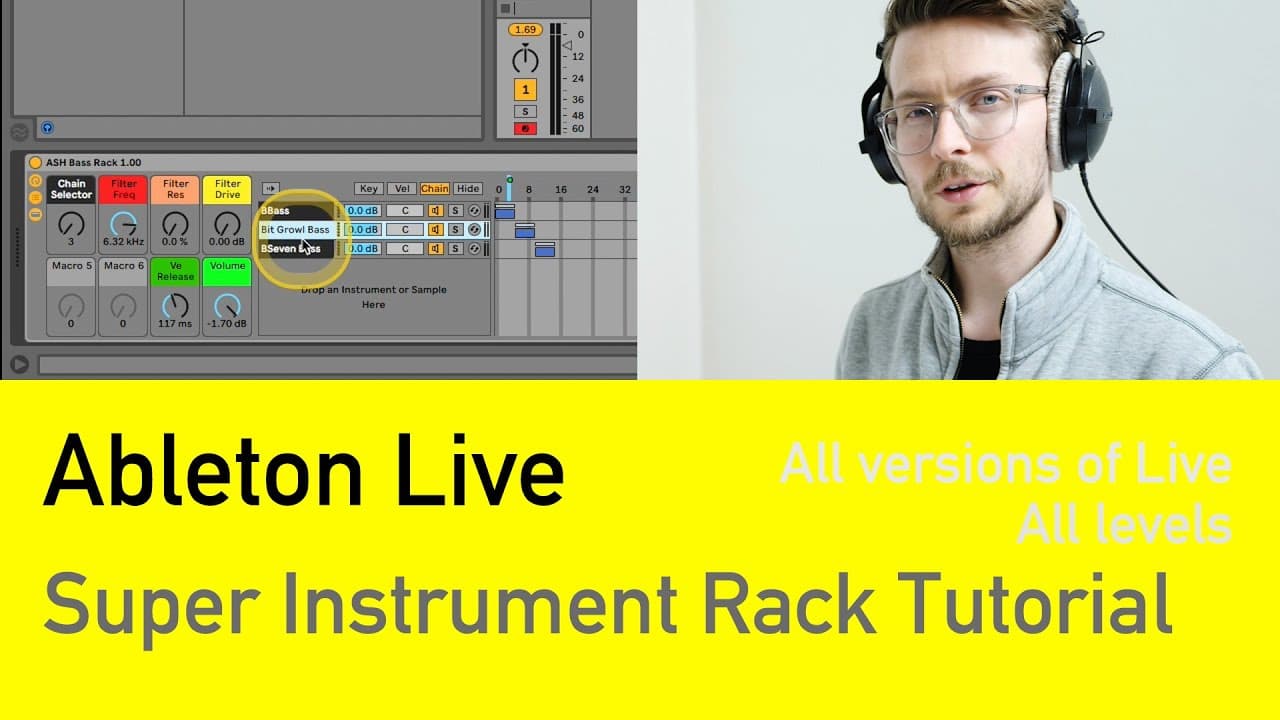
A chained instrument rack in Ableton Live allows you to group multiple instruments for seamless sound selection and control. This tutorial shows you how to set up the rack, map crucial parameters, and optimise CPU usage, enhancing your workflow and creativity.
Transcript
hello everyone today I'm going to show you one of the things that I think every able to live is we should know whether you're a beginner intermediate or advanced user of the software it's something which lets you move really quickly grab hold of sounds and basically get into a state of flow when using the software because you're not spending a lot ... Read More
Key Insights
- 🛤️ Chained instrument racks in Ableton Live provide a convenient way to access and play multiple sounds without the need for switching between instruments.
- 🔇 Mapping parameters to macro knobs allows for easy control over key sound sculpting elements, such as filter frequency, volume, and drive.
- 💦 Color-coding the rack and using consistent organization techniques can enhance workflow and reduce confusion when working with multiple instruments.
- ✊ Optimal CPU usage can be achieved by mapping the power button of each instrument to the chain selector, preventing unnecessary CPU cycles and potential audio clipping.
Install to Summarize YouTube Videos and Get Transcripts
Explore YouTube Video Summarizer or Get YouTube Transcript Extractor
Questions & Answers
Q: What is a chained instrument rack in Ableton Live?
A chained instrument rack is a feature in Ableton Live that allows users to group multiple instruments within a single rack, enabling quick access and control over multiple sounds.
Q: How can I create a chained instrument rack in Ableton Live?
To create a chained instrument rack, select an instrument (e.g., Simpler) and drop it into a MIDI track. Then, right-click on the instrument and choose "Group" or use the shortcut "Command + G" to create a rack. Open the chain selector and add multiple instruments to the rack.
Q: How do I control and switch between sounds within a chained instrument rack?
Use the chain selector within the instrument rack to define ranges for each instrument. By moving the selector, you can switch between sounds and play them separately. Additionally, you can map parameters of each sound to macro knobs for easy control.
Q: How can I optimize CPU usage when using a chained instrument rack?
To optimize CPU usage, map the power button of each instrument within the rack to the chain selector. This ensures that only the selected instrument is using CPU cycles, reducing the strain on your computer. Additionally, adjusting volume parameters to prevent audio clipping and organizing your rack can further optimize CPU usage.
Key Insights:
- Chained instrument racks in Ableton Live provide a convenient way to access and play multiple sounds without the need for switching between instruments.
- Mapping parameters to macro knobs allows for easy control over key sound sculpting elements, such as filter frequency, volume, and drive.
- Color-coding the rack and using consistent organization techniques can enhance workflow and reduce confusion when working with multiple instruments.
- Optimal CPU usage can be achieved by mapping the power button of each instrument to the chain selector, preventing unnecessary CPU cycles and potential audio clipping.
- Creating and customizing instrument racks allows users to develop their own unique sound palette and quickly access their favorite sounds during live performances.
Summary & Key Takeaways
-
The tutorial introduces the concept of a chained instrument rack in Ableton Live, which allows users to easily access and play multiple sounds without switching between instruments.
-
The video demonstrates the step-by-step process of creating a chained instrument rack using the Simpler instrument in Ableton Live.
-
By chaining multiple instruments within a single rack, users can easily switch between sounds and control various parameters such as filter frequency, volume, and drive.
-
Additional tips are provided, including color-coding the rack for better organization, mapping parameters to macro knobs, and optimizing CPU usage.
Read in Other Languages (beta)
Share This Summary 📚
Summarize YouTube Videos and Get Video Transcripts with 1-Click
Try YouTube Summary with ChatGPT & Claude or YouTube Transcript Generator