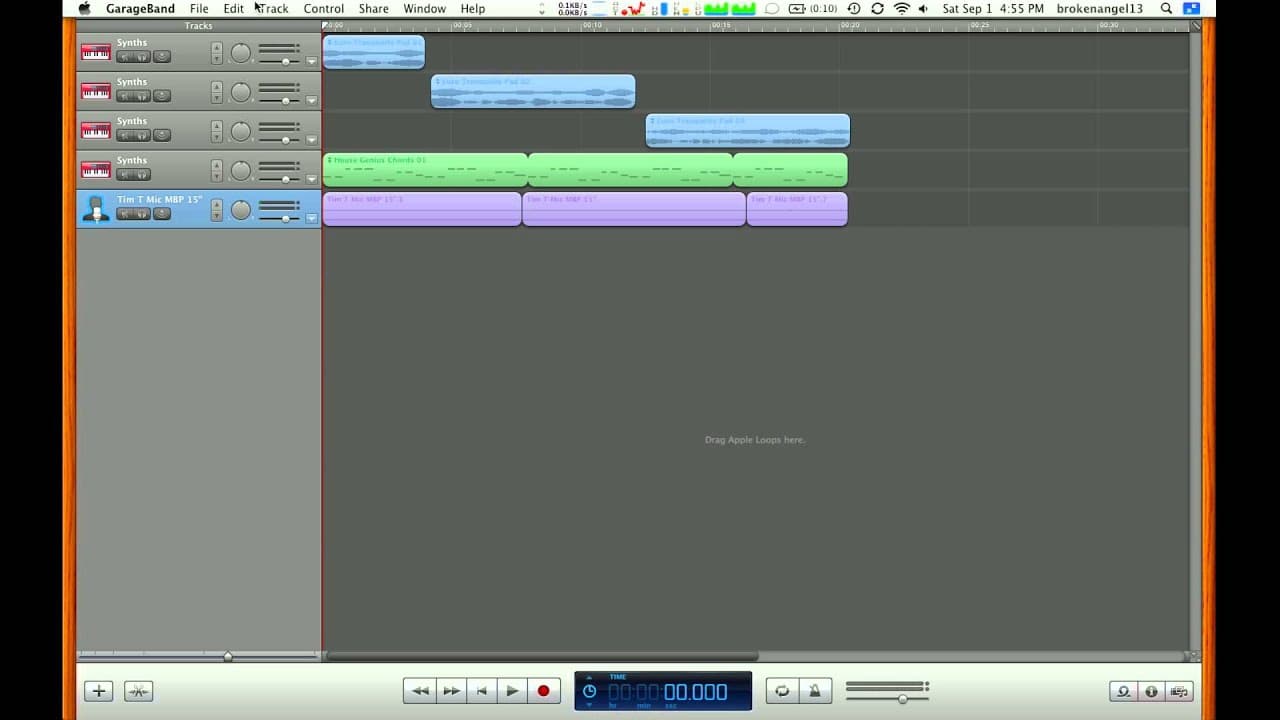
Optimizing a MacBook for GarageBand : GarageBand
TL;DR
Improve GarageBand performance on your MacBook by upgrading RAM, checking processor, and adjusting settings for optimal usage.
Transcript
hi I'm Ken cutter and today we're gonna cover how to optimize your MacBook or MacBook Pro for GarageBand as you can see we've got a lot of Mac's here ranging from new to old to mid-range now you're probably wondering how exactly do I have to my eyes my MacBook to get the best performance at a garage gift well that comes down to two factors one is y... Read More
Key Insights
- 🐎 Upgrading RAM and checking processor speed are crucial for optimal GarageBand performance.
- ❓ Adjusting audio resolution settings in GarageBand preferences can enhance performance.
- ⌛ Recording projects on an external hard drive can improve efficiency and recording time.
- 🏃 Newer MacBook models come with sufficient RAM for running GarageBand without upgrades.
- 🆘 Monitoring system specifications through the Apple icon menu can help assess performance capabilities.
- 🐎 External hard drive connectivity and speed can impact GarageBand performance.
- ❓ Utilizing software settings and hardware upgrades can boost overall performance.
Install to Summarize YouTube Videos and Get Transcripts
Explore YouTube Video Summarizer or Get YouTube Transcript Extractor
Questions & Answers
Q: What are the key factors to consider when optimizing GarageBand performance on a MacBook?
The key factors include upgrading RAM, checking processor speed, adjusting audio resolution settings, and recording projects on an external hard drive.
Q: How can users determine if their MacBook has enough RAM for running GarageBand efficiently?
Users can check their MacBook's RAM by clicking on the Apple icon, selecting "About This Mac," and viewing the system summary to see how much RAM is available.
Q: What impact does upgrading RAM have on GarageBand performance?
Upgrading RAM can improve the speed and efficiency of GarageBand on a MacBook, allowing for smoother performance when working on music projects.
Q: Why is recording projects on an external hard drive recommended for optimizing GarageBand on a MacBook?
Recording projects on an external hard drive can improve performance and recording time by reducing strain on the MacBook's internal storage and enhancing data transfer speeds.
Summary & Key Takeaways
-
Upgrading RAM and checking processor are key factors for optimizing GarageBand performance on a MacBook.
-
Adjusting settings like audio resolution in GarageBand preferences can improve performance.
-
Recording projects on an external hard drive can also enhance performance and recording time.
Read in Other Languages (beta)
Share This Summary 📚
Summarize YouTube Videos and Get Video Transcripts with 1-Click
Try YouTube Summary with ChatGPT & Claude or YouTube Transcript Generator
Explore More Summaries from ehow 📚
Summarize YouTube Videos and Get Video Transcripts with 1-Click
Try YouTube Summary with ChatGPT & Claude or YouTube Transcript Generator