How to Auto Set a Reminder automatically When Flagging an Outlook Email for Follow up
TL;DR
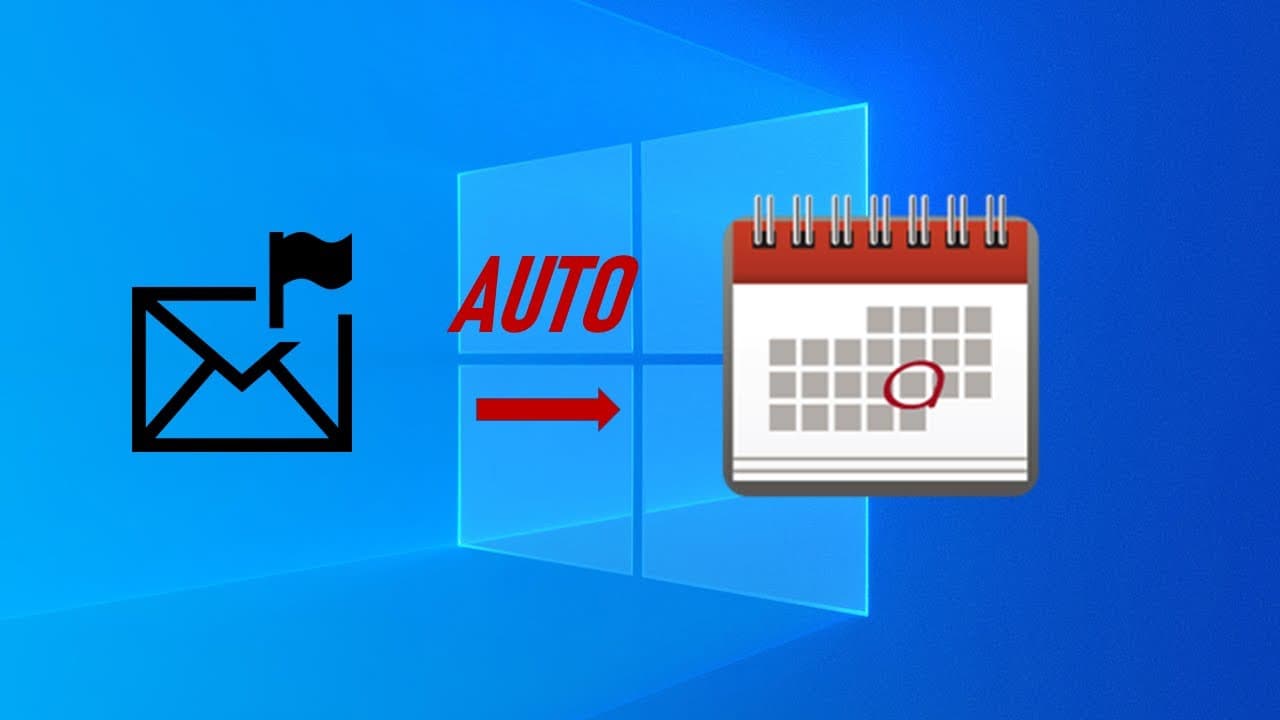
This video demonstrates how to set up automatic email reminders using Power Automate.
Transcript
so in this video we'll talk about when we flag email we want it automatically add to the reminder so we can it can remind me after one day to do that we need a using power ultimate so you can find the power ultimate from the start here and when you click it you go to my floors and create a new floor automate cloud flow gave its name flag to reminde... Read More
Key Insights
- 🧑🦽 Power Automate is a powerful tool that can significantly enhance productivity by automating tasks that are typically manual.
- 💌 Flagging an email in Outlook can trigger a chain of automated actions that help organize reminders efficiently.
- 😑 Utilizing expressions in Power Automate allows for the flexible and precise timing of reminders based on user preferences.
- 😶🌫️ Saving the cloud flow and testing it ensures that the automation is functioning correctly and meeting users' needs.
- 💌 The integration of Outlook and Power Automate can streamline daily operations for professionals who rely on email communication.
- 💌 Users can customize reminders based on the unique content of their emails, making follow-up actions more relevant.
- 👤 The video provides a step-by-step approach, making it accessible for users unfamiliar with the Power Automate platform.
Install to Summarize YouTube Videos and Get Transcripts
Explore YouTube Video Summarizer or Get YouTube Transcript Extractor
Questions & Answers
Q: What is the purpose of creating a cloud flow in Power Automate?
The purpose of creating a cloud flow in Power Automate is to automate repetitive tasks. In this case, the flow allows users to automatically create a calendar event when they flag an email, thus providing an efficient way to manage reminders based on email communications.
Q: How does one configure the calendar event in the flow?
To configure the calendar event, users set the calendar to be used, specify the subject as the email subject, and determine the start and end times. The start time is set to one day from the current time using UTC formatting, while the end time is defined by adding an additional hour to the start time.
Q: What steps should be taken to test the flow after setup?
To test the flow, users must execute a manual test after saving their configuration. This includes unflagging an email and then flagging it again to see if the appropriate event appears in their calendar for the next day, confirming the automation works as intended.
Q: Why is it important to include the email body in the calendar event?
Including the email body in the calendar event allows users to have all relevant information at their fingertips during their scheduled reminder. This means that they can easily review the context of the email and be better prepared to address it when the reminder comes up.
Summary & Key Takeaways
-
The video explains the process of using Power Automate to automatically create a calendar event when an email is flagged in Outlook.
-
It involves creating a new cloud flow named "Flag to Reminder" and configuring specific steps to handle flagged emails.
-
The final setup allows users to set reminders by adding time and relevant email details to the created calendar event.
Read in Other Languages (beta)
Share This Summary 📚
Summarize YouTube Videos and Get Video Transcripts with 1-Click
Try YouTube Summary with ChatGPT & Claude or YouTube Transcript Generator
Explore More Summaries from E Micro Tech 📚

Summarize YouTube Videos and Get Video Transcripts with 1-Click
Try YouTube Summary with ChatGPT & Claude or YouTube Transcript Generator