How to Create Engaging VOX-Style Videos in Canva
TL;DR
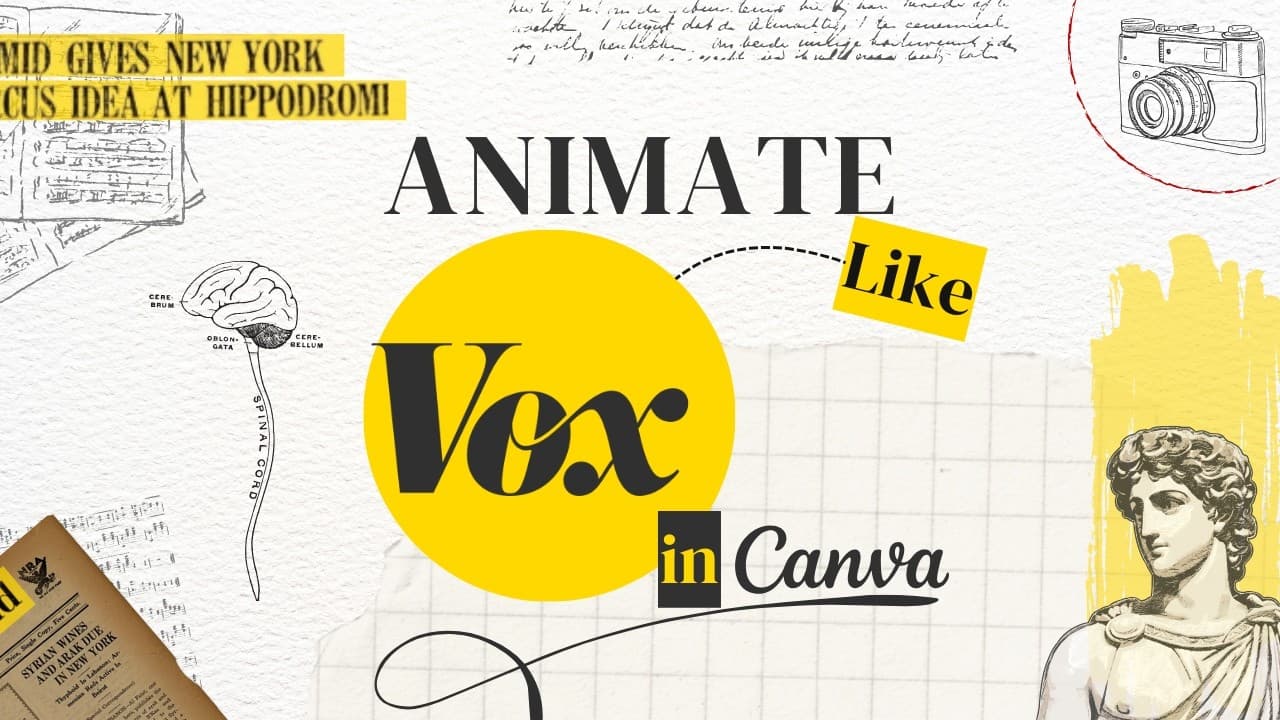
Create captivating VOX-style videos using Canva's powerful animation tools. This tutorial covers everything from designing opening titles to utilizing sound design for a polished finish, including techniques for highlighting text and animating charts. Master the art of storytelling visually and audibly to engage your audience effectively.
Transcript
sh [Applause] let's get straight into it open canva and create a new design I'm using a 16 by9 video crop but you can follow along in whatever Dimensions suit your project let's start with the opening title open the photo section and search for orthogonal grid select this image resize it so it covers the full height of of th... Read More
Key Insights
- The tutorial begins with setting up a 16:9 video format in Canva, ideal for creating VOX-style videos.
- Users are guided to create visually appealing opening titles using orthogonal grids and text animations.
- The tutorial covers map animations, highlighting techniques, and transitions to focus on specific areas.
- Text highlighting effects are demonstrated using Canva's Magic Grab and Magic Eraser tools for emphasis.
- An animated chart is created to visualize data, with instructions on customizing fonts, colors, and animations.
- A word focus effect is demonstrated by synchronizing screenshots with animations to emphasize specific terms.
- Sound design elements are integrated, using audio clips to enhance the transitions and animations in the video.
- The tutorial concludes with adding background music, ensuring it complements the overall video theme.
Install to Summarize YouTube Videos and Get Transcripts
Explore YouTube Video Summarizer or Get YouTube Transcript Extractor
Questions & Answers
Q: How do you set up the video format in Canva?
To set up the video format in Canva, start by creating a new design with a 16:9 video crop. This aspect ratio is ideal for creating VOX-style videos. You can adjust the dimensions to suit your specific project needs, allowing for flexibility in the design process.
Q: What techniques are used for creating opening titles?
The tutorial suggests using orthogonal grids and text animations for creating opening titles. By resizing and duplicating grid images, adjusting transparency, and adding text with specific fonts and effects, users can create visually engaging titles that set the tone for the video.
Q: How are map animations created in Canva?
Map animations in Canva are created by using high-resolution images, drawing borders with the marker tool, and applying wipe animations. Users can highlight specific areas on a map and use match and move transitions to smoothly shift focus between different map sections.
Q: What is the process for text highlighting effects?
Text highlighting effects are achieved using Canva's Magic Grab and Magic Eraser tools. Users can separate text into new layers and clean up backgrounds. Adding a colored rectangle with wipe animations behind the text enhances the emphasis, making important information stand out.
Q: How is an animated chart created in the tutorial?
An animated chart is created by using Canva's charts app. Users can customize the line chart's color, weight, and marker size. Data is inputted into the labels and series columns, and a typewriter animation is applied to the text layer for a dynamic presentation of information.
Q: What is the word focus effect and how is it achieved?
The word focus effect involves synchronizing screenshots of articles with animations to emphasize specific words. Screenshots are aligned precisely, and pages are split and transitioned quickly to create a seamless animation that draws attention to the targeted word or phrase.
Q: How is sound design integrated into the video?
Sound design is integrated by adding audio clips like relay clicks and marker sounds to match transitions and animations. These sound elements enhance the viewer's experience by providing auditory cues that complement the visual effects, making the video more engaging and professional.
Q: What considerations are made for adding music to the video?
When adding music, the tutorial recommends selecting a piece that aligns with the video's theme, such as a piano piece in B minor similar to what VOX uses. The music should be trimmed to fit the timeline and ensure it complements the overall edit, enhancing the storytelling aspect.
Summary & Key Takeaways
-
This tutorial provides a step-by-step guide to creating VOX-style videos using Canva, focusing on motion graphics and map animations. It covers setting up the video format, designing opening titles, and using various animation techniques.
-
Key techniques include text highlighting, animated charts, and word focus effects. Users learn to utilize Canva's tools like Magic Grab and Magic Eraser to enhance text emphasis and integrate sound design elements for a polished finish.
-
The tutorial emphasizes the importance of sound design and music, guiding users to add audio clips and background music that align with the video's theme. It aims to help users master storytelling through effective visual and audio elements.
Read in Other Languages (beta)
Share This Summary 📚
Summarize YouTube Videos and Get Video Transcripts with 1-Click
Try YouTube Summary with ChatGPT & Claude or YouTube Transcript Generator
Explore More Summaries from Lilly's Tech Tips 📚
Summarize YouTube Videos and Get Video Transcripts with 1-Click
Try YouTube Summary with ChatGPT & Claude or YouTube Transcript Generator