how to create custom folder icon for windows 10
TL;DR
Learn how to create and change folder icons using custom images on Windows.
Transcript
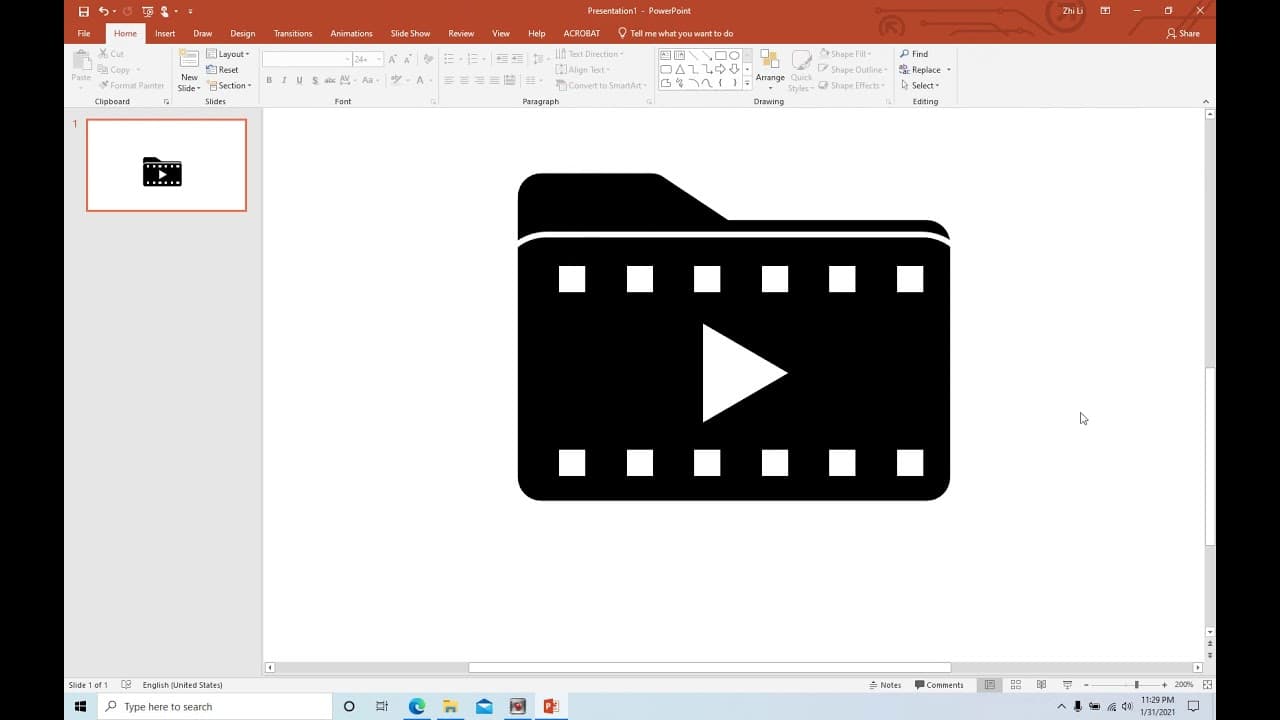
hello today i will show you how to change the folder icon using windows so this one actually the original photo uh the folder icon is like this you can customize your own photo icon like this when you click it it is actually a folder so inside the folder is only one picture so let's make the picture first i'm using a powerpoint let's create a new o... Read More
Key Insights
- 📁 Customizing folder icons enhances personal organization on Windows, allowing users to visually differentiate folders.
- 🎨 The process of creating a folder icon involves artistic design skills as well as basic functionalities in PowerPoint.
- 📁 Utilizing online conversion tools is essential for turning PNG images into ICO files necessary for Windows customization.
- 😒 Aligned and distributed shapes in PowerPoint can create a professional-looking icon suitable for personal use.
- 👤 The ability to change a folder's icon is a built-in feature within Windows, making customization straightforward for users.
- 👤 Users can experiment with different designs and colors, making folder organization a creative task.
- 💁 Saving images in the correct format is crucial for successful icon application; ICO is specifically required for Windows folders.
Install to Summarize YouTube Videos and Get Transcripts
Explore YouTube Video Summarizer or Get YouTube Transcript Extractor
Questions & Answers
Q: What tools are used to create the custom folder icon?
The process begins in PowerPoint, where various shapes like icons and triangles are utilized. The user inserts and adjusts shapes to form an icon. Once the design is complete, the image is saved in PNG format before being converted to ICO format for compatibility with Windows folder icons.
Q: How do you convert an image to an ICO file?
After creating the image in PowerPoint, it's saved as a PNG file. To convert this PNG into an ICO format, the user needs to visit a conversion website, upload the PNG file, and then download the resulting ICO file, which can be used for Windows folder icons.
Q: Can I use any image as a folder icon?
Yes, as long as the image is converted to ICO format. The tutorial showcases creating a custom-designed icon, but users can also use various existing images. The key requirement is that the image must be in ICO format to be applied successfully as a folder icon.
Q: What steps are involved in changing the folder icon in Windows?
To change a folder icon, right-click on the folder and select 'Properties'. Under the 'Customize' tab, click on 'Change Icon' and browse for the ICO file you created. Once selected, confirm the changes, and the folder will display the new custom icon.
Summary & Key Takeaways
-
The tutorial explains the step-by-step process of designing a custom folder icon using PowerPoint, focusing on using shapes and colors.
-
It guides viewers on how to convert images to ICO format using an online converter after saving the image as PNG, making it compatible for folder icons.
-
Finally, the video demonstrates the method to apply the newly created icon to a folder in Windows through folder properties customization settings.
Read in Other Languages (beta)
Share This Summary 📚
Summarize YouTube Videos and Get Video Transcripts with 1-Click
Try YouTube Summary with ChatGPT & Claude or YouTube Transcript Generator
Explore More Summaries from E Micro Tech 📚

Summarize YouTube Videos and Get Video Transcripts with 1-Click
Try YouTube Summary with ChatGPT & Claude or YouTube Transcript Generator