UI Animation Basics - InVision Studio
TL;DR
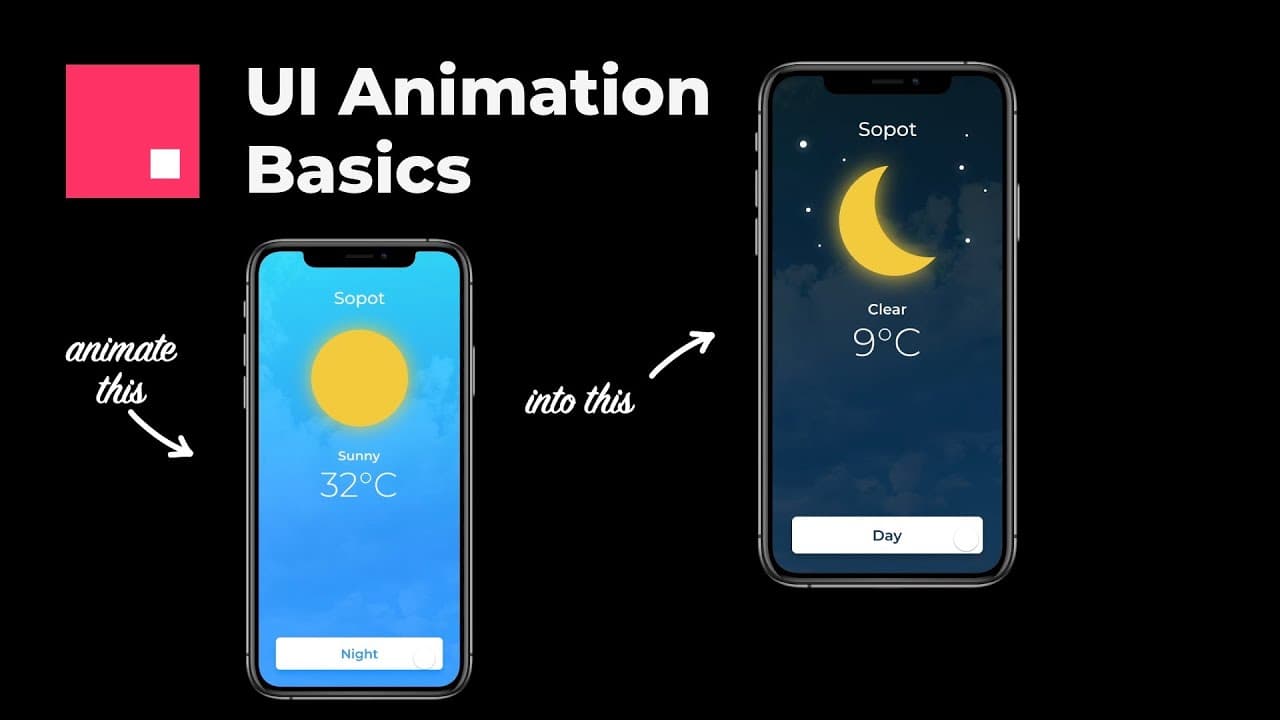
Learn the basics of animation in Envision Studio by creating a simple day-night transition with buttons, text, and background elements.
Transcript
okay so we're starting a new series today about the basics of animation in envision studio so first off I'm creating a screen the size of an iPhone and naming it screen number one then we create a background image and for this I'm gonna use a blue gradient once you're done with creating the gradient you can play around with the angle to make it a l... Read More
Key Insights
- 💻 Start by creating a screen with a background gradient and essential elements like buttons and text.
- 😒 Use layer naming and organization to keep track of different elements in the animation.
- 💠 Experiment with colors, shapes, and interactions to create dynamic effects in the animation.
- 🤩 Consider details like stars, moons, and subtle movements to add depth and visual interest.
- 👤 Interactive transitions between screens enhance the user experience.
- 🏆 Test the animation to ensure smooth transitions and adjust elements for a polished result.
- 🥳 Adding hourly temperatures for day and night can further enhance the animation's realism and engagement.
Install to Summarize YouTube Videos and Get Transcripts
Explore YouTube Video Summarizer or Get YouTube Transcript Extractor
Questions & Answers
Q: What are the key elements to consider when creating a basic animation in Envision Studio?
When creating a basic animation, focus on elements like background, buttons, text, and interactive transitions to showcase a simple but effective animation.
Q: How can adding subtle details like stars and a moon enhance the visual impact of the animation?
By adding stars, a moon, and adjusting element positions, you can create a day-night transition that adds depth and visual appeal to the animation.
Q: Why is naming layers and elements important in animation creation?
Naming layers and elements helps you stay organized and understand the composition of your animation, especially as you add more elements to the project.
Q: What role do interactions play in enhancing the user experience of an animation?
Interactions create a dynamic experience for users by allowing them to engage with and navigate through the animation, making it more interactive and engaging.
Summary & Key Takeaways
-
Start by creating an iPhone-sized screen with a blue gradient background and a button.
-
Add a sun element, text for temperature and weather, stars, and a moon for a day-night transition.
-
Create interactions between screens, adjust element positions, and test the animation for a basic but effective result.
Read in Other Languages (beta)
Share This Summary 📚
Summarize YouTube Videos and Get Video Transcripts with 1-Click
Try YouTube Summary with ChatGPT & Claude or YouTube Transcript Generator
Explore More Summaries from Malewicz 📚




Summarize YouTube Videos and Get Video Transcripts with 1-Click
Try YouTube Summary with ChatGPT & Claude or YouTube Transcript Generator