EASY SKY REPLACEMENT in Davinci Resolve 18 | Tutorial
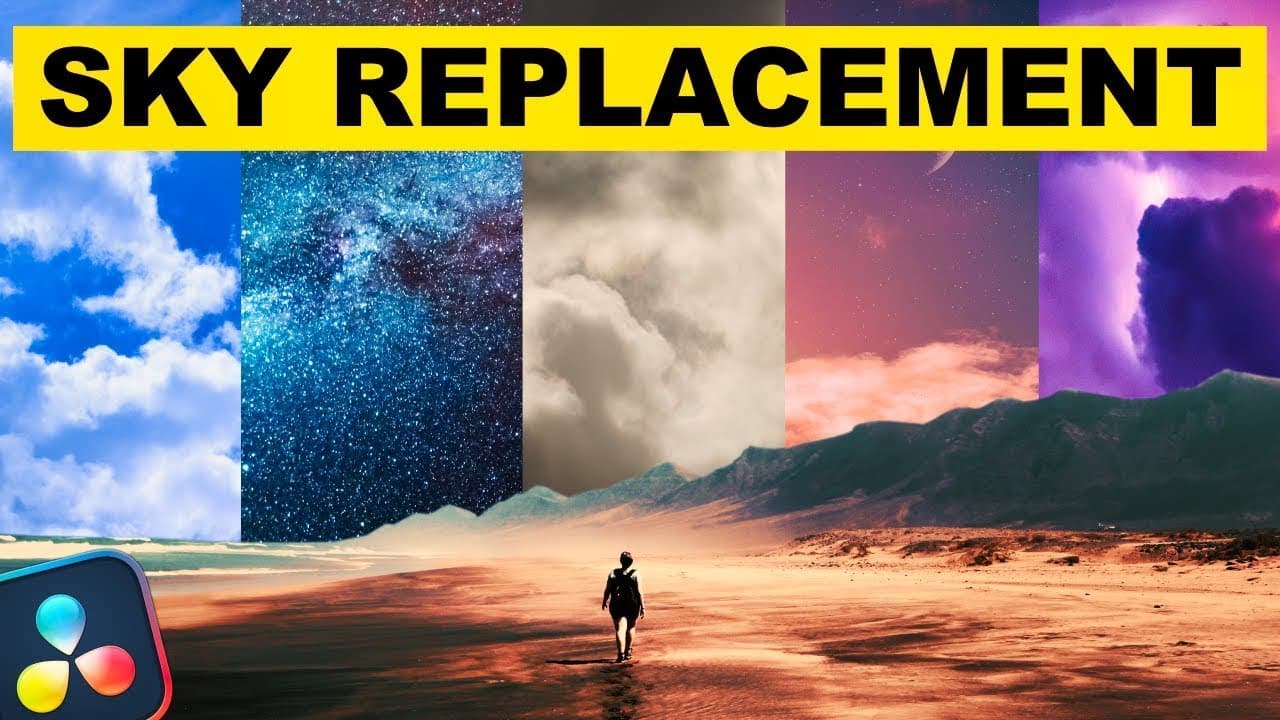
TL;DR
Learn how to easily change the sky in DaVinci Resolve without using Fusion, using the Color panel instead.
Transcript
In this video, I will teach you how to change the sky in DaVinci Resolve in the easiest way. Without using Fusion, we will do everything in the Color panel. The first step is to add a new Serial node. In this new node, we have to add a Layer node. And now with this node here, we will change the sky. In the node above, we will control the grass area... Read More
Key Insights
- 🏙️ Changing the sky in DaVinci Resolve can be done without using Fusion, using only the Color panel.
- 🔨 The Qualifier 3D tool can be used to select and eliminate the existing sky, while the Magic Wand tool helps with precise selection.
- 👶 Adjusting the position and proportions of the new sky can be done using the Match Move effect and the Positioning tool.
- 👶 It's important to track the movement of the original video and apply the Match Move effect to make the new sky follow the same movement.
- 🏙️ Color and lighting of the sky and the earth should be matched for a realistic result.
- 🏙️ The process of changing the sky is customizable, allowing users to experiment and try different skies.
- 👶 It's possible to replace the new sky with another one by simply deleting the old one and connecting the new sky.
Install to Summarize YouTube Videos and Get Transcripts
Explore YouTube Video Summarizer or Get YouTube Transcript Extractor
Questions & Answers
Q: How do you change the sky in DaVinci Resolve without using Fusion?
To change the sky in DaVinci Resolve without Fusion, add a new Serial node and a Layer node. Use the Qualifier 3D tool to select and eliminate the existing sky. Then, import a new sky and connect it to the node.
Q: How do you select the sky using the Qualifier 3D?
To select the sky using the Qualifier 3D in DaVinci Resolve, activate the selector and use the Magic Wand tool to select the entire sky. Pass the Qualifier over the sky, and if gray parts appear, use the Add Qualifier icon to include them.
Q: How do you adjust the position and proportions of the new sky?
To adjust the position and proportions of the new sky in DaVinci Resolve, apply the Match Move effect to the node with the new sky. Deactivate the use of Alpha OFX and click on Positioning in the Match Move effect to adjust the sky's position and proportions.
Q: How do you make the new sky follow the movement of the original video?
To make the new sky follow the movement of the original video in DaVinci Resolve, use the Tracking feature in the Match Move effect. Select one or more tracking points, track the movement of the video, and set the Output to Composite.
Key Insights:
- Changing the sky in DaVinci Resolve can be done without using Fusion, using only the Color panel.
- The Qualifier 3D tool can be used to select and eliminate the existing sky, while the Magic Wand tool helps with precise selection.
- Adjusting the position and proportions of the new sky can be done using the Match Move effect and the Positioning tool.
- It's important to track the movement of the original video and apply the Match Move effect to make the new sky follow the same movement.
- Color and lighting of the sky and the earth should be matched for a realistic result.
- The process of changing the sky is customizable, allowing users to experiment and try different skies.
- It's possible to replace the new sky with another one by simply deleting the old one and connecting the new sky.
- With creativity and practice, users can achieve various effects and transformations with their videos in DaVinci Resolve.
Summary & Key Takeaways
-
Add a new Serial node and a Layer node to change the sky in DaVinci Resolve.
-
Use the Qualifier 3D tool to select the sky and eliminate the existing sky.
-
Import a new sky, connect it to the node, and adjust its position and proportions using the Match Move effect.
Read in Other Languages (beta)
Share This Summary 📚
Summarize YouTube Videos and Get Video Transcripts with 1-Click
Try YouTube Summary with ChatGPT & Claude or YouTube Transcript Generator