How to plan your trip using google maps
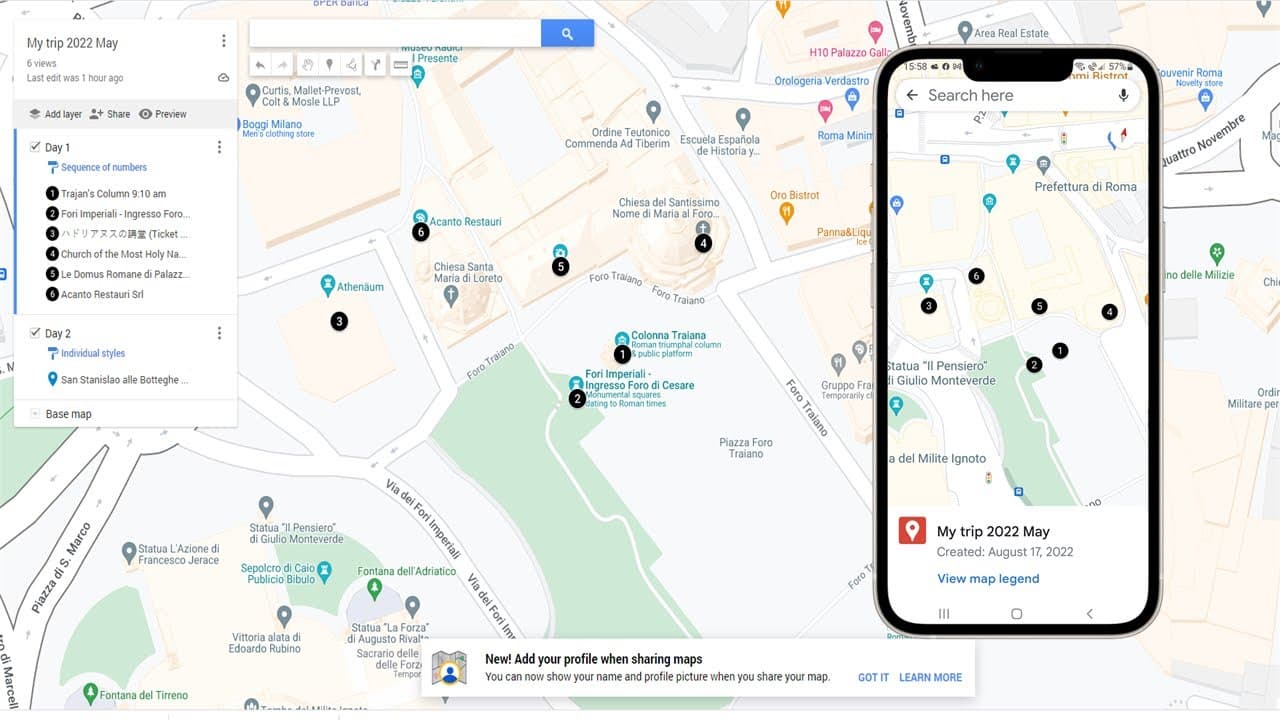
TL;DR
Learn how to effectively plan your trip using Google My Maps for better organization.
Transcript
hello in this video i will talk about how to plan your chip on google my map so when you plan your trip maybe you'll do your own research you'll have some place to want to visit maybe you already have tickets maybe this is fine you have tk's at eight o'clock and this one has tickets for 1 pm so you reply your trip you want to go to one two then may... Read More
Key Insights
- 🎞️ Google My Maps is a valuable tool for travelers to organize and visualize their trip itineraries.
- 😥 Users can create personalized maps that include points of interest, timing for visits, and essential details like ticket information.
- 👤 Customization options for colors and icons can enhance map visibility and user experience.
- 🥳 Organizing locations by days aids in better time management and reduces stress when traveling.
- 👪 Sharing capabilities facilitate collaboration in trip planning with family or friends.
- 🌱 The ability to rearrange plan locations on the map provides flexibility in planning.
- 🌱 Mobile access to Google My Maps ensures travelers can navigate their planned routes efficiently.
Install to Summarize YouTube Videos and Get Transcripts
Explore YouTube Video Summarizer or Get YouTube Transcript Extractor
Questions & Answers
Q: What is Google My Maps and how can it assist with trip planning?
Google My Maps is a customizable mapping tool that allows users to create personalized maps of locations they want to visit. It assists in trip planning by letting travelers add specific places, organize their itinerary, and visualize the journey. Users can search locations, add them to their map, and customize the details and layout, making it easier to plan their excursions efficiently.
Q: How do you add a location to your Google My Map?
To add a location, start by logging into your Google account and opening Google My Maps. You can search for your desired location using the search bar. Once you find the correct spot, click on it to reveal the option to add it to your map. After adding, you can customize it with a title and description, allowing for better organization of your travel plans.
Q: Can you customize the appearance of locations on My Maps?
Yes, you can customize how locations appear on your map by changing their colors and icons. When clicking on a location, an editor option appears where you can select a different icon or color. You can even upload custom icons for a more personalized visual experience, enhancing the clarity and appeal of your map.
Q: How can you organize your trip by days using Google My Maps?
You can organize your trip by creating different layers for each day within your My Maps. To do this, select “Add Layer” for a new day, and rename it accordingly. Then, you can add locations for that day. This allows for an organized view of your travel itinerary segmented by each day of the trip.
Q: Is it possible to rearrange the order of your trip locations on My Maps?
Yes, you can easily rearrange locations by simply clicking and holding the specific location in your listed sequence. You can drag it to your desired position, and Google My Maps will automatically update the numbering system based on your new order. This feature makes it convenient to adapt your travel plan as needed.
Q: How can you share your created map with others?
To share your created map, click on the share button within My Maps. You can then copy the generated link and send it to others via email or messaging platforms. Anyone with the link can view the map, making it easy to coordinate travel plans with friends or family members.
Q: Can you access your Google My Map from a mobile device?
Yes, you can access your Google My Maps from a mobile device by logging into the same Google account used to create the map. In the Google Maps app, navigate to the "Saved" section, scroll down to find your maps, and you can view the locations and navigate to them easily during your trip.
Summary & Key Takeaways
-
The video guides viewers on how to use Google My Maps to organize trip plans by adding locations and scheduling visits for specific times.
-
It explains the process of creating a map, including adding various points of interest, customizing icons, and organizing the itinerary by days.
-
Viewers are instructed on how to share their personalized maps with others and access them via mobile devices while traveling.
Read in Other Languages (beta)
Share This Summary 📚
Summarize YouTube Videos and Get Video Transcripts with 1-Click
Try YouTube Summary with ChatGPT & Claude or YouTube Transcript Generator
Explore More Summaries from E Micro Tech 📚

Summarize YouTube Videos and Get Video Transcripts with 1-Click
Try YouTube Summary with ChatGPT & Claude or YouTube Transcript Generator