How to Use the Samsung Galaxy A15 as a Beginner
TL;DR
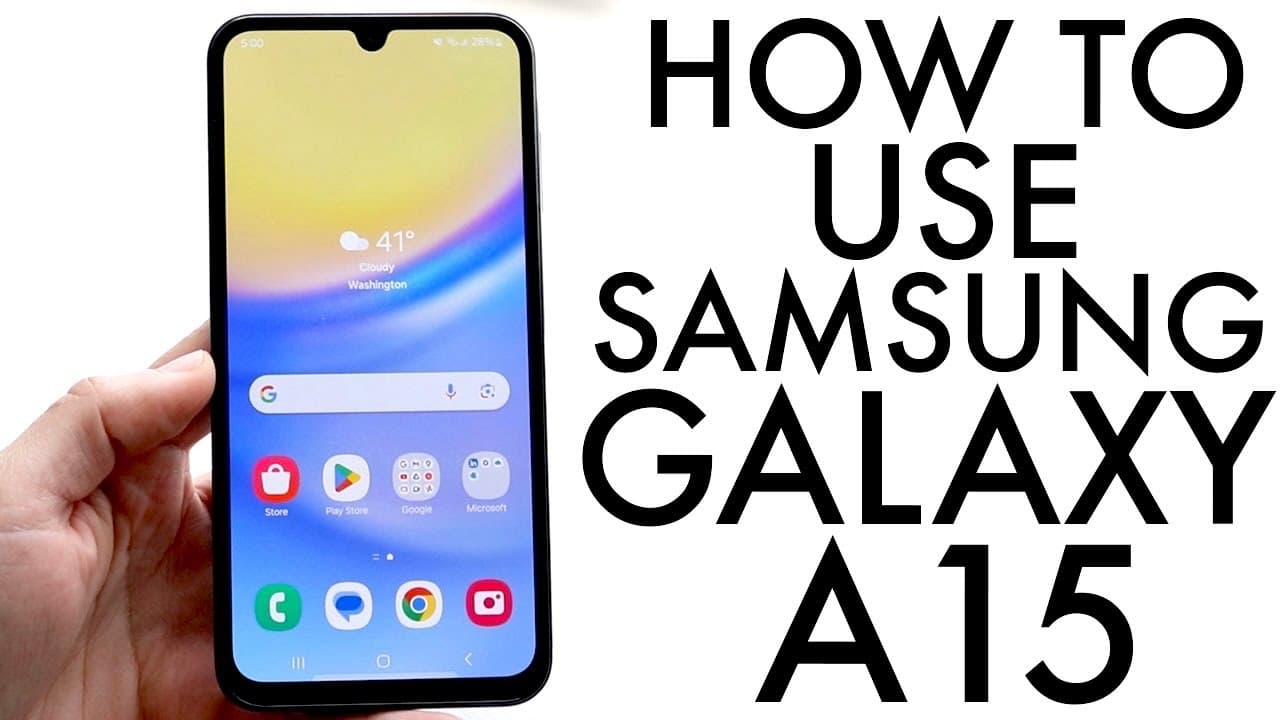
To use the Samsung Galaxy A15, start by inserting your SIM card and powering on the device. The phone features a 90Hz AMOLED display and intuitive navigation options, making it easy to customize your home screen and access apps. Key features include quick access to notifications and an extensive settings menu for better management.
Transcript
so the Samsung Galaxy a15 ended up coming around so I wanted to go and make a video of explaining completely how to use this phone as a beginner so if you're a complete beginner this is essentially how to use this device it's not anything super insane it's a pretty good phone but let's go and break it down exactly how to use it now on the exterior ... Read More
Key Insights
- 🈸 The Samsung Galaxy A15 features an advanced AMOLED display that enhances visual quality for various applications.
- 😀 Users can easily manage their apps through drag-and-drop functionality and create folders for better organization.
- 🎨 Noticeable design elements include thick bezels and a plastic body, which contribute to the phone’s durability and aesthetic appeal.
- ✊ Powering the device can be achieved through double tapping on the screen or pressing the side power button, offering convenience.
- 😑 Essential applications such as the camera and browser are pre-installed, streamlining the user setup process upon activation.
- 👻 The settings menu offers extensive configurability, allowing users to adjust connectivity, sound, display, and updates effectively.
- 🤢 Notifications are accessible through the status bar and can be managed alongside quick setting toggles for efficiency.
Install to Summarize YouTube Videos and Get Transcripts
Explore YouTube Video Summarizer or Get YouTube Transcript Extractor
Questions & Answers
Q: What are the key features of the Samsung Galaxy A15 display?
The Samsung Galaxy A15 features an AMOLED display with a 90Hz refresh rate, which is a significant upgrade from previous models. This combination provides vibrant colors and smooth scrolling, enhancing the overall user experience. The Infinity U design at the top offers more screen real estate, although it has thicker bezels around the display. This layout ensures users enjoy a pleasing visual experience while utilizing the device.
Q: How do you insert the SIM card and microSD card in the galaxy A15?
Inserting the SIM card and microSD card into the Samsung Galaxy A15 is straightforward. Use the SIM card eject tool to open the slot located at the top left of the phone. Once opened, insert your nano SIM into one side and a microSD card into the other side. After placing the cards correctly, slide the tray back into the phone until it clicks securely in place. This process allows you to expand your storage capabilities and gain mobile connectivity seamlessly.
Q: What navigation options does the Samsung Galaxy A15 offer?
The Samsung Galaxy A15 supports multiple navigation options, including traditional buttons and gesture navigation. Users can return to the previous screen using the back button, access recent applications through the multitasking icon, and quickly return to the home screen. Additionally, swiping up from the bottom offers access to the app drawer, while the status bar provides notifications and quick settings, improving overall usability.
Q: How can users customize the home screen and app layout on the Galaxy A15?
Users can easily customize their Galaxy A15 home screen by tapping and holding app icons to move, remove, or create folders. To add widgets, tap the "+" icon on the home screen, allowing for further personalization. Apps can also be rearranged among various pages, ensuring users can access their most-used applications quickly. This configurability enables an optimized and organized experience tailored to personal preferences.
Summary & Key Takeaways
-
The Samsung Galaxy A15 features a 90Hz AMOLED display and has a user-friendly design, making it appealing for new users.
-
Setting up the phone involves easy steps such as inserting a SIM card, powering it on, and customizing the home screen and settings.
-
The device offers various navigation options, application management, and essential features, including notification handling and accessibility to system settings.
Read in Other Languages (beta)
Share This Summary 📚
Summarize YouTube Videos and Get Video Transcripts with 1-Click
Try YouTube Summary with ChatGPT & Claude or YouTube Transcript Generator
Explore More Summaries from Simple Alpaca 📚

Summarize YouTube Videos and Get Video Transcripts with 1-Click
Try YouTube Summary with ChatGPT & Claude or YouTube Transcript Generator