OBS How to add frame to webcam
TL;DR
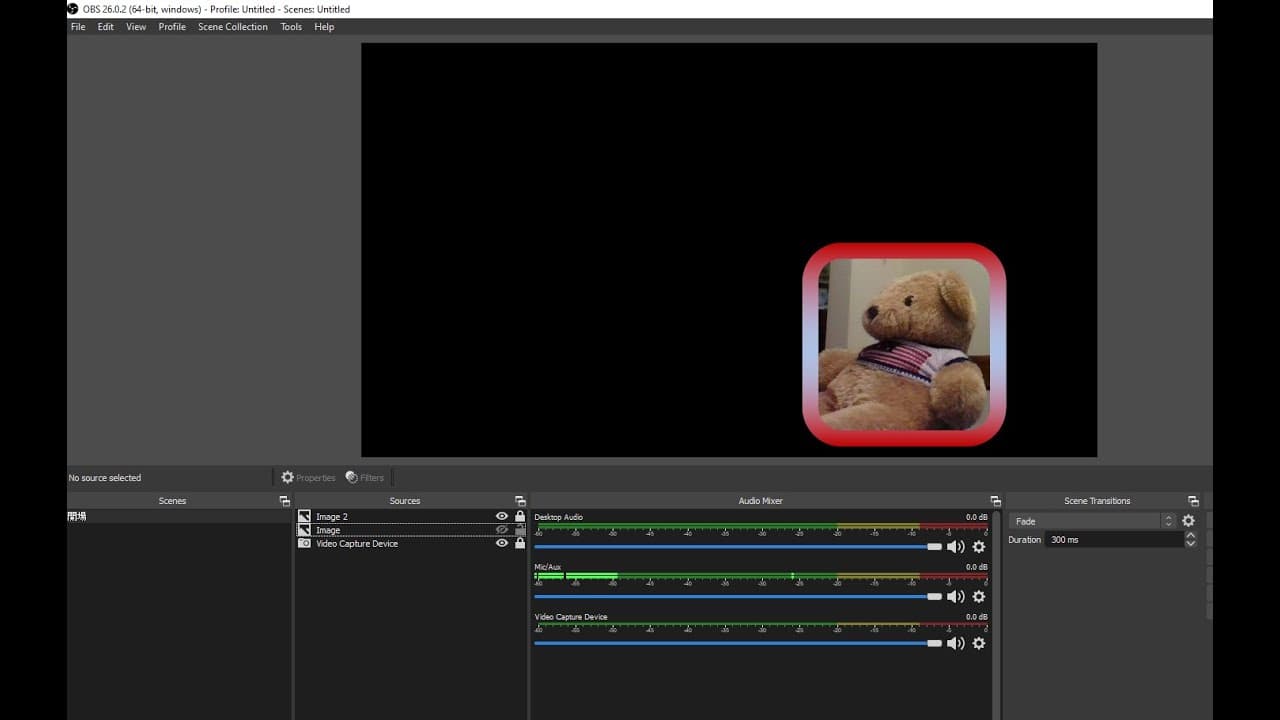
This content explains how to add a frame to a webcam in OBS using PowerPoint.
Transcript
okay this time i will show you how to add a frame to the web camera using obs so let's add the web camera first so when you add the video capture device first by adding the web camera click ok move it to the corner and then we we want to add a frame to the camera so first let's hold the shift down and alt key to adjust the webcam area so we only wa... Read More
Key Insights
- 😭 OBS allows users to enhance their live streaming or recording setups with custom overlays and frames, improving visual appeal.
- 🤱 Incorporating design software such as PowerPoint can simplify the process of creating tailored frames for webcam feeds.
- 👀 Adjusting the size and position of frame images in OBS can be crucial for creating a polished look during streams or recordings.
- 🪡 The combination of PowerPoint and OBS provides a straightforward method for beginners to create customized streaming graphics without needing advanced graphic skills.
- 🫵 A well-designed frame can help differentiate the streamer’s brand and make their video content more engaging for viewers.
- 🕴️ PowerPoint’s shape drawing tools are versatile and can create various designs to suit different streaming themes or styles.
- 👻 Saving the created frame as an image file allows for easy integration into OBS, streamlining the workflow for users.
Install to Summarize YouTube Videos and Get Transcripts
Explore YouTube Video Summarizer or Get YouTube Transcript Extractor
Questions & Answers
Q: What is OBS and why is it used for webcam streaming?
OBS, or Open Broadcaster Software, is a free and open-source software for video recording and live streaming. It is commonly used for streaming live events, gameplay, and video conferencing because it allows users to combine multiple video sources, manage layouts, and add high-quality graphics, including their webcam feeds.
Q: How can I create a frame for my webcam using PowerPoint?
To create a webcam frame in PowerPoint, start by inserting a shape with no fill and a solid outline. Adjust its size to encase your webcam feed by holding down the Shift and Alt keys while drawing. Customize the outline color, save the design as an image, and it’s ready for use in OBS.
Q: Can I use any other software to create webcam frames besides PowerPoint?
Yes, while PowerPoint is effective for creating frames, other graphic design software such as Adobe Photoshop, GIMP, or Canva can also be utilized. Each of these programs offers more advanced design features, allowing for greater customization and quality in creating unique frames for your webcam.
Q: After adding the frame in OBS, how do I adjust its size and position?
Once the frame image is added in OBS, you can click on it to select it. Use your mouse to resize the frame by dragging the corners and move it to your desired position on the screen. Additionally, you can adjust the webcam feed behind the frame using similar methods to ensure proper alignment.
Summary & Key Takeaways
-
The video tutorial demonstrates adding a webcam source in OBS through the video capture device setting, guiding viewers on its placement in the scene.
-
It details the process of creating a custom frame using PowerPoint, including drawing shapes, setting colors, and saving the design as an image.
-
Finally, the content explains how to import the saved frame into OBS, adjust its position, and ensure it aligns perfectly with the webcam feed for an enhanced visual appearance.
Read in Other Languages (beta)
Share This Summary 📚
Summarize YouTube Videos and Get Video Transcripts with 1-Click
Try YouTube Summary with ChatGPT & Claude or YouTube Transcript Generator
Explore More Summaries from E Micro Tech 📚

Summarize YouTube Videos and Get Video Transcripts with 1-Click
Try YouTube Summary with ChatGPT & Claude or YouTube Transcript Generator