How to Use Roblox Studio: A Beginner's Guide
TL;DR
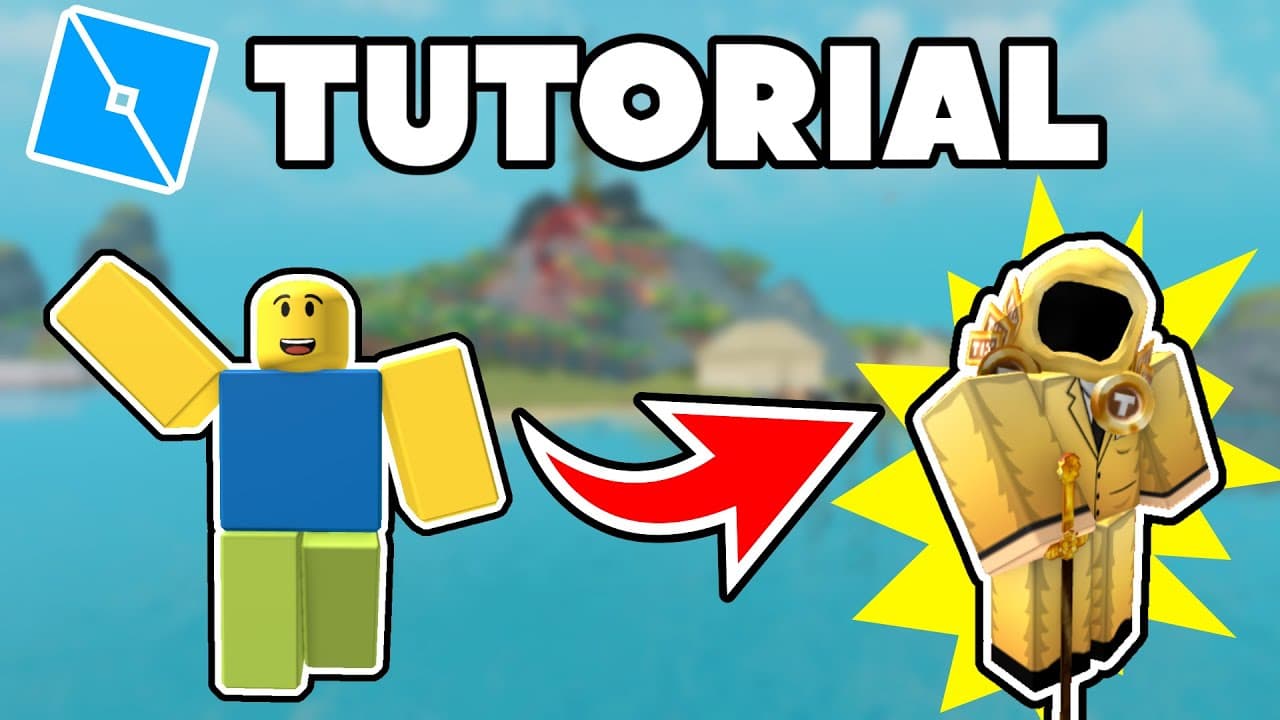
Master the fundamentals of Roblox Studio by downloading the software and learning to navigate its interface. Create and edit objects, customise materials and colours, and utilise features like the terrain editor and toolbox to build your own games. Finally, discover how to playtest and publish your creations.
Transcript
hey what's up guys it's cover code here and in today's video I'm going to be teaching you the absolute Basics on how to use Roblox studio now let's not waste any time and get right to it now the first thing you actually need to do is download Roblox studio so I have a link in the description below taking you to the page I am currently on and this w... Read More
Key Insights
- 🍻 Roblox Studio is a software used to create games on the Roblox platform and can be downloaded from the provided link.
- 🎮 Navigating in Roblox Studio is similar to navigating in a game, using WASD keys and mouse controls.
- 🉑 The interface can be customized, including choosing a dark theme and making different tabs visible.
- 🧰 You can create and edit objects using tools like Move, Scale, and Rotate, and use the toolbox to add pre-made objects to your game.
- 🏏 The terrain editor tool allows for creating and modifying the terrain in your game.
- ▶️ Playtesting your game helps you see how it functions and can be done by clicking the play button.
- 🏏 Publishing your game requires filling in information about the game and clicking the publish button.
Install to Summarize YouTube Videos and Get Transcripts
Explore YouTube Video Summarizer or Get YouTube Transcript Extractor
Questions & Answers
Q: How do I download Roblox Studio?
To download Roblox Studio, go to the link provided in the video description and click on the download button. Install the software like any other program and open it.
Q: How do I navigate in Roblox Studio?
You can use the WASD keys to move around, Q to move forward, E to move backward, and hold the right mouse button to look around. Experiment with these controls to navigate in the 3D environment.
Q: Can I customize the interface in Roblox Studio?
Yes, you can customize the interface by accessing the View button and making different tabs visible. You can also anchor and lock objects in place, and change the theme to a dark mode.
Q: How can I create and edit objects in Roblox Studio?
To create objects, use the Insert Objects tab in the Model tab. You can then use tools like the Move, Scale, and Rotate tools to manipulate and modify the objects.
Q: What is the terrain editor tool used for?
The terrain editor tool allows you to create and modify terrain in your game. You can generate terrain, add or subtract terrain, grow or erode the terrain, and use various other tools to sculpt the landscape.
Q: How can I use the toolbox in Roblox Studio?
The toolbox provides a selection of pre-made objects created by other users. You can search for specific objects, such as a house or a horse, and drag them into your game to use them.
Q: How can I playtest my game in Roblox Studio?
Click on the play button to test your game. You can choose to play in the camera view or at the default spawn location. You can also press run to move around with the camera view.
Q: How do I publish my game in Roblox Studio?
To publish your game, click on the file button and select "Publish to Roblox." Fill in the necessary information, such as game genre, platform availability, and a brief description, and click create to publish your game.
Key Insights:
- Roblox Studio is a software used to create games on the Roblox platform and can be downloaded from the provided link.
- Navigating in Roblox Studio is similar to navigating in a game, using WASD keys and mouse controls.
- The interface can be customized, including choosing a dark theme and making different tabs visible.
- You can create and edit objects using tools like Move, Scale, and Rotate, and use the toolbox to add pre-made objects to your game.
- The terrain editor tool allows for creating and modifying the terrain in your game.
- Playtesting your game helps you see how it functions and can be done by clicking the play button.
- Publishing your game requires filling in information about the game and clicking the publish button.
- Experimenting with different features and tools in Roblox Studio can enhance your game-making abilities.
Summary & Key Takeaways
-
The content is a tutorial on how to use Roblox Studio, starting with downloading the software and exploring its features.
-
The tutorial covers navigation in Roblox Studio, including using the WASD keys, mouse controls, and moving around in the 3D environment.
-
It explains how to create and edit objects, change materials and colors, use tools like the terrain editor and the toolbox, and how to playtest and publish your games.
Read in Other Languages (beta)
Share This Summary 📚
Summarize YouTube Videos and Get Video Transcripts with 1-Click
Try YouTube Summary with ChatGPT & Claude or YouTube Transcript Generator
Explore More Summaries from CovertCode 📚
Summarize YouTube Videos and Get Video Transcripts with 1-Click
Try YouTube Summary with ChatGPT & Claude or YouTube Transcript Generator