How to Screen Record with Internal Audio on QuickTime Player
TL;DR
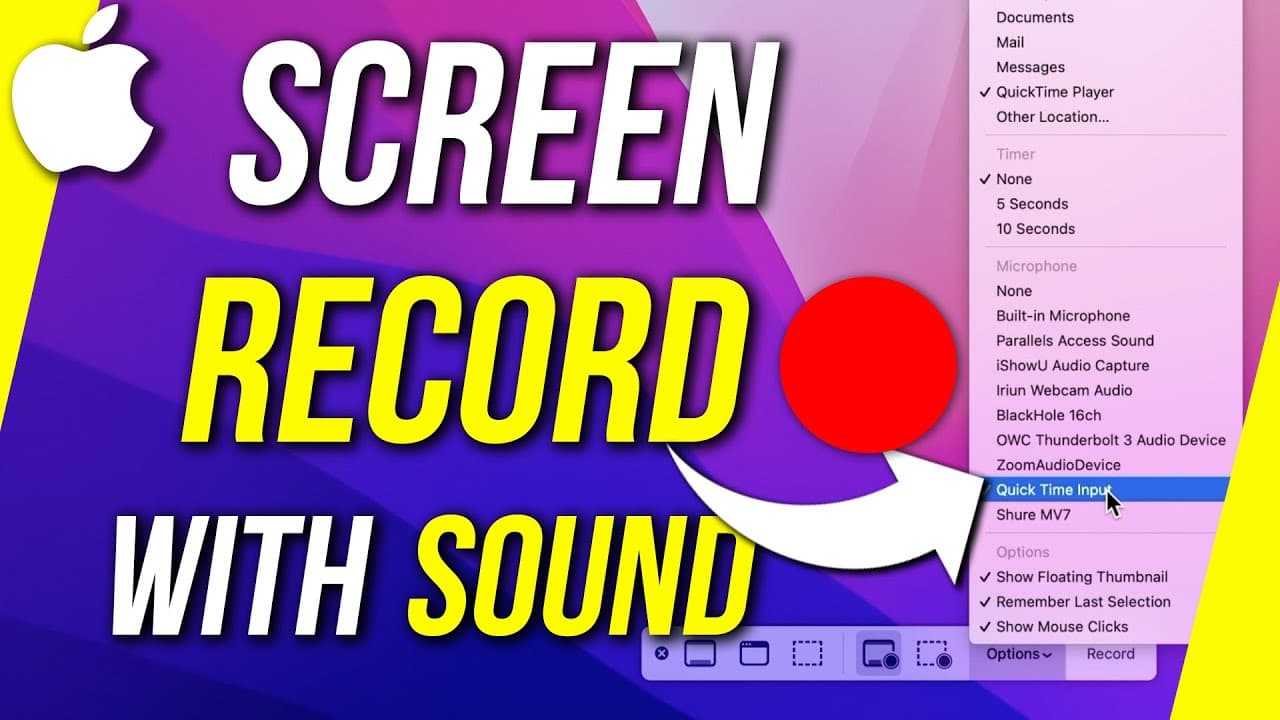
Learn how to use QuickTime Player to record your screen and capture internal audio on a Mac.
Transcript
quicktime player is one of the simplest and easiest way to record your computer screen and it comes installed on every single mac so if you have a mac desktop or if you have a mac laptop you already have quicktime player so in the first half of the video i'll show you how to record your screen with the quicktime player and some of the advanced opti... Read More
Key Insights
- 💻 QuickTime Player on Mac allows for simple screen recording with options for full screen or a selected portion.
- 🤙 Capturing internal audio on Mac requires installing a plugin called Black Hole.
- 😫 Setting up aggregate and multi-output devices in Audio MIDI Setup is essential for recording internal audio.
- 👂 Choosing the correct input in System Preferences for sound output is crucial for successful screen recording with internal audio.
- 💻 QuickTime Player provides a straightforward interface for capturing screen recordings with various customization options.
- 🎙️ External microphones like the Shure MV7 can enhance the audio quality during screen recording on a Mac.
- 📛 Properly naming and organizing devices in Audio MIDI Setup simplifies the process of capturing internal audio.
Install to Summarize YouTube Videos and Get Transcripts
Explore YouTube Video Summarizer or Get YouTube Transcript Extractor
Questions & Answers
Q: How can QuickTime Player be used to record a Mac screen?
QuickTime Player allows you to record your Mac screen by selecting the screen recording option and utilizing different recording options like full screen or selected portion.
Q: What additional steps are required to capture internal audio on a Mac?
To capture internal audio, you need to install the Black Hole plugin, set up aggregate and multi-output devices in Audio MIDI Setup, change sound output in System Preferences, and select QuickTime input in QuickTime Player.
Q: Can external microphones be used for better audio quality during screen recording?
Yes, external microphones like the Shure MV7 can be selected in QuickTime Player for recording to ensure higher audio quality compared to the built-in microphone.
Q: Is it necessary to adjust System Preferences for sound output during screen recording?
Yes, changing the sound output in System Preferences to the designated screen recording audio is crucial for recording internal audio along with the screen.
Summary & Key Takeaways
-
QuickTime Player on Mac is perfect for screen recording with simple options like full screen or selected portion.
-
To record internal audio, install a plugin called Black Hole, set up aggregate and multi-output devices, then select QuickTime input in QuickTime Player.
-
Ensure to adjust System Preferences for sound output and follow the steps correctly for successful screen recording with internal audio.
Read in Other Languages (beta)
Share This Summary 📚
Summarize YouTube Videos and Get Video Transcripts with 1-Click
Try YouTube Summary with ChatGPT & Claude or YouTube Transcript Generator
Explore More Summaries from Howfinity 📚


Summarize YouTube Videos and Get Video Transcripts with 1-Click
Try YouTube Summary with ChatGPT & Claude or YouTube Transcript Generator