How to use iPad as second monitor and use touch screen for MacBook free
TL;DR
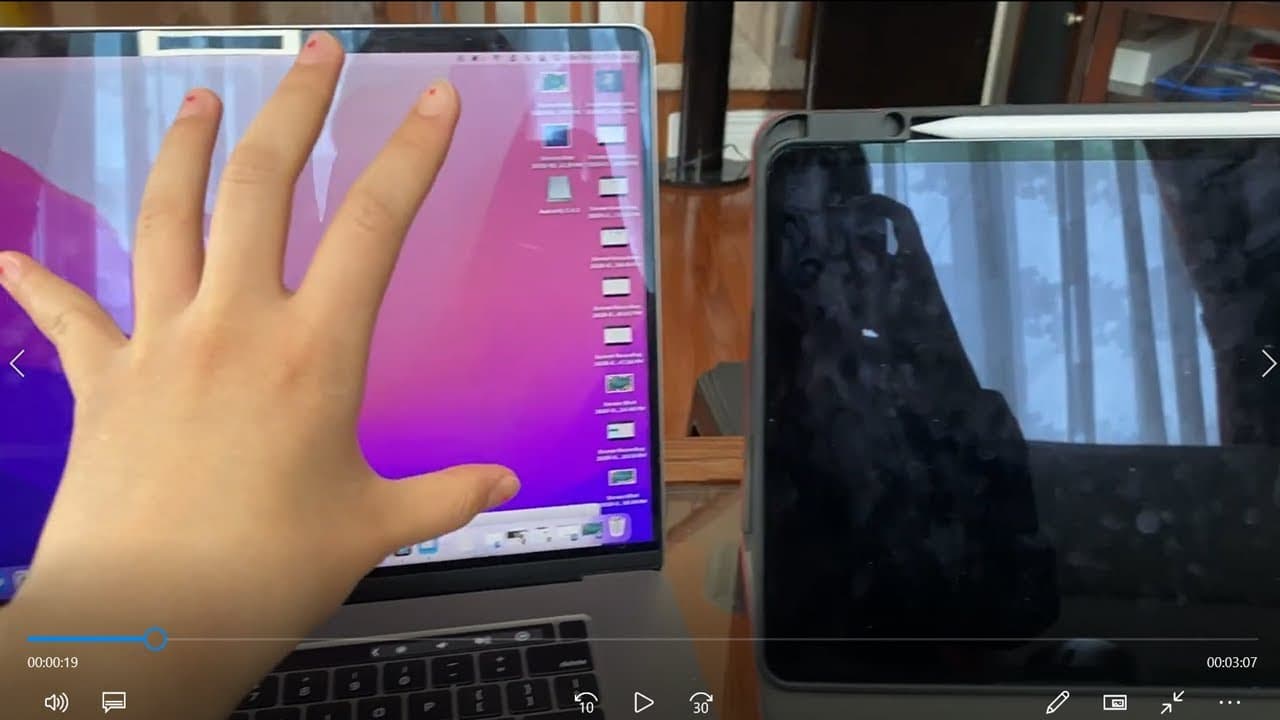
Learn how to connect your MacBook to iPad for drawing.
Transcript
hey everyone today we'll be learning how to connect the macbook with the ipad while still being able to draw on the ipad so basically what you can achieve with this is that for example if you were working on an animation on the macbook but you wanted to be able to draw then you could basically move the tab from the macbook onto the ipad so that you... Read More
Key Insights
- 👻 Connecting a MacBook to an iPad allows users to enhance creative workflows, specifically in drawing and animation tasks.
- 😄 The setup process involves simple configurations in Apple ID and Wi-Fi settings, ensuring ease of access.
- 👤 Users can utilize the full-screen feature on the iPad to draw, enabling a fluid transition between using a mouse and a stylus.
- 💨 This method represents a new way to combine the capabilities of both macOS and iOS, improving overall user experience.
- 💦 The ability to drag and drop tabs increases productivity, particularly for artists needing to work efficiently across devices.
- ❓ While touch functionality is limited, using a stylus enriches the drawing experience significantly.
- 😀 Utilizing drawing apps on the iPad can provide additional creative options while connecting it to a MacBook.
Install to Summarize YouTube Videos and Get Transcripts
Explore YouTube Video Summarizer or Get YouTube Transcript Extractor
Questions & Answers
Q: What is the primary advantage of connecting a MacBook to an iPad as described?
The primary advantage is the ability to draw directly on the iPad while still using the MacBook seamlessly for tasks like animation. This setup allows users to utilize the benefits of both devices, using the iPad’s touchscreen features alongside the MacBook’s capabilities, enhancing overall productivity and creativity.
Q: What preliminary steps must be taken before connecting the devices?
Before connecting, ensure both devices are signed in with the same Apple ID and connected to the same Wi-Fi network. These steps are crucial for a successful connection, as they allow for the two devices to communicate effectively and share displays.
Q: How does the screen mirroring process work when using the devices?
The screen mirroring process involves opening the settings on the MacBook, navigating to displays, and selecting the iPad from the list of available devices. Once connected, users can drag windows or tabs from the MacBook's screen to the iPad, turning the iPad into an additional display for drawing.
Q: Can you use touch controls on the iPad when connected this way?
Unfortunately, touch controls do not work for moving items on the iPad in this setup; users need to use a stylus or compatible pen for interaction when drawing or selecting items. While Apple Pencil is ideal, other styluses can function well for this purpose.
Summary & Key Takeaways
-
This content explains how to connect a MacBook and an iPad for enhanced drawing capabilities, specifically for tasks like animation.
-
To successfully connect both devices, ensure they are using the same Apple ID and are on the same Wi-Fi network.
-
The user can drag tabs from the MacBook onto the iPad, allowing for easy drawing while still utilizing the MacBook's functionalities.
Read in Other Languages (beta)
Share This Summary 📚
Summarize YouTube Videos and Get Video Transcripts with 1-Click
Try YouTube Summary with ChatGPT & Claude or YouTube Transcript Generator
Explore More Summaries from E Micro Tech 📚

Summarize YouTube Videos and Get Video Transcripts with 1-Click
Try YouTube Summary with ChatGPT & Claude or YouTube Transcript Generator