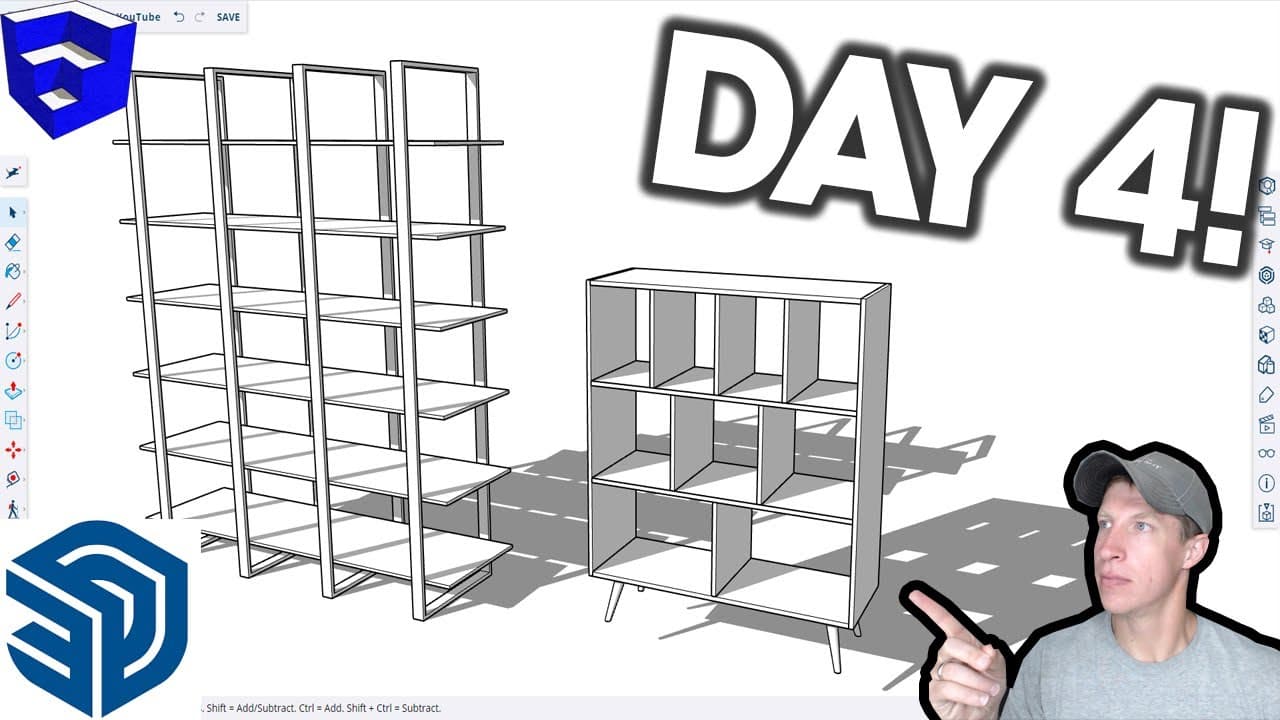
Learn SketchUp in 30 Days DAY 4 - Modeling Shelves!
TL;DR
Learn how to create shelves in SketchUp with step-by-step instructions and tips.
Transcript
all right so in part 4 of our 30-day modeling for sketchup series we're going to create a pair of shelves let's go ahead and just jump into it all right so we're going to start off right here and what we want to do is we want to start by drawing out a rectangle so in this case we're going to come in here we're going to tap the r key to activate the... Read More
Key Insights
- 📐 The video is part of a 30-day modeling series for SketchUp and focuses on creating a pair of shelves.
- 🛠 The video demonstrates how to draw a rectangle, give it thickness, and create a component called "vertical support" for the shelves.
- 👀 The video shows how to use the move tool and copy mode to duplicate the vertical support component for the shelves.
- 📏 The video explains how to create guides and use them to create equally spaced copies of the shelves.
- 📚 The video mentions subscribing to the SketchUp Essentials channel for more tutorials and tips.
- 📂 The video explains how to create a component for the first shelf and use the move tool and copy mode to create multiple copies of it.
- 📌 The video demonstrates how to draw a profile for the exterior boards of another shelf and use the push/pull tool to give it height.
- 📏 The video explains how to use guides, the move tool, and copy mode to create dividers within a shelf and copy them to other shelves.
Install to Summarize YouTube Videos and Get Transcripts
Explore YouTube Video Summarizer or Get YouTube Transcript Extractor
Questions & Answers
Q: How do you create the initial rectangle for the shelf?
To create the initial rectangle for the shelf, activate the rectangle tool by tapping the "r" key and draw a rectangle of desired height and depth using arrow keys to lock the axis.
Q: How do you copy the shelf to create additional shelves with equal spacing?
After converting the shelf into a component, use the tape measure tool to create a guide at a desired spacing, activate the move tool with the "m" key, hold "control," and move the shelf to align with the guide. Then type "/[number of copies]" to create equally spaced copies.
Q: How are the vertical supports for the shelves created?
Draw a line across the shelf using the line tool, right-click, and select "divide" to create segments. Use the move tool in copy mode to create copies of the shelf and align them with the segments.
Q: How can you add legs to the shelf with a tapered and sloped design?
Start by drawing a circle to mark the leg's position and push-pull it to the desired height. Select the leg, tap the "s" key, hold "control," and single click to give it a taper. Then, select the leg and move it on the green axis to create an outward slope. Duplicate the leg and align it with the corners of the shelf.
Summary & Key Takeaways
-
Start by drawing a rectangle for the shelf, giving it thickness and height.
-
Copy the shelf to create additional shelves, with equal spacing and different heights.
-
Model the side supports, horizontal boards, and vertical dividers to complete the shelves.
Read in Other Languages (beta)
Share This Summary 📚
Summarize YouTube Videos and Get Video Transcripts with 1-Click
Try YouTube Summary with ChatGPT & Claude or YouTube Transcript Generator
Explore More Summaries from TheSketchUpEssentials 📚

Summarize YouTube Videos and Get Video Transcripts with 1-Click
Try YouTube Summary with ChatGPT & Claude or YouTube Transcript Generator