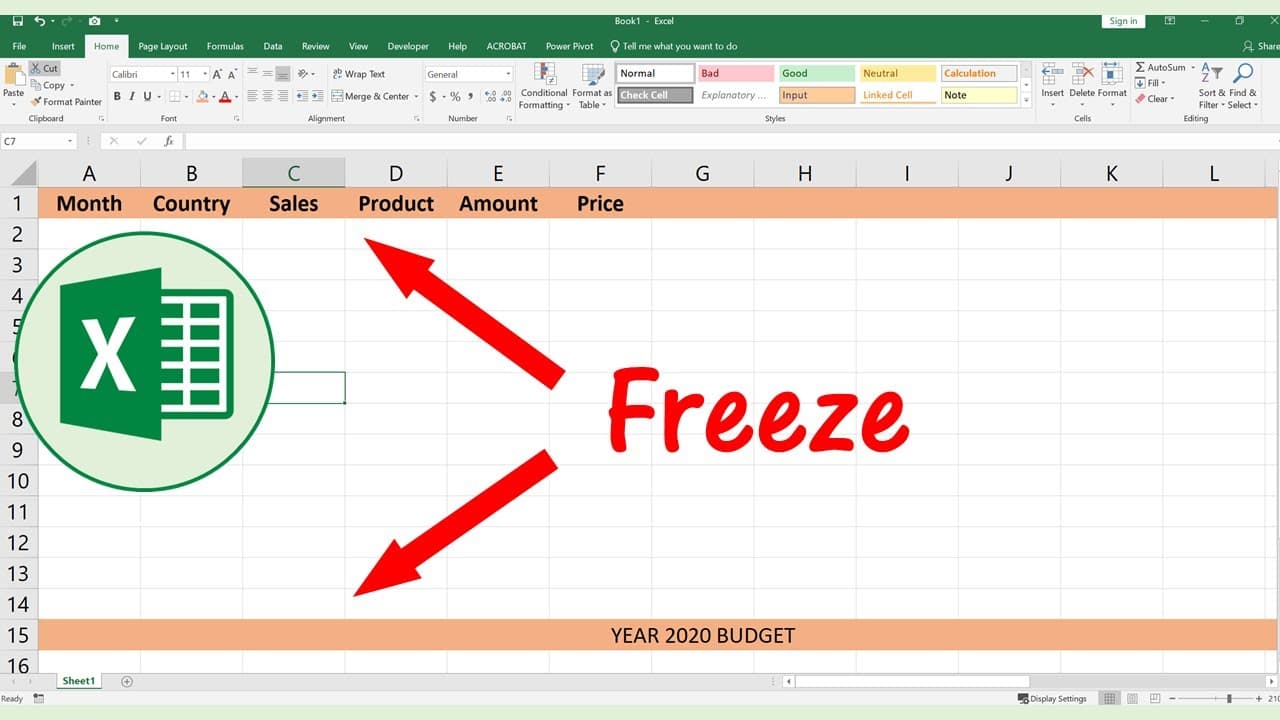
EXCEL how to freeze bottom row and top row at the same time
TL;DR
Learn how to freeze both the top and bottom rows in Excel.
Transcript
hello last time were talking about how to freeze the first row but how about we freeze the first row and the bottom line together so when we scroll down you can see the first row still freezing and also the bottom line not moving okay so lets me show you how to do that let's open a new one and from here lets me make it larger so you can see it clea... Read More
Key Insights
- 🤨 Freezing rows in Excel helps users maintain visibility on important headers or summary information as they work with lengthy datasets.
- 💦 Removing unnecessary features like drop-down menus enhances the table's clarity and usability for users who need straightforward access to their data.
- 🫥 The 'View' and 'Merge' functions in Excel are powerful tools for managing how data is displayed and ensuring important information remains visible while scrolling.
- 🥶 The process of creating a table requires diligent attention to settings, especially when it comes to headers, ensuring data is well structured for manipulation and freezing.
- 💁 Users can format their tables by changing colors and deleting unneeded columns, streamlining their data for presentations or analysis.
- 🫵 Understanding the functionality of splitting screens in Excel adds another layer of flexibility for reviewing different sections of data while keeping critical information in view.
- 😚 Properly utilizing Excel’s features can lead to better data management and efficiency in handling extensive information without losing track of important entries.
Install to Summarize YouTube Videos and Get Transcripts
Explore YouTube Video Summarizer or Get YouTube Transcript Extractor
Questions & Answers
Q: How do you start the process of freezing rows in Excel?
To begin freezing rows in Excel, you need to select the specific table area that contains your data. It’s essential to ensure that the option for “My table has headers” is checked while inserting the table. This will set up a proper structure for your data, making it easier to manage the freezing of both the first and last rows later on.
Q: What steps should you take to remove drop-down menus from the table?
To eliminate drop-down menus from your table, select the table area and go to the 'Design' tab. There, you can uncheck the options for 'Banded Rows' and 'Filter Button.' This will simplify your table’s appearance by removing unwanted features, such as automatic filtering, allowing for improved readability and clarity of the displayed data.
Q: How can you freeze the bottom row after freezing the first row?
To achieve a freeze on the bottom row, after ensuring the first row is frozen, you can use the 'View' tab. Select a row towards the end of your table and choose 'Split.' This action allows for the bottom row to remain visible as you scroll down your worksheet, thus making both the first and last rows accessible simultaneously while navigating through the data.
Q: What is the benefit of merging cells in Excel during this process?
Merging cells in Excel can be beneficial, particularly when you want to create a clearer presentation for headers or summary rows. It allows multiple cells to combine into a single larger cell, providing a seamless look and improved readability. This can be particularly useful when ensuring that your frozen rows have aligned data or titles that stand out.
Summary & Key Takeaways
-
This content explains how to freeze the first row and the bottom row in an Excel spreadsheet, allowing visibility while scrolling.
-
It details the steps to create a table with headers and remove unnecessary elements, such as drop-down menus.
-
The video guides viewers through using the 'View' and 'Merge' functions to ensure both the top and bottom lines remain visible while scrolling.
Read in Other Languages (beta)
Share This Summary 📚
Summarize YouTube Videos and Get Video Transcripts with 1-Click
Try YouTube Summary with ChatGPT & Claude or YouTube Transcript Generator
Explore More Summaries from E Micro Tech 📚

Summarize YouTube Videos and Get Video Transcripts with 1-Click
Try YouTube Summary with ChatGPT & Claude or YouTube Transcript Generator