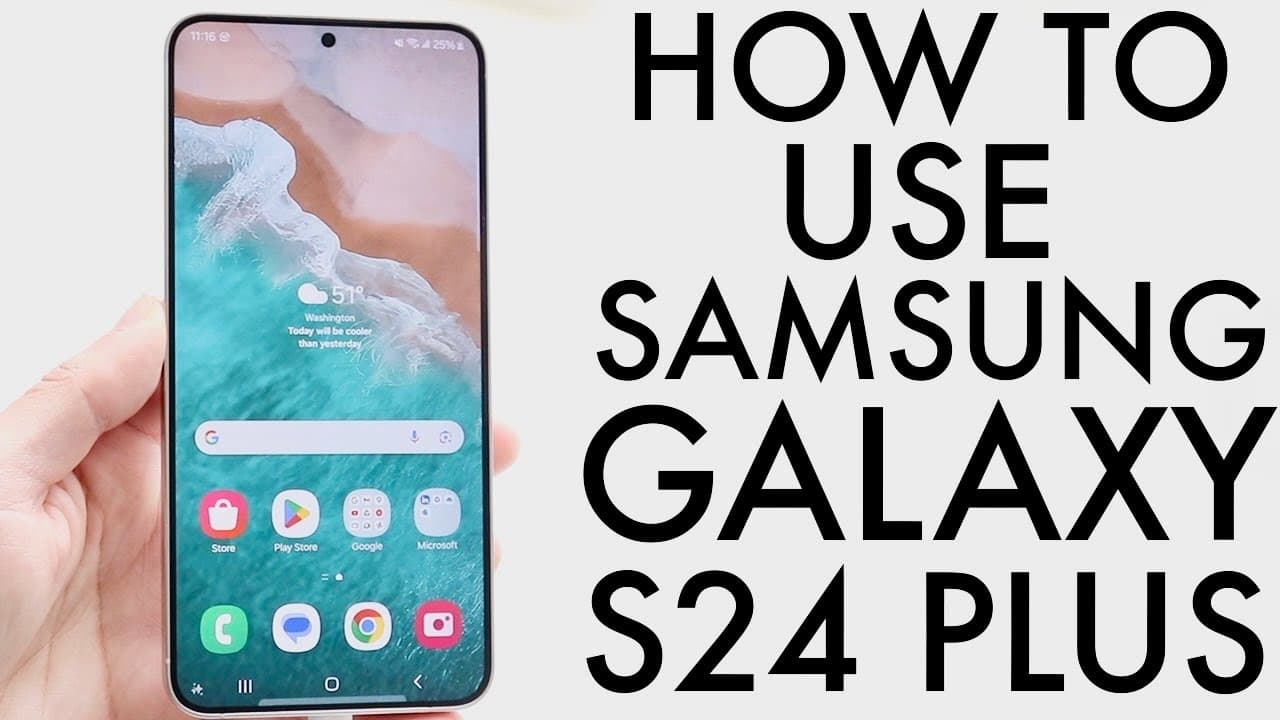
How To Use Samsung Galaxy S24+! (Complete Beginners Guide)
TL;DR
This guide offers tips on using the Samsung Galaxy S24 Plus effectively.
Transcript
so the Samsung Galaxy s24 plus has just officially came out so if you just bought this phone you might be trying to figure out exactly how to use it luckily for you there's so much stuff to love about this particular phone and I can't wait to just explain to you exactly how to use it first of all if you did buy this phone I would always recommend p... Read More
Key Insights
- ➕ The Galaxy S24 Plus boasts a stunning 120Hz display that enhances visual performance and responsiveness.
- 👤 Customization options on the lock screen encourage users to tailor their devices to personal preferences.
- 👻 Split-screen multitasking enhances productivity, allowing users to manage multiple applications at once effectively.
- 🈸 The device features a user-friendly navigation system with easy access to app libraries and recent applications.
- 💝 Regular software updates ensure that the device remains secure and up-to-date with the latest features.
- 🔔 The settings menu allows extensive customization for sound, display, notification, and security options.
- 🛜 Wireless charging capabilities, including reverse wireless charging, add convenience for users.
Install to Summarize YouTube Videos and Get Transcripts
Explore YouTube Video Summarizer or Get YouTube Transcript Extractor
Questions & Answers
Q: What are the recommended first steps after purchasing the Galaxy S24 Plus?
After purchasing the Galaxy S24 Plus, it is highly recommended to immediately apply a screen protector and case to protect the device from scratches and damage. This ensures that your new investment remains in pristine condition for as long as possible, safeguarding the display and the body from everyday wear and tear.
Q: How can I customize my lock screen on the Galaxy S24 Plus?
To customize your lock screen on the Galaxy S24 Plus, simply hold down on the lock screen. This action will give you various options to change the font, layout, and aesthetic of your lock screen. Experimenting with these settings can personalize your device and make it more functional according to your preferences.
Q: What multitasking features does the Galaxy S24 Plus offer?
The Galaxy S24 Plus supports split-screen multitasking, allowing users to run two applications simultaneously. You can access this feature by opening an app, tapping the recents button, and selecting the split-screen option with another compatible app. This function is beneficial for multitasking efficiently, whether for work or leisure.
Q: How can I access notifications and quick settings on my Galaxy S24 Plus?
Notifications and quick settings can be accessed by swiping down from the top of the screen. This reveals your notifications along with quick toggles for settings like Wi-Fi and Bluetooth. You can also edit these toggles by clicking on the edit button, providing easy access to the controls you use most frequently.
Q: What should I do if I need to update the software on my S24 Plus?
To update your Galaxy S24 Plus software, go to the Settings application, then find the Software Update section. From there, you can download and install any available updates. Regular updates are essential as they enhance security features and introduce new functionalities, ensuring your device runs smoothly.
Q: Can I customize the app dock on the Galaxy S24 Plus?
Yes, you can customize the app dock on your Galaxy S24 Plus by holding down any app icon. This allows you to move it to a different position or switch it with another application. The flexibility in arranging your apps makes accessing frequently used applications more convenient.
Summary & Key Takeaways
-
The Samsung Galaxy S24 Plus features a large 120Hz display with minimal bezels, offering a visually appealing experience alongside enhanced performance.
-
Key functionalities include power options like double tapping the display and customizing the lock screen, making user interaction intuitive and personalized.
-
The device supports split-screen multitasking and extensive customization through its One UI 6, enhancing productivity and personalization across applications.
Read in Other Languages (beta)
Share This Summary 📚
Summarize YouTube Videos and Get Video Transcripts with 1-Click
Try YouTube Summary with ChatGPT & Claude or YouTube Transcript Generator
Explore More Summaries from Simple Alpaca 📚


Summarize YouTube Videos and Get Video Transcripts with 1-Click
Try YouTube Summary with ChatGPT & Claude or YouTube Transcript Generator