How to Enable Windows 11 Sandbox to Safely Test Apps
TL;DR
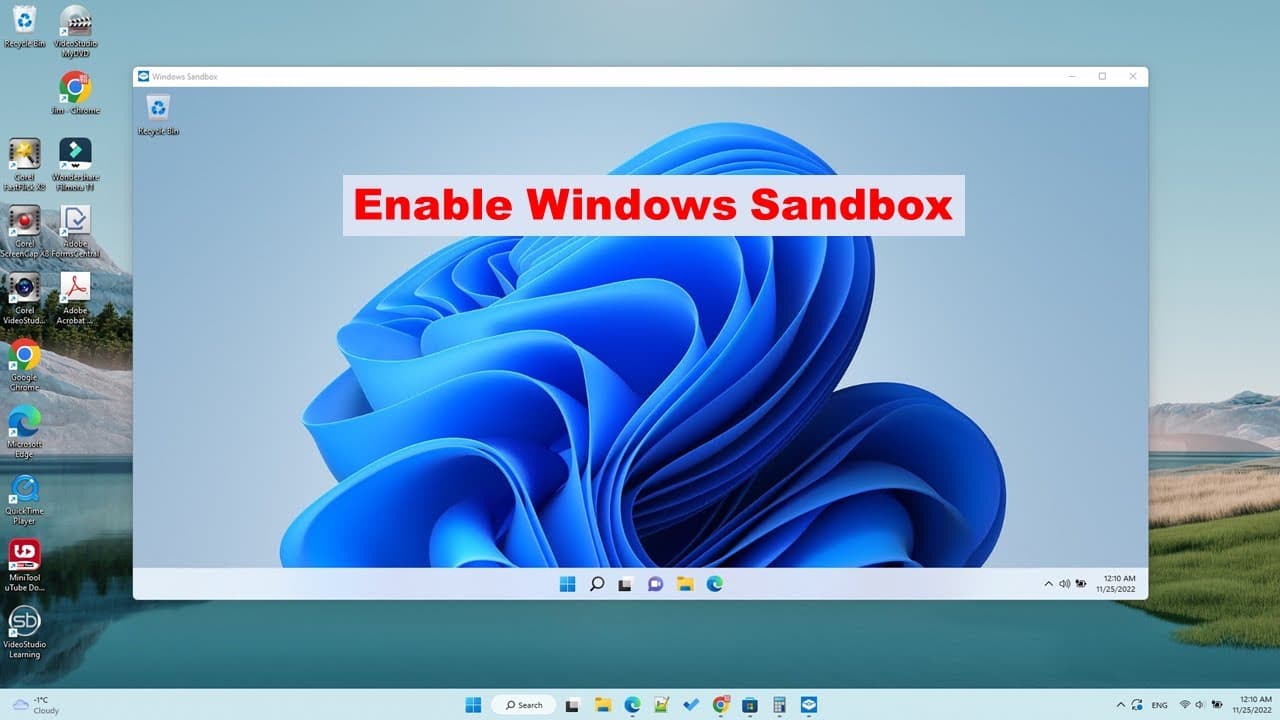
Windows 11 offers a Sandbox feature for secure program testing.
Transcript
foreign box in Windows 11. so sandbox is uh one of the default future of the windows 11. so you can enable it from control panel so your search control panel okay you open it and then you go to the program if you cannot see the program switch to category View so go to program Windows feature r or off click that then scroll all the way down you can ... Read More
Key Insights
- ♻️ Windows Sandbox provides a virtualized environment for secure application testing, minimizing risks to the main system.
- 👤 The feature is designed primarily for users needing robust security measures when experimenting with unknown or untrusted software.
- 👤 Activation of the Sandbox requires navigating through a series of settings in the Control Panel, highlighting its accessibility for users familiar with Windows configurations.
- 👤 Users must install any necessary software within the Sandbox itself, as it operates independently from the main system's applications.
- 🗄️ The Sandbox offers a convenient way for users to manage potentially risky files, providing a safety net against malware or corrupt programs.
- ♿ The process of enabling the Sandbox underlines the importance of system upgrades for accessing advanced features in Windows.
- 👻 Being able to copy and paste into the Sandbox allows for a flexible testing approach, facilitating easy trials of various documents or applications.
Install to Summarize YouTube Videos and Get Transcripts
Explore YouTube Video Summarizer or Get YouTube Transcript Extractor
Questions & Answers
Q: What is the Windows Sandbox feature in Windows 11?
The Windows Sandbox feature is a lightweight, isolated environment for safely running applications without risking the main operating system's stability or security. It allows users to try out software, test files, or explore potentially harmful content while keeping the main system protected.
Q: How can users enable the Sandbox feature?
To enable the Sandbox feature in Windows 11, users should access the Control Panel, switch to Category View, navigate to Programs, and select "Turn Windows features on or off." From there, they can find and enable the Windows Sandbox option, which requires a system restart to take effect.
Q: Can the Sandbox feature be used on Windows Home edition?
No, the Windows Sandbox feature is only available on Windows Pro versions and is not supported on the Windows Home edition. Users looking to utilize this feature must upgrade to a compatible version of Windows 11.
Q: What happens to files and installations in the Sandbox?
Any files or installations made inside the Sandbox are temporary and will be deleted once the Sandbox is closed. This ensures that experimentation does not impact the main operating system, allowing users to run programs without leaving a lasting trace.
Summary & Key Takeaways
-
Windows 11 includes a built-in feature called Sandbox, which can be enabled through the Control Panel, allowing users to run applications in a secure environment.
-
Users must have the Windows Pro version to utilize the Sandbox feature; it is not supported on the Windows Home edition.
-
After enabling Sandbox and restarting the computer, users can easily copy and paste files into the Sandbox for safe testing or experimentation without affecting their main system.
Read in Other Languages (beta)
Share This Summary 📚
Summarize YouTube Videos and Get Video Transcripts with 1-Click
Try YouTube Summary with ChatGPT & Claude or YouTube Transcript Generator
Explore More Summaries from E Micro Tech 📚

Summarize YouTube Videos and Get Video Transcripts with 1-Click
Try YouTube Summary with ChatGPT & Claude or YouTube Transcript Generator