How To Use Google Pixel 8 Pro! (Complete Beginners Guide)
TL;DR
A comprehensive guide on using the new Google Pixel 8 Pro smartphone.
Transcript
well everyone the Google pixel 88 pro has just officially came out so I wanted to go and give everyone a quick breakdown on exactly how to use this device it's a beautiful phone has so much capability inside and if you just bought this phone I'm sure it's going to last you a very very long amount of time so here's a quick breakdown on the front of ... Read More
Key Insights
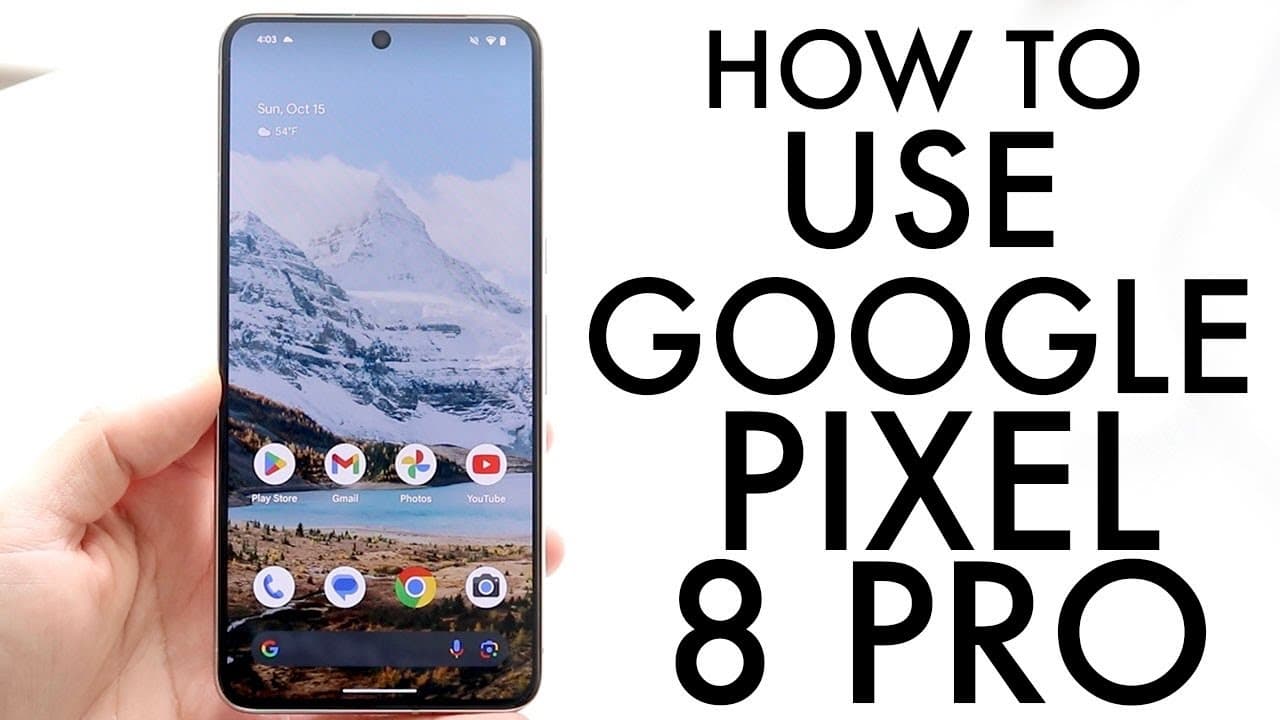
- ❓ The Google Pixel 8 Pro combines aesthetics with top-tier functionality, highlighted by its immersive 120Hz display.
- 😎 The phone's design features a frosted glass back and a reflective side, contributing to a premium feel.
- 👤 Setting up the Pixel 8 Pro is user-friendly, with intuitive navigation and customizable features enhancing the user experience.
- 😒 Multitasking abilities, such as split-screen functionality, allow for efficient use of applications simultaneously.
- 😀 The Play Store offers a wide variety of apps, making it easy for users to personalize their device further.
- 🤯 Users are encouraged to regularly back up their data and photos for security and peace of mind.
- 💻 Protective measures, such as screen protectors and cases, are vital for maintaining device longevity.
Install to Summarize YouTube Videos and Get Transcripts
Explore YouTube Video Summarizer or Get YouTube Transcript Extractor
Questions & Answers
Q: What are the standout features of the Google Pixel 8 Pro's display?
The Google Pixel 8 Pro features a massive 120Hz display that provides smooth scrolling and vibrant colors. The display has thin bezels, enhancing the viewing experience. With its hole-punch design for the front camera, the aesthetics are modern and appealing, making it great for media consumption.
Q: How can users insert the SIM card into the Google Pixel 8 Pro?
To insert the SIM card, locate the small hole on the left side of the device. Use the SIM card eject tool provided in the box to gently push into the hole, ejecting the SIM tray. After placing your SIM card in the tray, slide it back into the device until it clicks into place for a secure connection.
Q: How do you navigate the home screen and access applications?
To navigate the home screen, swipe up from the bottom to see all installed applications. You can hold down on app icons to move them around or remove them from the home screen. Adding and customizing widgets is also possible by holding down on the display, allowing for a personalized setup.
Q: What should users do if they want to update their Google Pixel 8 Pro?
To update the phone, navigate to the settings application, select 'System,' then choose 'System update.' Click on 'Check for updates' to see if any updates are available. Installing updates is essential to ensure the device runs smoothly with the latest features and security patches.
Summary & Key Takeaways
-
The Google Pixel 8 Pro features a stunning 120Hz display with a sleek design, offering great aesthetics and functionality.
-
Setting up the phone includes inserting the SIM card, customizing the home screen, and navigating through various applications and features.
-
Key recommendations for users include keeping the phone updated, utilizing protective accessories, and making regular backups for longevity.
Read in Other Languages (beta)
Share This Summary 📚
Summarize YouTube Videos and Get Video Transcripts with 1-Click
Try YouTube Summary with ChatGPT & Claude or YouTube Transcript Generator
Explore More Summaries from Simple Alpaca 📚

Summarize YouTube Videos and Get Video Transcripts with 1-Click
Try YouTube Summary with ChatGPT & Claude or YouTube Transcript Generator