How to schedule live stream on YouTube
TL;DR
A step-by-step guide to scheduling live streams using YouTube's control panel.
Transcript
so this time i will show you how to schedule live stream within youtube control panel first you will go to your youtube then right click left click the logo of your youtube channel go to your youtube studio from here you can see at the top you have a create button click it select go to live so when you go to the studio live stream control panel if ... Read More
Key Insights
- 🫒 Activating the live streaming function on YouTube requires entering a phone number and takes about 24 hours.
- 🥶 OBS Studio is a highly recommended free software for those looking to conduct live streams on YouTube.
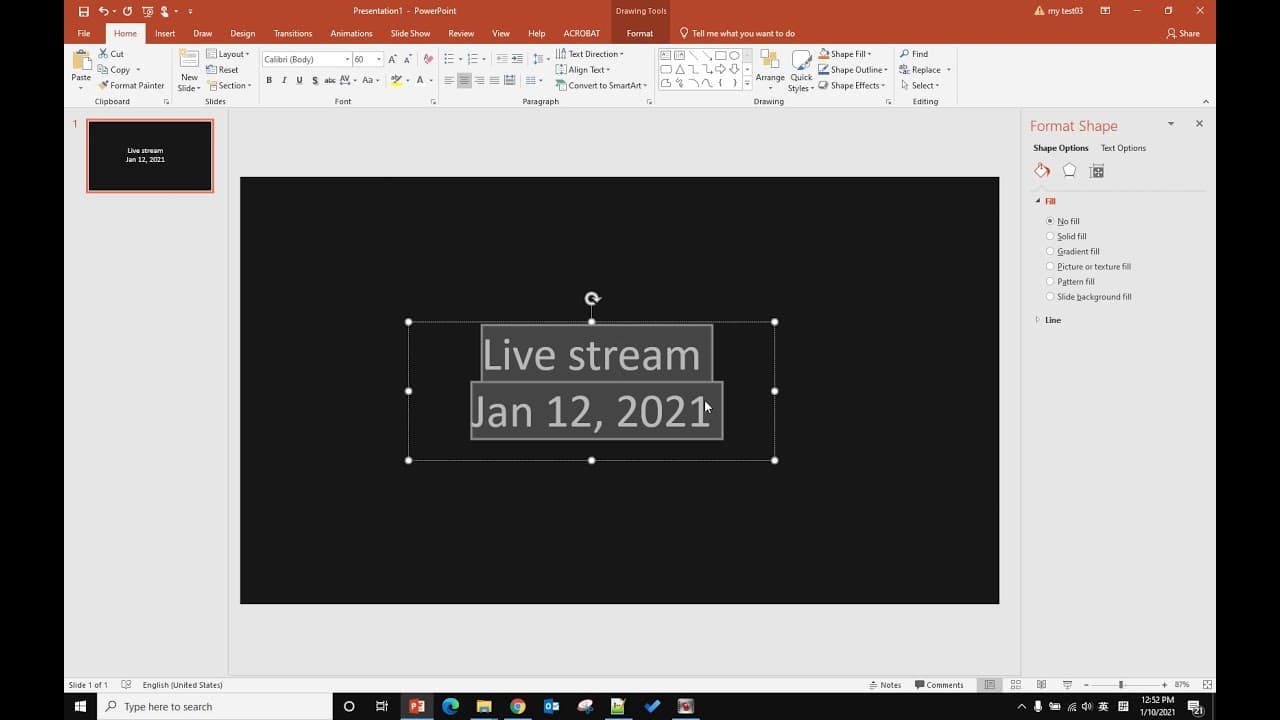
- 🫵 Designing a visually appealing poster for your live stream can help attract and inform viewers about the event.
- 🧑🌾 Scheduling your stream far in advance is beneficial to ensure that all necessary preparations can be made.
- 🫵 A shareable link is crucial for promoting your scheduled stream, as it provides a direct access point for viewers.
- 🫵 Engaging with your audience through well-designed promotional materials can enhance viewer participation.
- 🫒 Familiarizing yourself with YouTube’s control panel is essential for successfully managing your live streaming efforts.
Install to Summarize YouTube Videos and Get Transcripts
Explore YouTube Video Summarizer or Get YouTube Transcript Extractor
Questions & Answers
Q: What is the first step in scheduling a live stream on YouTube?
The first step is to access your YouTube channel by right-clicking on your logo. From there, navigate to YouTube Studio. Once in the studio, you will find a create button at the top to select "Go Live". If it’s your first time using the live stream feature, you may need to activate it by entering your phone number.
Q: How long does it take to activate the live stream function on YouTube?
After entering your phone number to activate the live streaming feature, it typically takes up to 24 hours for YouTube to enable this function. It is essential to plan ahead and ensure that this activation is completed before your intended live stream.
Q: What software is recommended for live streaming on YouTube?
The content recommends using OBS Studio, a free streaming software that can be downloaded easily. OBS Studio is widely used due to its powerful features and flexibility for various streaming needs. For detailed instructions on using OBS, viewers are encouraged to check out more resources on the creator's YouTube channel.
Q: How do you prepare a poster for your live stream?
To create a poster for your live stream, you can use Microsoft PowerPoint or similar software. Design your desired background, add relevant text or images, and save it as a picture file. This poster can then be uploaded during the stream setup process to enhance viewer engagement.
Q: What should you do after scheduling your live stream?
After scheduling your live stream, you’ll want to get the shareable link for your stream. This link can be copied and disseminated through your website or social media, allowing guests to easily access the live stream when it begins.
Q: Can viewers receive notifications about the live stream?
Yes, viewers can be notified about your scheduled live stream. Once they have the link and click on it, they can see the scheduled stream details, and they are likely to receive a reminder closer to the time of the event, enhancing their chance of joining.
Summary & Key Takeaways
-
The content provides a detailed tutorial on how to schedule a live stream using YouTube's control panel, emphasizing the importance of activating the live stream feature.
-
It highlights the use of specific software, particularly OBS Studio, as a free option for streaming and encourages viewers to create a poster for their live stream.
-
The tutorial concludes with instructions on obtaining a shareable link for the scheduled stream, ensuring viewers can easily access it when it's live.
Read in Other Languages (beta)
Share This Summary 📚
Summarize YouTube Videos and Get Video Transcripts with 1-Click
Try YouTube Summary with ChatGPT & Claude or YouTube Transcript Generator
Explore More Summaries from E Micro Tech 📚

Summarize YouTube Videos and Get Video Transcripts with 1-Click
Try YouTube Summary with ChatGPT & Claude or YouTube Transcript Generator