How to Use macOS Monterey Effectively as a Beginner?
TL;DR
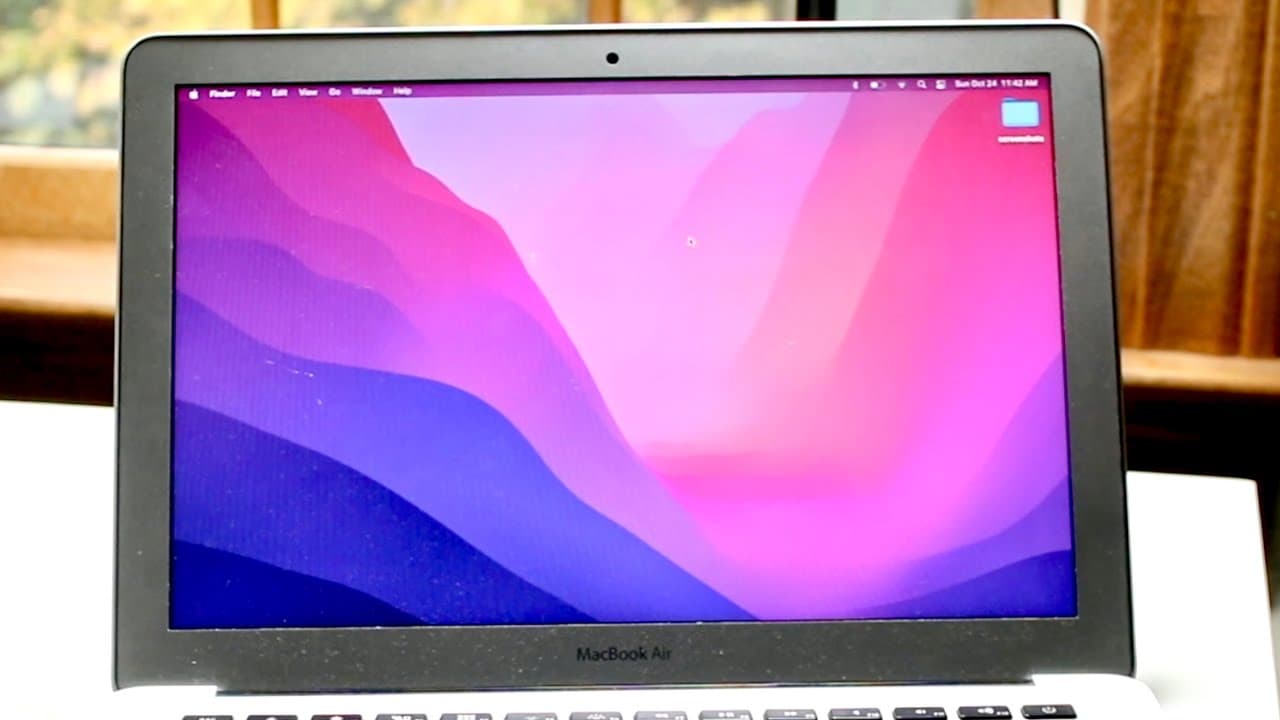
To effectively use macOS Monterey, familiarize yourself with key features like the Control Center, Finder, and the new Focus modes. Regularly access System Preferences for customization and software updates, and utilize the Notification Center for efficient multitasking. Understanding these basics will enhance your overall experience with the operating system.
Transcript
welcome back everyone mac os catalina just ended up officially coming out so let's go and do a basic walkthrough actually it's mac os monterey i don't know why i keep saying catalina we're going to go through a basic walkthrough of the software now this is not going to be every single little tiny thing you can see we're already on the home page so ... Read More
Key Insights
- 👤 The Control Center in macOS Monterey provides an integrated menu for quick access to controls such as Wi-Fi, Bluetooth, and display settings, making it user-friendly.
- 🔔 The new notification center allows users to manage notifications and access widgets efficiently, improving multitasking capabilities.
- 📑 Safari has been redesigned with a more streamlined tab interface and improved privacy features, enhancing the browsing experience.
- 👶 Users are encouraged to regularly update their macOS to ensure stable performance and access to new features, emphasizing the importance of staying up-to-date for security and efficiency.
- 📁 Familiarity with the Finder application is crucial as it serves as the primary file management tool, allowing users to organize and access their files effectively.
- 🇲🇰 The system report section in "About This Mac" is vital for users needing to identify their Mac specifications and software version for troubleshooting or upgrades.
- 🈸 The ability to install iOS applications on M1 MacBooks extends the app ecosystem, making macOS Monterey a versatile platform for users who favor apps from both operating systems.
Install to Summarize YouTube Videos and Get Transcripts
Explore YouTube Video Summarizer or Get YouTube Transcript Extractor
Questions & Answers
Q: What are some of the new features introduced in macOS Monterey?
macOS Monterey introduces several new features including focus modes for enhanced concentration, updated Safari with improved tab management, and the Control Center which provides quick access to settings like Wi-Fi and display brightness, improving overall usability and accessibility.
Q: How can users find and manage their applications in macOS Monterey?
Users can access their applications through the Dock or Finder. By opening Finder, they can navigate to the Applications folder where all installed apps are listed. Additionally, using the Launchpad can simplify finding applications, allowing users to open or uninstall directly from the interface.
Q: What is the purpose of Focus Mode in macOS Monterey?
Focus Mode is designed to help users minimize distractions by allowing them to set specific preferences about which notifications to receive based on their current activities, such as work or personal time, helping to enhance productivity and manage screen time effectively.
Q: How can users modify system preferences in macOS Monterey?
Users can access system preferences by clicking on the Apple icon in the menu bar and selecting "System Preferences." Here, they can adjust various settings including desktop backgrounds, privacy options, and notifications, allowing for a customized user experience tailored to individual needs.
Summary & Key Takeaways
-
The video introduces macOS Monterey, offering a walkthrough of its basic functionalities, navigating through the user interface including the menu bar and dock.
-
It highlights essential features such as Finder, Control Center, notifications, and the new focus modes that enhance user experience in macOS Monterey.
-
The presenter emphasizes the importance of familiarizing oneself with system settings, including software updates and customizations within the System Preferences menu.
Read in Other Languages (beta)
Share This Summary 📚
Summarize YouTube Videos and Get Video Transcripts with 1-Click
Try YouTube Summary with ChatGPT & Claude or YouTube Transcript Generator
Explore More Summaries from Simple Alpaca 📚


Summarize YouTube Videos and Get Video Transcripts with 1-Click
Try YouTube Summary with ChatGPT & Claude or YouTube Transcript Generator