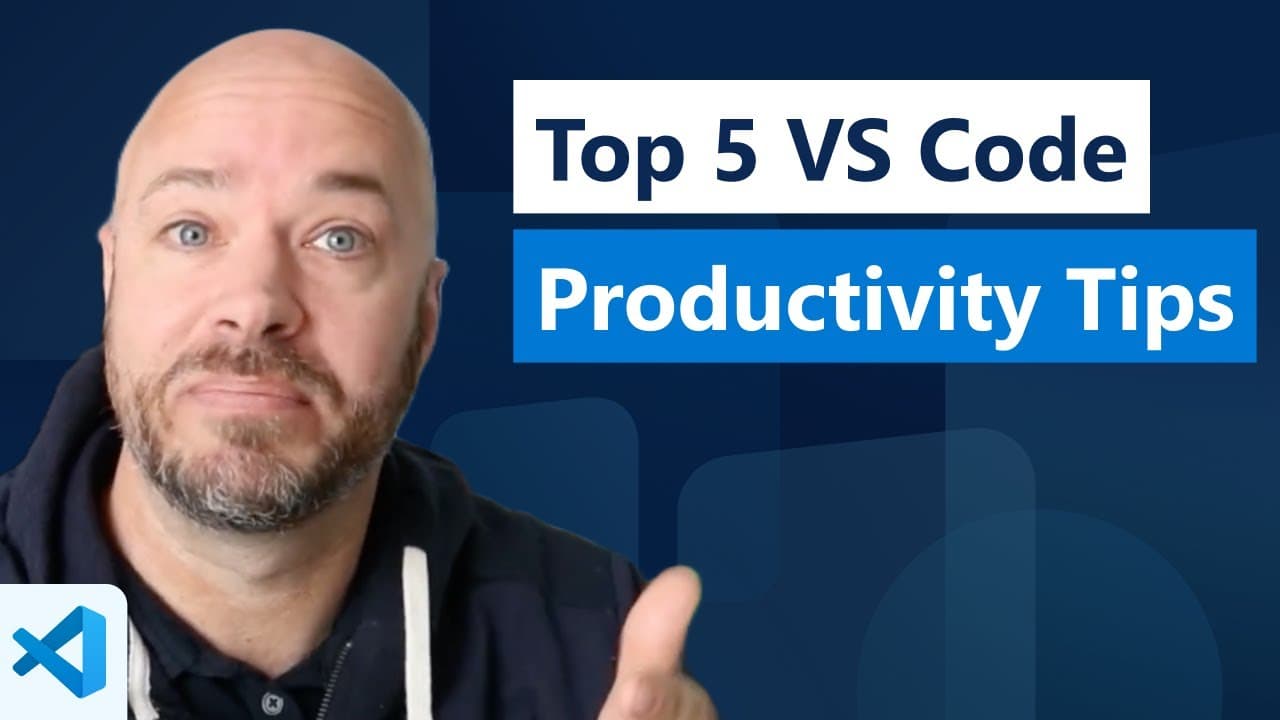
Top 5 VS Code Productivity Tips Marathon
TL;DR
Learn how to save time and increase productivity in Visual Studio Code by using keyboard shortcuts for common tasks like opening the command palette, navigating the sidebar, and copying and pasting efficiently.
Transcript
a lot of using complicated keyboard shortcuts in vs code did you know you can actually assign double shift to things that you use often like opening the command palette do this inside keyboard shortcuts that save yourself a lot of time cool the key to productivity and coding is don't touch your mouse but a lot of people will use their Mouse to sele... Read More
Key Insights
- 🎮 Using keyboard shortcuts in VS Code can save time and improve productivity, such as assigning double shift to frequently used actions like opening the command palette.
- 🖱️ To navigate to the sidebar in VS Code without using the mouse, simply press Ctrl or Command + 0, allowing for quicker access and selection of items.
- 📋 Copy and paste efficiently in VS Code by placing the cursor on the desired line and using Command + C and Command + V, avoiding the need to highlight multiple lines.
- 📝 Multiple cursors in VS Code can be used for convenient tasks, like quoting and adding commas in arrays, by selecting the text and using Alt + Shift + I to add cursors.
- 📂 VS Code allows for multiple terminals, which can be accessed and organized easily by dragging them into the editor area, providing a better overview.
- ️ Balancing between working on files and terminal instances is made easier in VS Code by accessing terminals through the file picker using the control P keyboard shortcut.
- 🧩 Building a Wordle clone in JavaScript highlights the creative potential and versatility of VS Code for development projects. ⏰ Utilizing time-saving techniques and features in VS Code, such as efficient navigation, keyboard shortcuts, and multiple cursors, can significantly enhance coding productivity and efficiency.
Install to Summarize YouTube Videos and Get Transcripts
Explore YouTube Video Summarizer or Get YouTube Transcript Extractor
Questions & Answers
Q: How can you assign shortcuts to frequently used functions in VS Code?
To assign shortcuts to frequently used functions in VS Code, you can use the double shift command and configure them in the keyboard shortcuts settings.
Q: Is it possible to navigate the sidebar without using the mouse in VS Code?
Yes, you can navigate the sidebar in VS Code without using your mouse by using Ctrl or Command + 0 to put the focus in the sidebar and Ctrl or Command + 1 to put the focus back in the editor window.
Q: How can you efficiently copy and paste in VS Code without highlighting lines?
To efficiently copy and paste in VS Code without highlighting lines, you can simply place your cursor on the line you want to copy and use the Command + C and Command + V shortcuts.
Q: How can you make similar changes on multiple lines quickly in VS Code?
In VS Code, you can make similar changes on multiple lines quickly by using the Option + Command + Arrow (Up or Down) shortcut to move the cursor to the desired lines and then make the changes.
Summary & Key Takeaways
-
Use double shift to assign commonly used functions like opening the command palette in VS Code.
-
Navigate the sidebar without touching your mouse by using Ctrl or Command + 0 to put focus in the sidebar and Ctrl or Command + 1 to put focus back in the editor window.
-
Copy and paste like a pro by using Command + C and Command + V without the need to highlight lines, and save time by using Option + Command + Arrow to make similar changes on multiple lines.
Read in Other Languages (beta)
Share This Summary 📚
Summarize YouTube Videos and Get Video Transcripts with 1-Click
Try YouTube Summary with ChatGPT & Claude or YouTube Transcript Generator
Explore More Summaries from Visual Studio Code 📚



Summarize YouTube Videos and Get Video Transcripts with 1-Click
Try YouTube Summary with ChatGPT & Claude or YouTube Transcript Generator