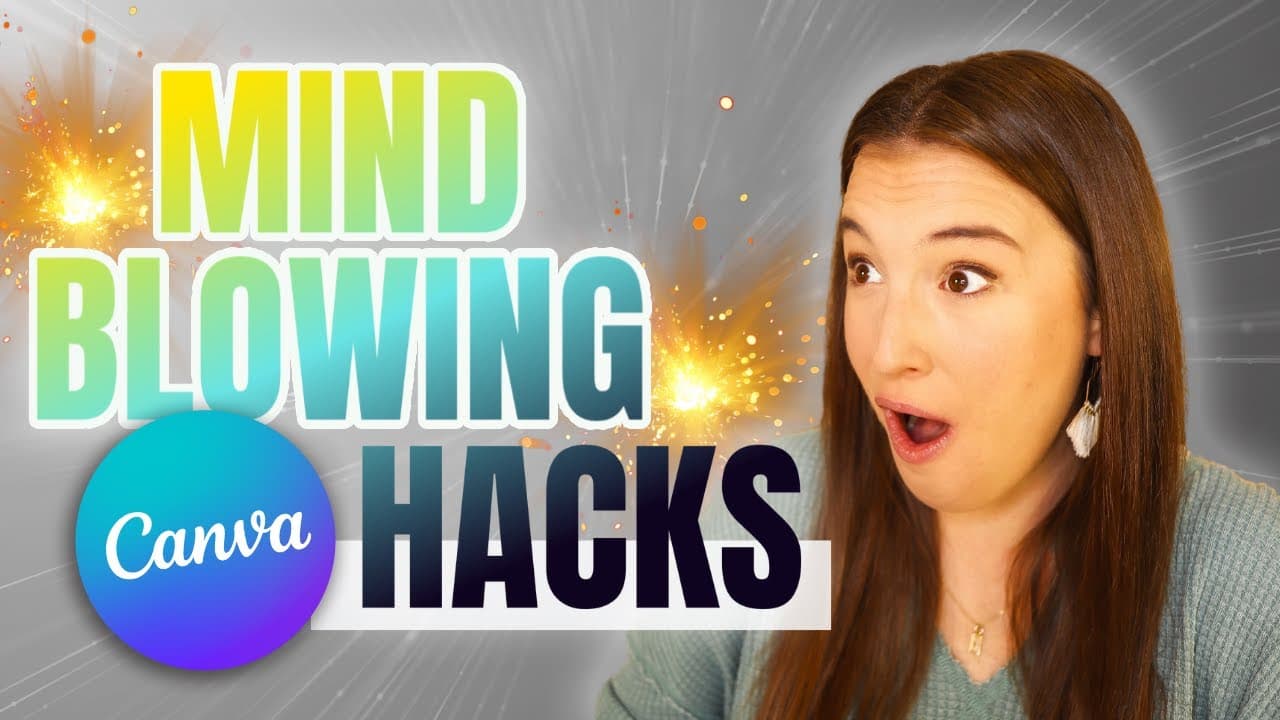
10 MIND-BLOWING Canva hacks to turn your designs PRO level 🤯
TL;DR
Ten Canva hacks to elevate your graphic design skills.
Transcript
I'm guessing if you're watching this video you love canva as much as I do it seems like I'm always discovering new ways to use it and level up my graphic designs and since I know many of you use canva for your business too I wanted to give you a quick rundown of 10 really awesome canva hacks that you can use to make your des... Read More
Key Insights
- The video introduces ten Canva hacks to enhance design quality, suitable for both free and Pro users.
- Brand kits in Canva allow designers to save time by pre-setting colors and fonts for consistent branding.
- Using the Pixelify app, users can create trendy pixelated images that are popular in modern graphic design.
- Frames in Canva can be used creatively to incorporate textures and shapes not readily available in the elements tab.
- Layering and masking effects in Canva can give designs a professional look, similar to advanced graphic design software.
- Gradients can be applied to backgrounds, shapes, and text, adding depth and visual interest to designs.
- Brand Fetch app in Canva provides access to official brand logos and colors, streamlining the design process.
- Transparency and tidy-up tools in Canva help create visually appealing and organized designs efficiently.
Install to Summarize YouTube Videos and Get Transcripts
Explore YouTube Video Summarizer or Get YouTube Transcript Extractor
Questions & Answers
Q: What is the purpose of using brand kits in Canva?
Brand kits in Canva help designers save time by allowing them to pre-set specific colors and fonts for their projects. This ensures consistency across different designs, making it easier to maintain a cohesive visual identity for brands or projects. Users can create multiple brand kits for different aesthetics or themes.
Q: How can the Pixelify app be used in Canva?
The Pixelify app in Canva is used to create pixelated images, which are becoming a trendy design element. Users can upload their images to the app and adjust the pixel size to achieve the desired level of detail or blockiness. This tool is particularly useful for designers looking to incorporate modern graphic design trends into their work.
Q: What is the advantage of using frames in Canva?
Frames in Canva offer a creative solution for incorporating textures and shapes that may not be readily available in the elements tab. Designers can drag and drop images into frames to achieve specific shapes or effects, such as a torn paper look, which enhances the visual appeal of their designs.
Q: How does the layering and masking effect work in Canva?
Layering and masking effects in Canva allow designers to create complex visual compositions by overlaying images and text. By duplicating images and using background removal tools, designers can position elements to appear as if they are part of a single cohesive image, giving the design a professional look similar to advanced graphic design software.
Q: What are the different ways gradients can be used in Canva?
Gradients in Canva can be applied to backgrounds, shapes, and text to add depth and visual interest to designs. Users can customize gradients by selecting multiple colors and adjusting their transition across elements. This feature allows for creative expression and enhances the overall aesthetic of the design.
Q: How does the Brand Fetch app assist in Canva design?
The Brand Fetch app in Canva provides designers with access to official brand logos and colors, streamlining the design process. By searching for a brand within the app, users can directly import logos and color palettes into their projects, ensuring accuracy and saving time that would otherwise be spent searching for these elements.
Q: What is the purpose of the transparency tool in Canva?
The transparency tool in Canva is used to create effects such as disappearing text or subtle overlays. By adjusting the transparency of text or shapes, designers can create layered effects that add depth and sophistication to their designs. This tool is particularly effective for creating visually engaging compositions.
Q: How does the Tidy Up feature enhance design in Canva?
The Tidy Up feature in Canva helps designers align and space elements neatly, enhancing the organization and visual appeal of a design. By selecting multiple elements and using the Tidy Up option, users can automatically align and evenly space elements, saving time and ensuring a professional look without manual adjustments.
Summary & Key Takeaways
-
The video discusses ten Canva hacks to improve graphic design skills, emphasizing both free and Pro features. These hacks include using brand kits, pixelation, frames, and layering techniques to create professional-looking designs.
-
Additional tips cover the use of gradients, brand logos via Brand Fetch, and transparency effects to add depth and organization to design projects. The video aims to help users develop their design skills and create visually appealing products.
-
The video also promotes a free training session on starting a digital products business, offering resources like a digital product starter guide and encouraging viewers to register for upcoming sessions.
Read in Other Languages (beta)
Share This Summary 📚
Summarize YouTube Videos and Get Video Transcripts with 1-Click
Try YouTube Summary with ChatGPT & Claude or YouTube Transcript Generator
Explore More Summaries from Kate Hayes 📚


Summarize YouTube Videos and Get Video Transcripts with 1-Click
Try YouTube Summary with ChatGPT & Claude or YouTube Transcript Generator