How to add drop down list (pick list) to Yetiforce CRM system
TL;DR
Learn how to add a pickup list in Rattly Force quickly.
Transcript
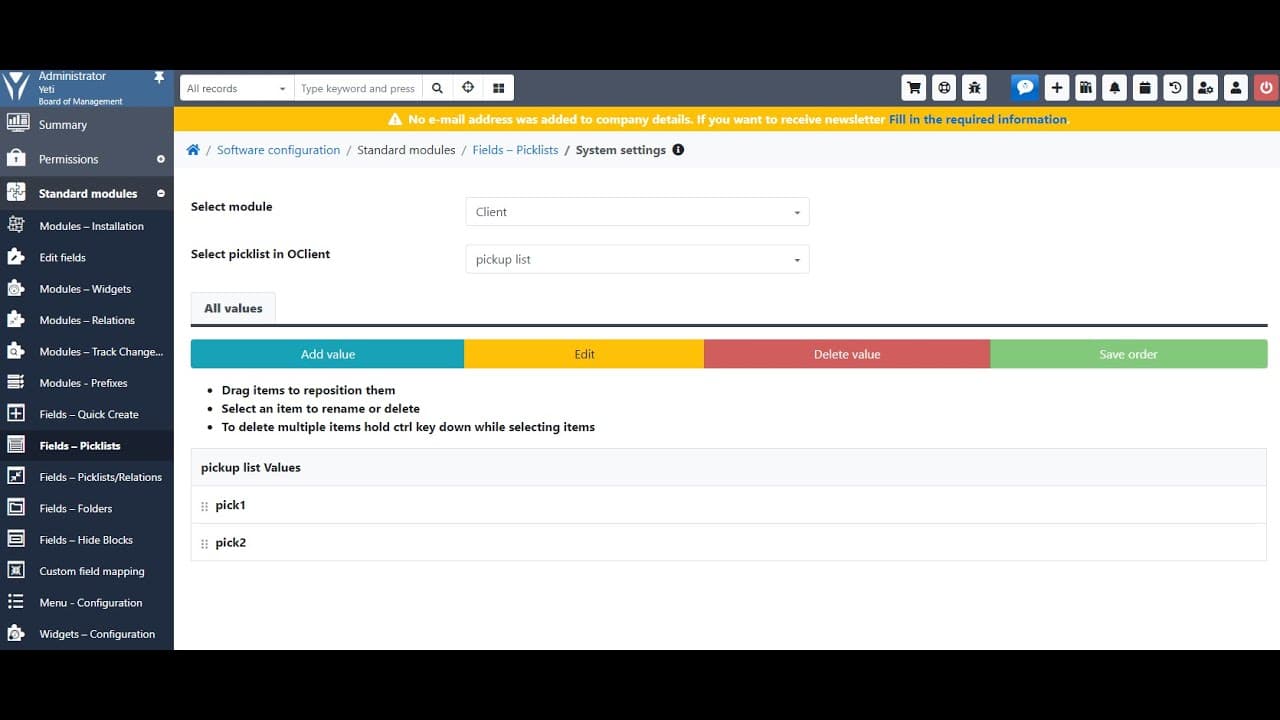
so this video we'll talk about how to add P Kappa list to the party false so if you go to the admin panel you can see the fields pick up list so we won't either pick up list at the client model for here you don't have the Add button here but you can add it you can add value to it so how to do other pickup listed to the model we need to go to added ... Read More
Key Insights
- 🤯 Accessing the admin panel is the primary step to modify or add a pickup list within the system.
- 👾 Names for fields must adhere to specific rules—no spaces are allowed, but descriptive label names can include spaces.
- 👂 The process of adding a pickup list involves several steps; careful attention to detail ensures proper functionality.
- 👂 Once a pickup list is created, users have the flexibility to manage its entries within the client module.
- 👂 Deleting values from the list is straightforward, helping users easily customize their data.
- 👤 Rattly Force allows for user-friendly interaction through dropdown lists in models, enhancing user experience.
- 👂 Properly managing pickup lists can significantly impact how effectively data is handled in Rattly Force applications.
Install to Summarize YouTube Videos and Get Transcripts
Explore YouTube Video Summarizer or Get YouTube Transcript Extractor
Questions & Answers
Q: What are the first steps to add a pickup list in Rattly Force?
To start adding a pickup list, you need to access the admin panel first. Within this panel, find the fields labeled "pickup list." Although there is no Add button visible, you can still add values by going to the "added fields" section and selecting the model you wish to modify.
Q: Why is naming convention important when creating fields?
Naming conventions are important as they can impact system functionality. In the Rattly Force video, it's necessary to use dashes instead of spaces in field names to maintain compatibility. The system accepts spaces in label names but not in field names which can cause errors if not followed.
Q: Can a user delete values from the pickup list?
Yes, users can delete values from the pickup list easily. In the client module, once the pickup list is displayed, individuals have the option to remove any added entries directly, ensuring that the list remains organized and accurate without needing to replace items.
Q: What type of values can be added to the pickup list?
Users can add various values to the pickup list according to the requirements for their model. When creating a pickup list, for instance, the video mentions entering a value like "click least one" and pressing Enter to list it, but you can customize these entries as needed for your application.
Summary & Key Takeaways
-
The video demonstrates adding a pickup list to the Rattly Force client module through the admin panel and model fields.
-
Users must navigate to the "added fields" section to assign a pickup list, ensuring proper naming conventions without spaces in field names.
-
Once created and saved, users can manipulate the pickup list values directly within the client module by adding or deleting entries.
Read in Other Languages (beta)
Share This Summary 📚
Summarize YouTube Videos and Get Video Transcripts with 1-Click
Try YouTube Summary with ChatGPT & Claude or YouTube Transcript Generator
Explore More Summaries from E Micro Tech 📚

Summarize YouTube Videos and Get Video Transcripts with 1-Click
Try YouTube Summary with ChatGPT & Claude or YouTube Transcript Generator