Google Calendar Time Blocking - Captain Time
TL;DR
This video tutorial explains how to use Google Calendar's time blocking feature to schedule different categories of tasks for improved productivity.
Transcript
in this video i'm going to show you how to do time blocking in google calendar so first step is to open up your google calendar and then set it to a weekly view rather than say a month view or an agenda view or something like that you want to go to uh the next week rather than the existing week because time slots that have already passed will be a ... Read More
Key Insights
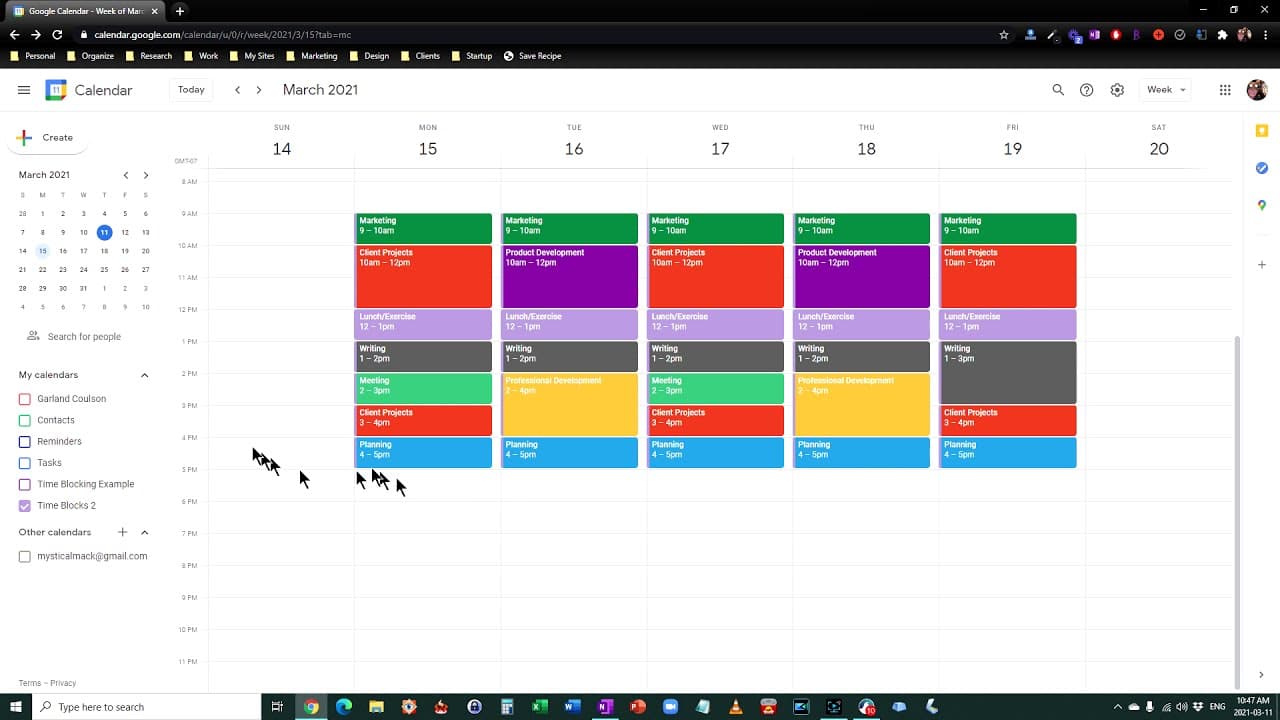
- 🗓️ Time Blocking: Open Google Calendar and switch to a weekly view to effectively plan your time. Clear existing calendars temporarily to have a blank slate to work with.
- 🥗 Lunch Break: Allocate a specific time for lunch and make it a recurring event for each weekday to ensure you prioritize self-care and a break from work.
- 📝 Planning Time: Set aside a dedicated hour every day for planning, preferably in the afternoon, to prepare for the next day's important tasks and priorities.
- 📈 Marketing: Incorporate daily marketing activities into your schedule, even if they are tasks you tend to put off. Consider placing them at the beginning of the day to ensure they are completed.
- 📎 Client Projects: Allocate a specific time slot, like 10 am to 12 pm, on selected days of the week to focus solely on client projects. Use a different color to visually differentiate it in your calendar.
- 🖋️ Writing/Content Development: Set aside a consistent time block, like 1 pm to 2 pm, every weekday for writing or content development tasks. Choose a unique color to distinguish it.
- 📚 Professional Development: Dedicate longer time blocks, a couple of days a week, for activities like taking online courses or attending workshops to foster your professional growth.
- 👥 Meetings: Schedule regular meetings during convenient hours, ensuring you avoid scheduling them on Fridays when possible, as it may negatively impact productivity.
- 🔀 Task Management: Integrate your task management system with your time blocking by categorizing tasks according to the specific time blocks, allowing for better organization and prioritization.
Install to Summarize YouTube Videos and Get Transcripts
Explore YouTube Video Summarizer or Get YouTube Transcript Extractor
Questions & Answers
Q: How can I use time blocking in Google Calendar to improve my productivity?
To use time blocking in Google Calendar, start by opening your calendar and setting it to a weekly view. Then, create a new calendar for time blocking and add different categories of tasks such as lunch breaks, planning time, marketing, client projects, writing, and professional development. Allocate specific time slots for each category, and repeat them according to your preferences. By doing so, you can prioritize your tasks and enhance your productivity.
Summary & Key Takeaways
-
The video demonstrates how to set up time blocking in Google Calendar by creating a new calendar and adding categories of tasks.
-
The speaker suggests categorizing tasks such as lunch breaks, planning time, marketing, client projects, writing, and professional development.
-
By allocating specific time slots for each category, users can prioritize their tasks and improve productivity.
Read in Other Languages (beta)
Share This Summary 📚
Summarize YouTube Videos and Get Video Transcripts with 1-Click
Try YouTube Summary with ChatGPT & Claude or YouTube Transcript Generator