How to Make 3D Realistic Shapes in Adobe Illustrator
TL;DR
Learn how to use simple shapes in Illustrator to create three-dimensional effects and make your designs look more realistic.
Transcript
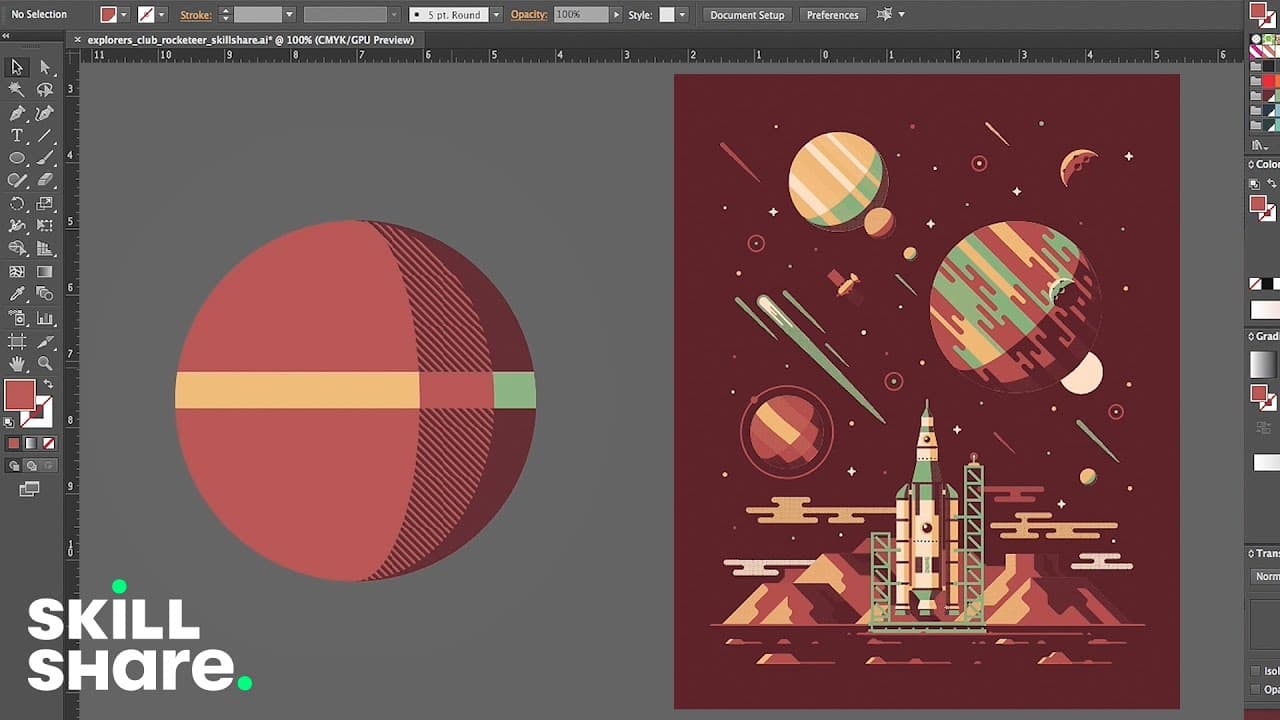
(fast paced upbeat music) - So when working in Illustrator, one of the issues we have is obviously everything that we create is going to be vector. And a lot of the shapes that we create are very geometric and simple, but we like to challenge ourselves and make things look more three-dimensional and look more realistic. And when you're dealing with... Read More
Key Insights
- ⚾ Illustrator's vector-based nature can make it challenging to create three-dimensional effects.
- 💠 Using simple shapes and the Pathfinder tool in Illustrator, you can easily manipulate and combine shapes to achieve complex designs.
- 👻 Copying and pasting shapes on top of themselves allows for the creation of shadows and other depth effects.
- 🔨 The Pathfinder tool offers various options for manipulating shapes, including combining, dividing, and creating cutaways.
- 🪐 This technique is not limited to creating planets; it can be applied to any design where three-dimensional effects are desired.
- 🎨 By repeating the process and experimenting with different shapes, highlights, and other elements, you can create unique and realistic designs.
- 👻 The technique allows for a lot of flexibility and customization, giving designers full control over the final result.
Install to Summarize YouTube Videos and Get Transcripts
Explore YouTube Video Summarizer or Get YouTube Transcript Extractor
Questions & Answers
Q: How can simple shapes in Illustrator be used to create three-dimensional effects?
By duplicating and manipulating simple shapes in Illustrator, you can create shadows, highlights, and other effects that give the illusion of three-dimensionality. The Pathfinder tool is particularly useful for this.
Q: What is the purpose of copying and pasting a shape on top of itself?
Copying and pasting a shape on top of itself allows you to create a shadow effect. By adjusting the size and position of the duplicated shape, you can achieve different shadow placements and depths.
Q: What is the benefit of using the Pathfinder tool in this process?
The Pathfinder tool in Illustrator allows you to combine, divide, and manipulate shapes in various ways. It is especially helpful in creating cutaways, highlights, and other complex effects.
Q: Can the same technique be used to create other types of designs besides planets?
Absolutely! This technique can be applied to any design where you want to add depth and make it look more three-dimensional. By experimenting with different shapes and combinations, the possibilities are endless.
Summary & Key Takeaways
-
Illustrator is primarily used for creating vector graphics, which can be a challenge when trying to make designs look three-dimensional.
-
This tutorial demonstrates a technique using simple shapes and the Pathfinder tool to create shadows, highlights, and other effects.
-
By repeating the process and manipulating shapes, complex designs can be created starting from a simple shape like a circle.
Read in Other Languages (beta)
Share This Summary 📚
Summarize YouTube Videos and Get Video Transcripts with 1-Click
Try YouTube Summary with ChatGPT & Claude or YouTube Transcript Generator
Explore More Summaries from Skillshare 📚





Summarize YouTube Videos and Get Video Transcripts with 1-Click
Try YouTube Summary with ChatGPT & Claude or YouTube Transcript Generator