Amazing Excel Tips and Tricks, Have fun with Excel
TL;DR
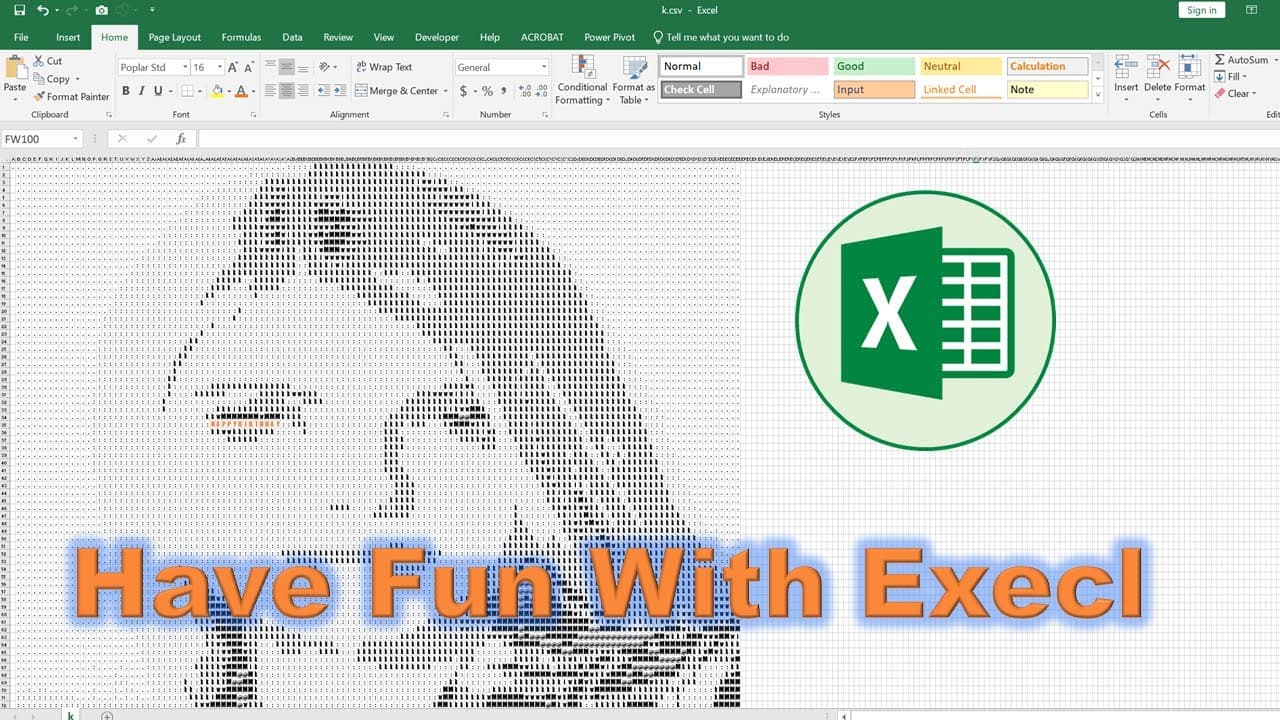
Learn how to create ASCII art using Excel and images.
Transcript
okay today have you all Excel so we have a high paper c4 here and then let's see what the result it's actually a picture of a lady and a clear you have a happy birthday so how to do that okay let's do it so the first thing you need a picture I wanna have a picture here and then you need come were the picture two attacks test so you need a search im... Read More
Key Insights
- 🥰 ASCII art can be generated from images using online converters, simplifying the process of creating digital art.
- 😒 Proper formatting and the use of text replacement tools are essential for converting ASCII text into a visually appealing format in Excel.
- 🥰 Adjusting cell dimensions and font styles in Excel significantly improves the presentation of ASCII art.
- 🛀 This process shows the utility of Excel beyond traditional data tasks, showcasing its creative potential in transforming images into text.
- 🧑💼 Understanding how to manipulate text in Word and Excel enables users to better manage artistic projects in office software.
- 💄 The choice of characters used in ASCII representation can drastically affect the final output, making customization highly important.
- 🥰 Users should always preview their document and art before finalizing to ensure correct formatting.
Install to Summarize YouTube Videos and Get Transcripts
Explore YouTube Video Summarizer or Get YouTube Transcript Extractor
Questions & Answers
Q: What is the initial step to create ASCII art in Excel?
The first step is to select an appropriate picture and upload it to an image-to-ASCII converter website, such as 'A lot encoder'. The user should utilize simple options rather than default complex settings, which can lead to unwanted characters that may complicate the ASCII representation later.
Q: Why is it important to use the "replace" function in Word?
The "replace" function in Word is crucial because it allows users to format the ASCII text produced by the conversion accurately. By replacing certain characters with customized options, the user can ensure that the text is suitable for Excel, removing unnecessary commas or codes that may disrupt the visual outcome.
Q: What formatting adjustments are made in Excel after pasting the ASCII art?
After pasting the ASCII art into Excel, essential formatting adjustments include changing cell height and width, increasing the font size, and choosing an appropriate font type to enhance clarity and presentation. These changes help transform the plain ASCII characters into a recognizable image format.
Q: How do users convert the Word document to a format suitable for Excel?
Users convert the Word document to Excel format by saving the document as plain text. This involves clicking on ‘File’, then ‘Save As’, and selecting the text format option. After saving, users can modify the file extension to .csv, enabling compatibility with Excel.
Summary & Key Takeaways
-
The content demonstrates how to use a picture to create ASCII art in Excel, starting with uploading an image to a specific website. The tutorial emphasizes the need to choose optimal settings for converting the image into text format.
-
After converting the image, users are guided to copy the results into a Word document, where they utilize the replace function to format the text correctly before saving it as plain text for Excel.
-
Finally, viewers learn how to adjust the formatting within Excel, including resizing cells and changing fonts, to achieve a visually appealing ASCII representation of the original image.
Read in Other Languages (beta)
Share This Summary 📚
Summarize YouTube Videos and Get Video Transcripts with 1-Click
Try YouTube Summary with ChatGPT & Claude or YouTube Transcript Generator
Explore More Summaries from E Micro Tech 📚

Summarize YouTube Videos and Get Video Transcripts with 1-Click
Try YouTube Summary with ChatGPT & Claude or YouTube Transcript Generator