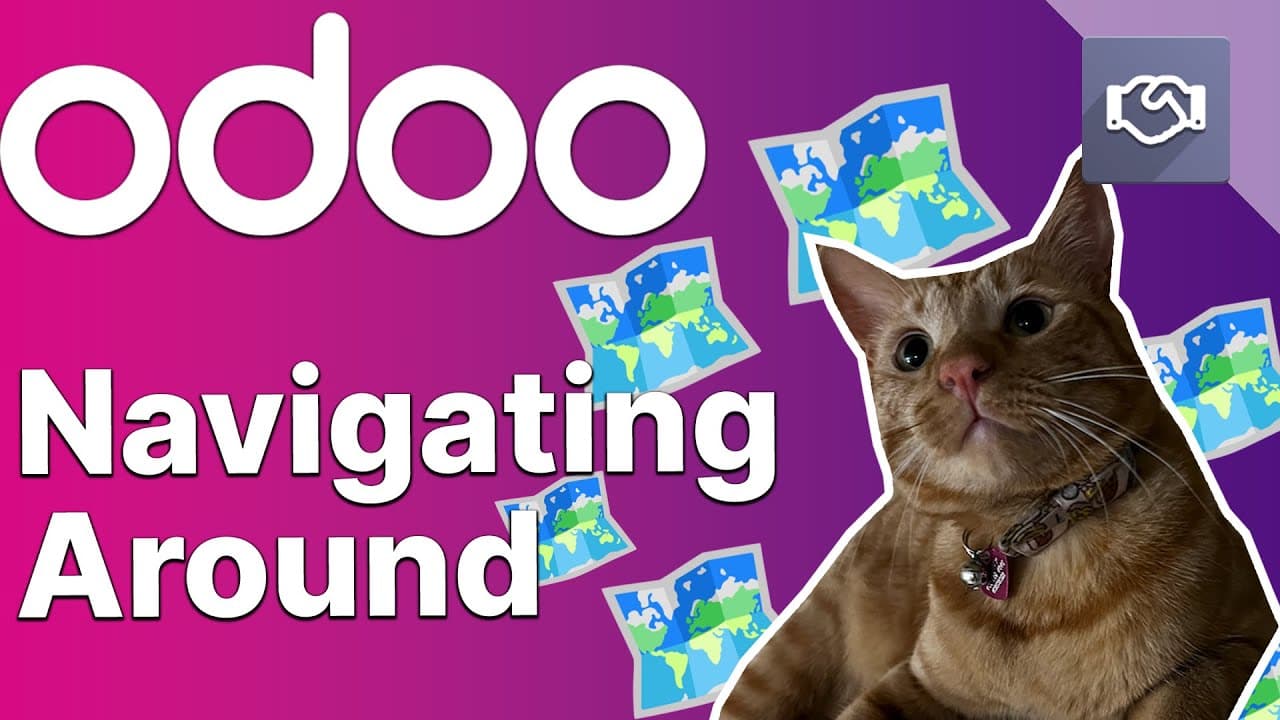
Navigate in Odoo | Getting Started
TL;DR
Learn to navigate the Odoo interface efficiently.
Transcript
foreign with another tutorial now that you've started using Odo let's go through the interface we've set everything up and it's time to play with it now this may seem a little bit complicated at first but it Remains the Same through each app so you'll quickly become familiar with it now after the next demonst... Read More
Key Insights
- Odoo's main dashboard is where users can access all installed applications and modules, with icons indicating features like VoIP and conversation modules.
- The multi-company toggle allows users to switch between different company databases, useful for businesses with multiple locations.
- Odoo Studio lets users customize the look of applications, providing a unique interface tailored to specific business needs.
- Profile settings in Odoo allow users to change language, time zone, and notification preferences, enhancing user customization and experience.
- Odoo offers a dark mode toggle, providing an alternative visual theme that some users may find more comfortable.
- The search bar and filters in Odoo enable users to efficiently locate records, with options to create custom filters and save searches for future use.
- Odoo's various view options, including Kanban, Calendar, Pivot, and Graph views, offer diverse ways to visualize and manage data.
- Smart buttons in Odoo provide quick access to related documents and actions, streamlining workflow and improving productivity.
Install to Summarize YouTube Videos and Get Transcripts
Explore YouTube Video Summarizer or Get YouTube Transcript Extractor
Questions & Answers
Q: What is the purpose of the multi-company toggle in Odoo?
The multi-company toggle in Odoo allows users to switch between different company databases within the same Odoo environment. This feature is particularly useful for businesses that operate multiple branches or locations, as it enables seamless navigation and management of data across different company entities.
Q: How can users customize the look of Odoo applications?
Users can customize the look of Odoo applications using Odoo Studio. This tool allows them to edit the interface of any application, adapting it to meet specific business needs and preferences. This customization capability helps in creating a unique and user-friendly interface that aligns with the company's branding and operational requirements.
Q: What options are available in Odoo's profile settings?
Odoo's profile settings offer users the ability to change their language, time zone, and notification preferences. Users can also manage their security settings, such as changing passwords and toggling two-factor authentication. These settings provide a high level of customization and security, ensuring a personalized and secure user experience.
Q: How does Odoo's search bar enhance data management?
Odoo's search bar enhances data management by allowing users to efficiently locate records using filters and custom search criteria. Users can create and save custom filters for future use, making it easier to access frequently needed data. This feature significantly improves the speed and accuracy of data retrieval within the Odoo environment.
Q: What are the different view options available in Odoo?
Odoo offers several view options, including Kanban, Calendar, Pivot, and Graph views. Each view provides a unique way to visualize and manage data. For example, the Kanban view is ideal for task management, the Calendar view for scheduling, the Pivot view for data analysis, and the Graph view for visual data representation. These options cater to diverse business needs and preferences.
Q: What are smart buttons in Odoo, and how do they improve workflow?
Smart buttons in Odoo provide quick access to related documents and actions within a record. They streamline workflow by allowing users to perform tasks such as viewing related documents, creating invoices, or accessing customer information with a single click. This feature reduces the time spent navigating through menus, thereby improving productivity and efficiency.
Q: How do breadcrumbs facilitate navigation in Odoo?
Breadcrumbs in Odoo facilitate navigation by providing a trail of links that represent the path taken to reach the current page. This feature allows users to easily backtrack to previous pages without losing their place, enabling seamless forward and backward navigation within the Odoo interface. Breadcrumbs enhance user experience by making navigation intuitive and efficient.
Q: What is the significance of Odoo's dark mode toggle?
Odoo's dark mode toggle offers an alternative visual theme that some users may find more comfortable, especially in low-light environments. This feature reduces eye strain and can be preferable for users who work extended hours on the platform. The dark mode toggle is easy to activate and switch back, providing flexibility in user interface preferences.
Summary & Key Takeaways
-
This tutorial video provides a comprehensive guide on navigating the Odoo interface, covering essential features such as the main dashboard, shortcuts, and profile settings. Users can learn how to efficiently manage their Odoo environment with various customization options.
-
The video explains how to use Odoo's search bar and filters to quickly find records, as well as how to utilize different view modes like Kanban, Calendar, Pivot, and Graph views for better data management and visualization.
-
Users are introduced to smart buttons and activity options, which facilitate quick access to related documents and actions, enhancing overall workflow efficiency. The tutorial also covers the use of breadcrumbs for seamless navigation within the Odoo interface.
Read in Other Languages (beta)
Share This Summary 📚
Summarize YouTube Videos and Get Video Transcripts with 1-Click
Try YouTube Summary with ChatGPT & Claude or YouTube Transcript Generator
Explore More Summaries from Odoo 📚
![[ARCHIVED] Bank Reconciliation | Odoo Accounting thumbnail](/_next/image?url=https%3A%2F%2Fi.ytimg.com%2Fvi%2FVLCnG5sN2hU%2Fhqdefault.jpg&w=750&q=75)

Summarize YouTube Videos and Get Video Transcripts with 1-Click
Try YouTube Summary with ChatGPT & Claude or YouTube Transcript Generator