How to add three columns in google slides
TL;DR
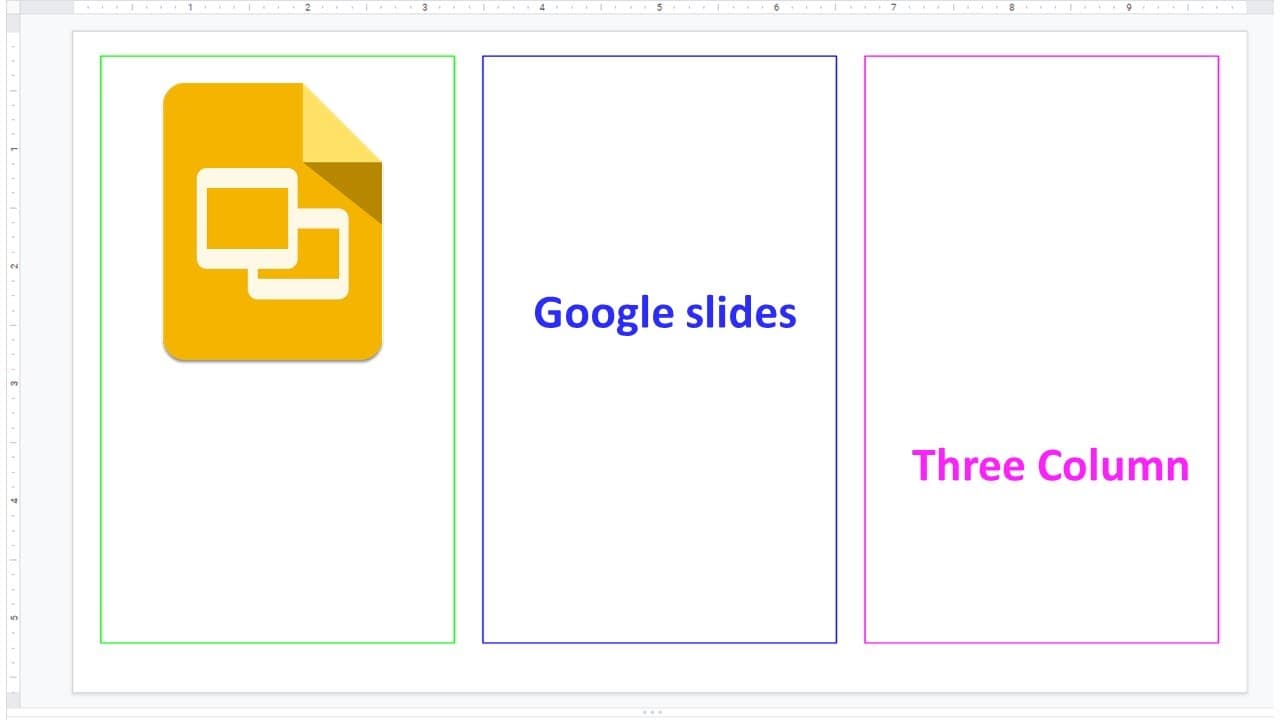
This guide explains how to create three custom columns in Google Slides.
Transcript
foreign columns in Google Slides so like this so to do that you let's add a new page actually you can see there is a pre-designed two columns here but we want to add three columns so let me show you how to do that let's see inside a blank wire and you can see the ruler so the size you can see the paper size is 10. so each column maybe is three is t... Read More
Key Insights
- 🧰 Google Slides allows for customizable layouts, enabling effective presentation designs through tools like text boxes and borders.
- 👾 The 'Arrange' tool is essential for maintaining visual consistency in spacing and alignment of elements within a slide.
- 🥺 Utilizing specific height measurements for text boxes enhances the overall aesthetics of the slide, leading to a more professional appearance.
- 🦮 The guide emphasizes the importance of color differentiation for text boxes to improve readability and visual impact.
- 🫵 Viewers are encouraged to adjust their text box heights multiple times to find the most suitable measurements for their content.
- 👀 The step-by-step process outlined serves both beginners and experienced users looking to enhance their formatting skills.
- ❓ Practical visual adjustments, like re-aligning elements, can greatly influence the readability and impact of a presentation.
Install to Summarize YouTube Videos and Get Transcripts
Explore YouTube Video Summarizer or Get YouTube Transcript Extractor
Questions & Answers
Q: How do you start creating a three-column layout in Google Slides?
To begin, open Google Slides and create a new slide or insert a blank slide. You'll first need to have a general idea of how wide you want your columns to be. The paper size typically is set to 10. Once that's ready, insert text boxes to form the three columns, ensuring they are visually distinct.
Q: What steps do you need to take to add borders to the columns?
After inserting the text boxes for your columns, you can add borders by selecting the text box and navigating to the 'Format' menu. From there, choose 'Border color’ and select the desired border color. It's crucial to ensure that the borders are visible against the background for better clarity in your presentation.
Q: How do you ensure the columns are equally spaced?
To achieve equal spacing between the columns, use the arrange tool found in the 'Arrange' menu. After selecting all three text boxes, you can choose the 'Distribute horizontally' option to ensure they have equal distances from each other and from the page's edges, enhancing visual alignment.
Q: What adjustments can you make to the heights of the columns?
You can adjust the height of the columns by selecting a column and accessing the 'Format options'. There, you can input precise height measurements to ensure uniformity across all columns. It's essential to regularly check that all columns match in height for a polished look.
Summary & Key Takeaways
-
The content provides a step-by-step guide on adding three custom columns to a Google Slides presentation, starting from a blank slide.
-
It covers the process of inserting text boxes, adjusting borders, and using the arrange tool to ensure equal spacing and alignment between the columns.
-
Viewers can learn how to customize the heights of the columns and input text effectively into their new layout.
Read in Other Languages (beta)
Share This Summary 📚
Summarize YouTube Videos and Get Video Transcripts with 1-Click
Try YouTube Summary with ChatGPT & Claude or YouTube Transcript Generator
Explore More Summaries from E Micro Tech 📚

Summarize YouTube Videos and Get Video Transcripts with 1-Click
Try YouTube Summary with ChatGPT & Claude or YouTube Transcript Generator