How to Extend Your Home WiFi Range Effectively
TL;DR
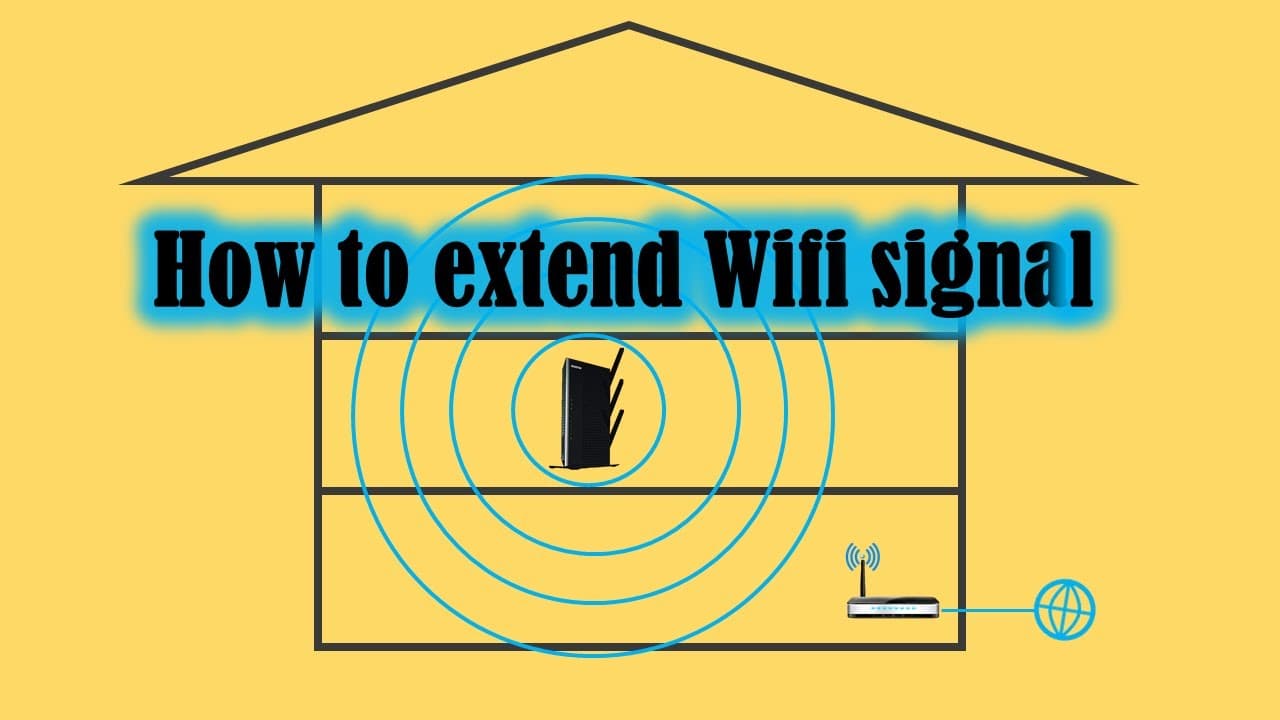
To extend your home WiFi range effectively, use a Netgear router with a built-in extender. Simply power on the extender, connect to it via your computer, and follow the setup prompts to retain your existing network name and password for seamless connectivity throughout your home.
Transcript
okay today I will show you how to extend your home network so I'm using the Netgear one it's a netgear router, it has an extender option so why I'm using this one because first it is stable I'm using that for about six years and the second is it has a wide range so it can easily cover third floors and of course I'm using it on the second floor so i... Read More
Key Insights
- 😃 Using a reliable router with an extender feature can significantly improve home Wi-Fi coverage across multiple floors.
- 👤 The setup process for a Netgear extender is user-friendly, making it accessible even for those with minimal technical knowledge.
- 👤 Retaining the same SSID and password during the extender setup creates a seamless experience for users as they move throughout the extended network.
- 🧘 Ensuring that the extender is positioned optimally can maximize its coverage, thereby enhancing overall network performance.
- 🎮 The video reinforces the importance of following step-by-step instructions to avoid common pitfalls in network setup.
- 👤 Familiarity with basic network commands, like CMD, can empower users to troubleshoot connectivity issues effectively.
- 👻 Opting for a consistent password across devices allows for greater convenience and fewer connection problems for household members.
Install to Summarize YouTube Videos and Get Transcripts
Explore YouTube Video Summarizer or Get YouTube Transcript Extractor
Questions & Answers
Q: Why is the Netgear router chosen for this setup?
The Netgear router is chosen due to its stability, having been used for about six years without issues. Its wide range allows it to effectively cover multiple floors in a home, making it a suitable option for users needing an extended network throughout their living space.
Q: What are the steps involved in connecting to the Netgear extender?
To connect to the Netgear extender, first power it on and search for the network signal on your computer. Once the Netgear signal is found, click to connect. After a brief wait, use the CMD command to access the default gateway, which is crucial for the setup process.
Q: How does the extender configuration process work?
The configuration process involves creating an account, username, and password for the extender. The user selects whether to operate the device as a Wi-Fi extender or an access point. The extender will then scan for nearby wireless networks to connect to, simplifying the setup.
Q: What frequency of Wi-Fi does the extender support?
The extender supports the 2.4 GHz Wi-Fi network, which is selected during the setup process. Users have the option to disable the 5 GHz network during configuration if their home network only uses the 2.4 GHz frequency, ensuring compatibility and optimal performance.
Summary & Key Takeaways
-
The tutorial demonstrates how to extend a home network using a Netgear router with a built-in extender feature, emphasizing its stability and wide coverage.
-
Step-by-step instructions guide users through the process of setting up the extender, including connecting to the device and configuring network options.
-
The video concludes by showing users how to ensure their extended network retains the same passwords and settings for seamless connectivity.
Read in Other Languages (beta)
Share This Summary 📚
Summarize YouTube Videos and Get Video Transcripts with 1-Click
Try YouTube Summary with ChatGPT & Claude or YouTube Transcript Generator
Explore More Summaries from E Micro Tech 📚

Summarize YouTube Videos and Get Video Transcripts with 1-Click
Try YouTube Summary with ChatGPT & Claude or YouTube Transcript Generator