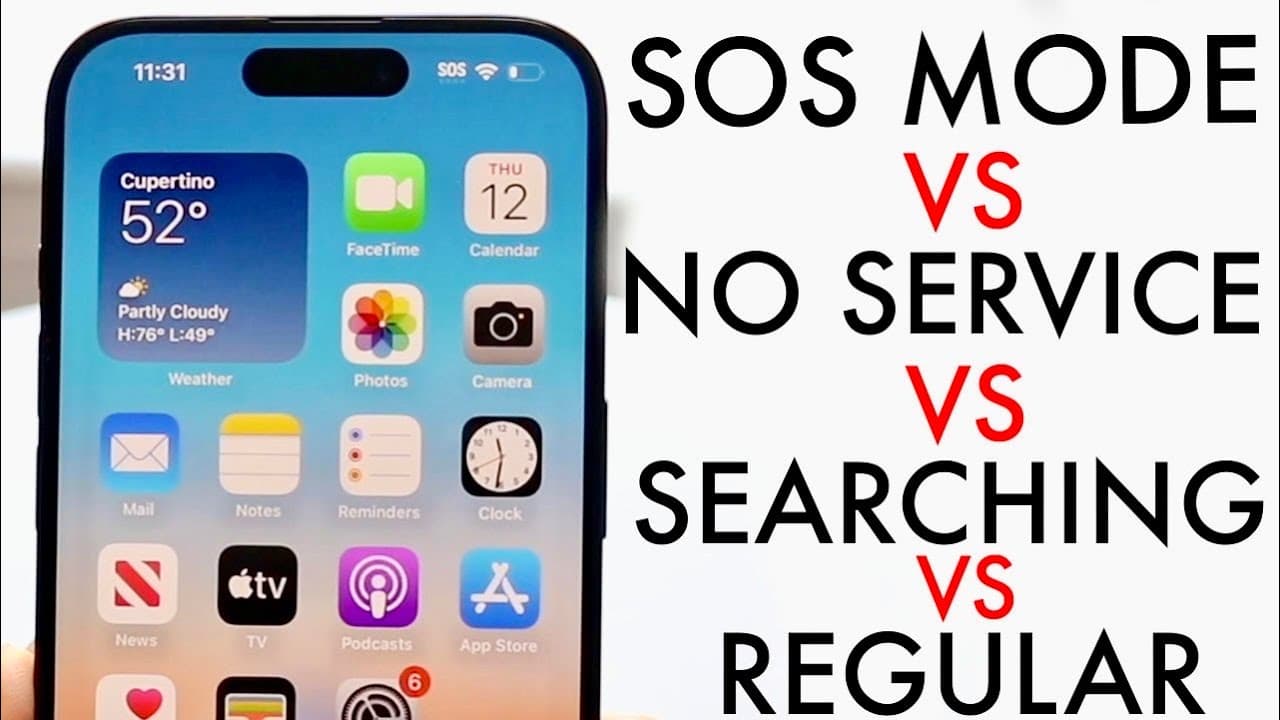
iPhone: SOS Mode Vs No Service Vs Searching Vs Regular Signal! (Comparison) (Review)
TL;DR
iPhones display various signal statuses like no service, searching, and SOS mode, indicating service availability.
Transcript
so funny thing that Apple's kind of thrown into all of our particular phones now is essentially a difference between the signals that you can get from all your particular devices now Apple has made it very easy for us to kind of see but for the you know if you're a brand new iPhone you might not know what the differences are between all these diffe... Read More
Key Insights
- 💁 Apple provides various signal status indicators to keep users informed about their network connectivity.
- 🖤 "No service" indicates total lack of cellular connectivity, often related to SIM card issues or coverage gaps.
- 👨🔬 The "searching" status means the iPhone is trying to find a suitable cellular network to connect to.
- 🆘 SOS mode allows for emergency communication, showcasing the iPhone's design for safety in dire circumstances.
- 👤 Understanding these statuses can help users troubleshoot connectivity issues and manage expectations regarding service availability.
- 🐕🦺 Regular service is essential for normal communication; users cannot make calls or send texts when the phone shows no service or is searching.
- 👤 Each signal indicator has a specific meaning and purpose, designed to make it easier for users to understand their connectivity status.
Install to Summarize YouTube Videos and Get Transcripts
Explore YouTube Video Summarizer or Get YouTube Transcript Extractor
Questions & Answers
Q: What does "no service" mean on my iPhone?
"No service" indicates that your iPhone cannot detect any cellular signal. This often occurs if there is no SIM card installed, if the SIM is improperly seated, or if you are in an area without coverage. You may need to check the device settings or try a different SIM card, or connect to Wi-Fi for internet access.
Q: How does the "searching for service" signal work?
When your iPhone displays "searching," it means the device is actively seeking to establish a connection with a cellular network. This can happen in areas with weak signals or when switching between networks. The phone is attempting to find a usable signal and might take a moment before successfully connecting.
Q: What is SOS mode on an iPhone?
SOS mode indicates that your iPhone recognizes a SIM card or eSIM but cannot connect to a regular cellular network. In this state, the phone can still make emergency calls, using available emergency service frequencies even without standard service, ensuring safety in critical situations.
Q: Can I make regular calls when my iPhone shows "searching" or "no service"?
No, when your iPhone is on "searching" or shows "no service," you are unable to make regular calls or send messages as there is no connection to a cellular service. Only during SOS mode can you contact emergency services since it allows limited connectivity despite lacking standard service.
Summary & Key Takeaways
-
Apple iPhones utilize several signal indicators to inform users of their connectivity status, including no service, searching for service, and SOS mode.
-
The "no service" indicator suggests a lack of signal due to no SIM card or being in an area with no service, while "searching" shows the phone is attempting to connect.
-
SOS mode allows for emergency calls even when regular service is unavailable, reflecting the device's ability to connect to emergency networks.
Read in Other Languages (beta)
Share This Summary 📚
Summarize YouTube Videos and Get Video Transcripts with 1-Click
Try YouTube Summary with ChatGPT & Claude or YouTube Transcript Generator
Explore More Summaries from Simple Alpaca 📚






Summarize YouTube Videos and Get Video Transcripts with 1-Click
Try YouTube Summary with ChatGPT & Claude or YouTube Transcript Generator