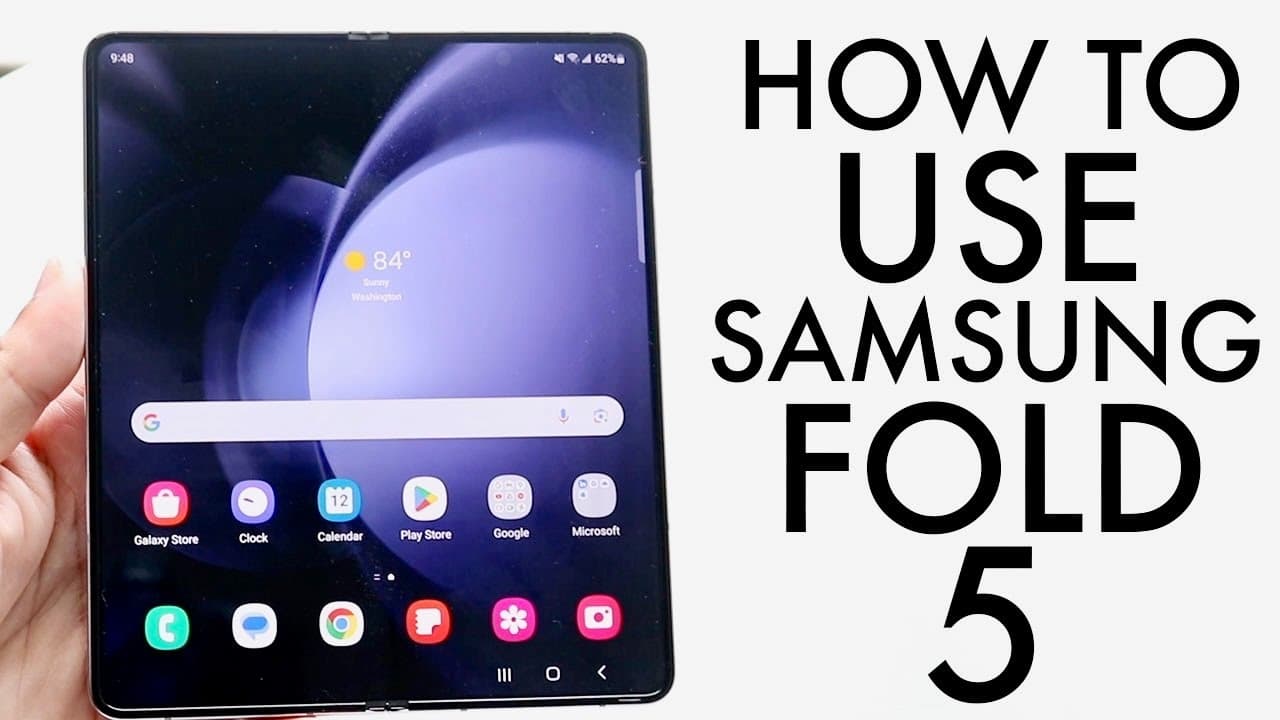
How To Use Samsung Galaxy Fold 5! (Complete Beginners Guide)
TL;DR
The Samsung Galaxy Z Fold 5 is user-friendly and versatile for Android users.
Transcript
so believe it or not the Samsung Galaxy Z fold 5 is an awesome phone and I'll go and show you exactly how to use this device now it's a pretty basic phone it's a lot of you know complex stuff if you've ever used any other Android phone it's basically the same exact way of using this one as well now first things first it does come in a folding forma... Read More
Key Insights
- 🇳🇿 The Galaxy Z Fold 5 retains standard Android usability, making it easy for new users to adapt.
- 📱 Its dual display improves productivity and multitasking capabilities beyond what traditional smartphones offer.
- 🚙 The phone includes comprehensive hardware features such as dual speakers and a USB-C charging port, ensuring a versatile user experience.
- 👾 Users can personalize their home screen layout by moving widgets and applications, creating a tailored digital space.
- 🧡 The phone's settings menu offers a range of options, from display preferences to S Pen modifications, enhancing overall user engagement.
- 👻 Access to the Google Play Store allows for easy downloading of additional applications, expanding the phone's functionality.
- 😚 Regularly closing unused applications helps maintain device performance and memory management.
Install to Summarize YouTube Videos and Get Transcripts
Explore YouTube Video Summarizer or Get YouTube Transcript Extractor
Questions & Answers
Q: How do you insert a SIM card into the Galaxy Z Fold 5?
To insert a SIM card, locate the SIM card tray using the eject tool included in the box. Insert the pin into the small hole on the SIM card tray, which will pop up. Then, place your nano SIM card in the designated slot and slide the tray back into the phone.
Q: What are the unique features of the Galaxy Z Fold 5's display?
The Galaxy Z Fold 5 features two displays: a cover display for quick access and a main display for a larger viewing experience. This allows for seamless transitions between tasks, enabling multitasking capabilities that are ideal for users who require flexibility in their mobile interface.
Q: How can users customize the settings on their Galaxy Z Fold 5?
Users can customize settings by accessing the Settings application from the home screen or app drawer. There, they can manage connectivity options, change display settings like light/dark mode, activate adaptive brightness, and update software for optimum device performance.
Q: What is the significance of updating the software on the Galaxy Z Fold 5?
Software updates are crucial for improving functionality, security, and device performance. By regularly checking for and installing updates via the Settings menu, users can ensure that their device operates optimally and is protected against vulnerabilities and bugs.
Summary & Key Takeaways
-
The Samsung Galaxy Z Fold 5 combines standard Android phone functions with a unique folding design, enabling a larger display for multitasking.
-
Users can easily manage settings, applications, and widgets, much like traditional Android devices, emphasizing familiarity in navigation.
-
Key features include dual displays, a simple SIM and SD card insertion process, customizable settings, and essential applications accessible via the Google Play Store.
Read in Other Languages (beta)
Share This Summary 📚
Summarize YouTube Videos and Get Video Transcripts with 1-Click
Try YouTube Summary with ChatGPT & Claude or YouTube Transcript Generator
Explore More Summaries from Simple Alpaca 📚



Summarize YouTube Videos and Get Video Transcripts with 1-Click
Try YouTube Summary with ChatGPT & Claude or YouTube Transcript Generator