Record Yourself and Your Screen (at the Same Time)
TL;DR
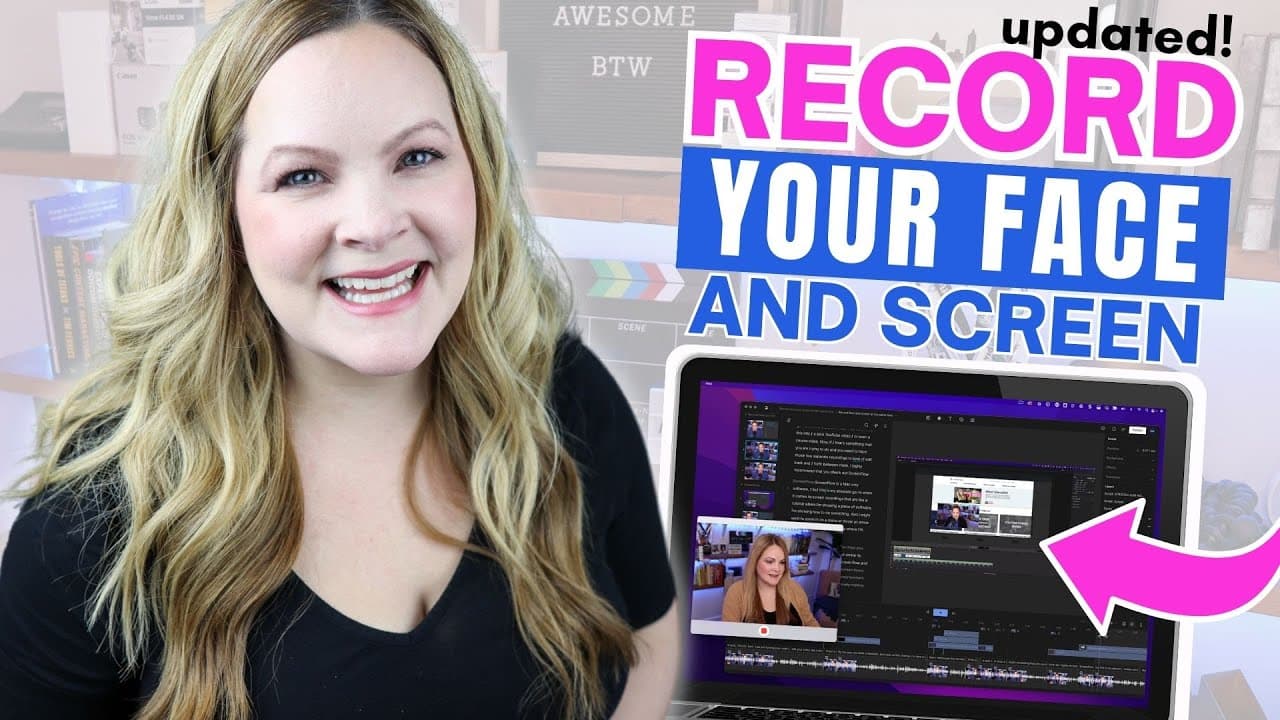
Learn how to record your face and screen simultaneously, and get recommendations for software options based on editing needs.
Transcript
so I guess you're wondering how to record your face and your screen at the same time so you can create Pro looking videos without having to figure out all of the tech well in this video I have you covered right now I'm using descript to record my face and my screen at the same time and what I happen to have open here is my good notes app but you ca... Read More
Key Insights
- 💻 Descript allows users to record their face and screen at the same time, with the ability to edit the recordings separately.
- 🎥 Screenflow is a Mac-only software that is great for screen recordings, especially for tutorials, with features like zooming and adding graphics.
- 🖥️ Camtasia is another option for PC users who want robust features for recording and editing their face and screen recordings.
- 📹 Zoom can be used to record face and screen simultaneously, but the quality may not be as great, and the files will be combined.
- 🎨 Canva offers a simple and easy-to-use feature for recording face and screen within the browser, ideal for presentations.
- 🖥️ Loom is a browser-based option for shorter videos, with control over the size and placement of the face on the screen.
- 💻 Ecam is a Mac-only software that allows users to arrange and design their face and screen recordings in advance.
- 🎙️ Riverside prioritizes the quality of video and audio, with browser-based recording options and AI transcription tools.
Install to Summarize YouTube Videos and Get Transcripts
Explore YouTube Video Summarizer or Get YouTube Transcript Extractor
Questions & Answers
Q: What are the benefits of using Descript for recording and editing videos?
One of the key advantages of using Descript for recording and editing videos is its ability to capture and separate your face and screen recordings into two separate files. This allows for more flexibility in editing, as you can choose to have just your face on screen, show only your slides or screen, or even create a picture-in-picture effect. Descript also offers AI functionality, automatically transcribing your video and allowing you to edit it like a document.
Q: Are there any software options specifically tailored for tutorial-style videos?
Yes, if you are creating tutorial-style videos and need to zoom in on menus, add arrows, or make on-screen actions more visible, Screenflow (for Mac) and Camtasia (for PC) are highly recommended. These software options specialize in screen recording and editing, and offer features and functions specifically designed to enhance the quality and clarity of tutorial videos.
Q: Can I record my face and screen using Zoom?
Yes, you can use Zoom to record your face and screen simultaneously. Simply download the software, share your screen, and make sure your camera is on. However, it is important to note that the quality may not be as high as with dedicated screen recording software, and your face and screen will be recorded together as a single file. This means that you won't have the flexibility to edit and switch back and forth between the two separate recordings.
Q: Can I record my face and screen directly within the Canva browser?
Yes, Canva allows you to record your face and screen within the browser itself, without the need to download additional software. This is a great option for simple presentations where you want to have your face in a specific corner while showing your slides. Canva offers a user-friendly interface for recording and the ability to easily switch between face and screen.
Q: What other options are available for recording face and screen simultaneously?
Besides the aforementioned options, there are a couple more worth considering. Loom is a browser-based option that allows for up to five minute recording time on their free plan. It offers control over the size of your face compared to the screen and its placement. Another option is ecam, which is Mac-only but offers advanced customization options for arranging graphics, images, and recording anything on your screen. Lastly, Riverside prioritizes video and audio quality, making it an excellent choice for high-quality recordings, including face and screen capture.
Summary & Key Takeaways
-
Descript is a versatile software for recording and editing videos, allowing for separate editing of face and screen recordings.
-
Screenflow (Mac) and Camtasia (PC) are recommended for tutorial-style videos, with features like zooming and highlighting.
-
Zoom is a simple option for recording face and screen together, but lacks separate files for editing flexibility.
-
Canva offers an easy and browser-based method for recording face and screen simultaneously, great for simple presentations.
-
Loom is ideal for shorter videos, offering control over face size and screen placement, while ecam allows for easy arrangement and design.
-
Riverside prioritizes video and audio quality, making it a great choice for high-quality recordings.
Read in Other Languages (beta)
Share This Summary 📚
Summarize YouTube Videos and Get Video Transcripts with 1-Click
Try YouTube Summary with ChatGPT & Claude or YouTube Transcript Generator