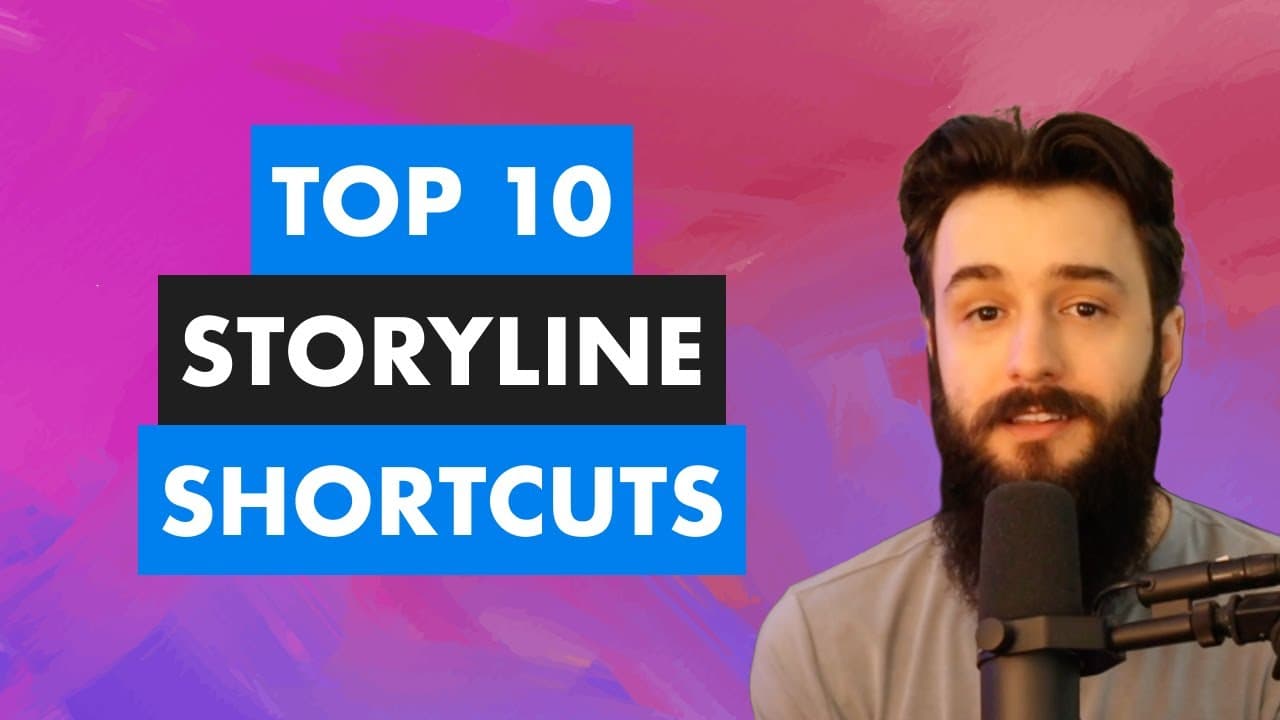
Top 10 Keyboard Shortcuts in Articulate Storyline 360
TL;DR
Learn 10 useful keyboard shortcuts for Articulate Storyline 360, including Find and Replace, Save, Duplicate, Insert Text Box, Insert Picture, Add Triggers, Zoom In and Out, Select Multiple Objects, Grouping, and Preview.
Transcript
Hello, my friends. If you develop eLearning in Articulate Storyline 360, then you can save dozens or hundreds of hours over the course of your career by using keyboard shortcuts. So that's why in this video, we're gonna dive into 10 of the most helpful keyboard shortcuts. And I've also created this job aid for you, which includes all the ... Read More
Key Insights
- ⌛ Utilizing keyboard shortcuts in Articulate Storyline 360 can save significant time and effort in eLearning development.
- 📽️ The Find and Replace shortcut (CTRL F) is useful for quickly locating and replacing specific words or phrases throughout the project.
- 🎅 Saving regularly with the CTRL S shortcut prevents potential data loss caused by software crashes or other issues.
- 🛝 The Duplicate shortcut (CTRL D) streamlines the process of creating copies of objects or slides.
- 👻 The Insert Text Box shortcut (CTRL T) allows users to quickly add text boxes without navigating through menus.
- 🗾 The Insert Picture shortcut (CTRL J) simplifies the process of adding images to slides.
- 💨 The Add Triggers shortcut (CTRL K) provides a quick way to add interactivity to objects.
- 👻 The Zoom In and Out shortcut (CTRL + mouse wheel) or (CTRL + trackpad pinch gesture) allows users to quickly adjust the zoom level for easier editing.
- ⌛ The Select Multiple Objects shortcut (CTRL or CMD + click) saves time when selecting multiple objects for editing or formatting.
- 👥 Grouping objects using the CTRL G shortcut facilitates easier alignment and animation of multiple objects.
- 📽️ Previewing the project is made easy with the F12 shortcut, allowing users to preview the entire project, a scene, or an individual slide.
Install to Summarize YouTube Videos and Get Transcripts
Explore YouTube Video Summarizer or Get YouTube Transcript Extractor
Questions & Answers
Q: How can keyboard shortcuts in Articulate Storyline 360 save time?
Keyboard shortcuts allow users to perform various tasks quickly, eliminating the need for multiple clicks or searches through menus. This can significantly speed up the development process.
Q: Why is the Find and Replace shortcut useful?
The Find and Replace shortcut (CTRL F) enables users to quickly locate and replace specific words or phrases throughout their project. This is helpful for correcting mistakes or making global changes without manually editing each slide.
Q: How does the Save shortcut prevent data loss?
By pressing CTRL S regularly, users can save their project and prevent data loss in case of software crashes or other issues. The asterisk symbol at the end of the project name indicates unsaved changes.
Q: What is the purpose of the Duplicate shortcut?
The Duplicate shortcut (CTRL D) eliminates the need for copy and paste commands. It allows users to create copies of selected objects or slides with a single keyboard press, saving time and effort.
Q: How does the Insert Text Box shortcut work?
By placing the mouse cursor where the text box should appear and pressing CTRL T, users can quickly add a text box without navigating through menus. This shortcut is easy to remember and speeds up the text input process.
Q: What is the benefit of the Insert Picture shortcut?
Pressing CTRL J eliminates the need to navigate through the insert tab to add a picture. This shortcut allows users to quickly select and insert an image, improving workflow efficiency.
Answer:
Summary & Key Takeaways
-
Using keyboard shortcuts in Articulate Storyline 360 can save hours of development time.
-
The video introduces 10 helpful keyboard shortcuts, including Find and Replace, Save, Duplicate, Insert Text Box, Insert Picture, Add Triggers, Zoom In and Out, Select Multiple Objects, Grouping, and Preview.
-
The presenter explains how to use each shortcut and provides practical examples.
Read in Other Languages (beta)
Share This Summary 📚
Summarize YouTube Videos and Get Video Transcripts with 1-Click
Try YouTube Summary with ChatGPT & Claude or YouTube Transcript Generator
Explore More Summaries from Devlin Peck 📚





Summarize YouTube Videos and Get Video Transcripts with 1-Click
Try YouTube Summary with ChatGPT & Claude or YouTube Transcript Generator