How to Start Editing with DaVinci Resolve 19
TL;DR
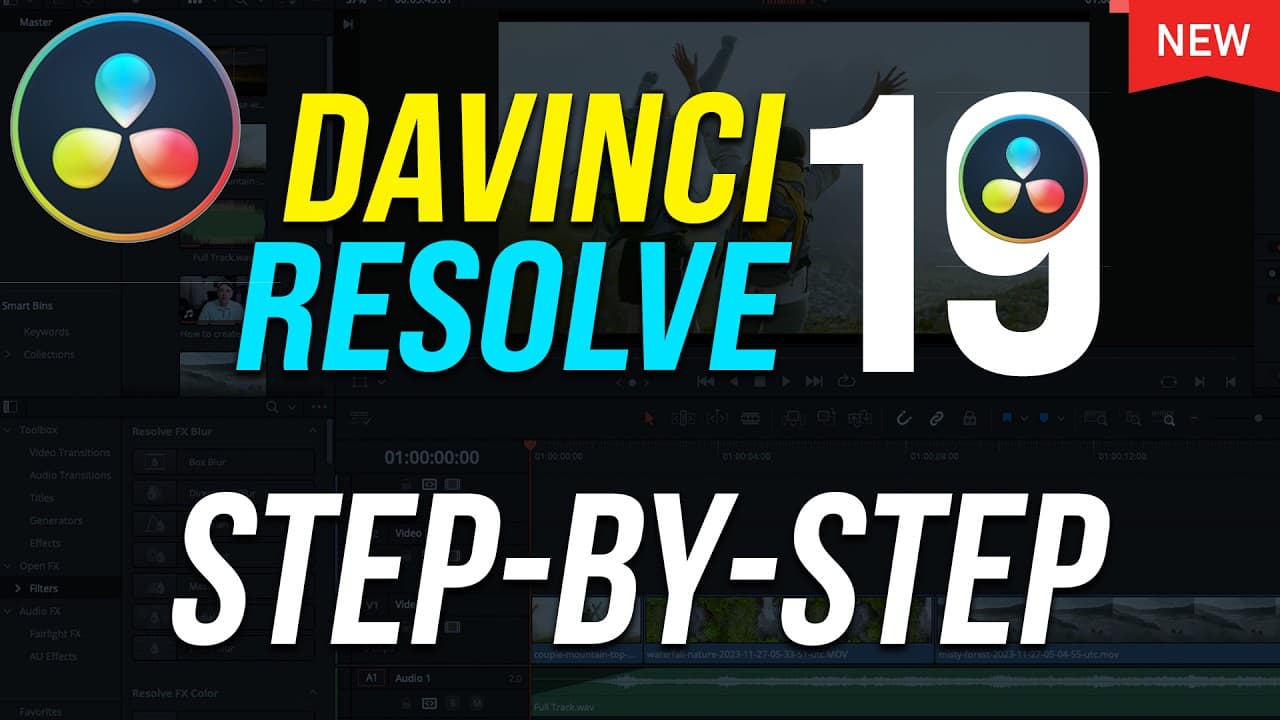
Get started with video editing by following a 10-step tutorial in DaVinci Resolve 19. This guide covers everything from downloading the software to creating projects, importing media, and performing essential edits like adding clips, b-roll, transitions, and text before exporting your final video.
Transcript
Da Vinci resolve is a free video editing app available for mac and PC and it's one of the best ways to get started with editing and I've been editing for more than 15 years and in this video I'm going to show you everything you need to know to get started with da Vinci resolve and it's going to be a simple 10-step pr... Read More
Key Insights
- DaVinci Resolve is a free video editing software available for both Mac and PC, offering a robust set of tools for beginners and professionals alike.
- The tutorial covers a simple 10-step process to get started with DaVinci Resolve, focusing on the free version of the software.
- The first step involves downloading and installing the latest version of DaVinci Resolve, with a link provided in the video description.
- Creating a new project in DaVinci Resolve is straightforward, with all projects appearing on the main page for easy access and management.
- Importing media is simplified through the media pool, where users can drag and drop video clips, photos, and music for use in their projects.
- Basic editing techniques include adding clips to a timeline, re-ordering them, and using keyboard shortcuts to streamline the editing process.
- Advanced features such as adding b-roll, transitions, and text are covered, enhancing the storytelling aspect of video projects.
- The tutorial concludes with steps on exporting the final video, choosing the right format and settings for sharing across platforms.
Install to Summarize YouTube Videos and Get Transcripts
Explore YouTube Video Summarizer or Get YouTube Transcript Extractor
Questions & Answers
Q: What is DaVinci Resolve?
DaVinci Resolve is a free video editing application available for Mac and PC. It offers a comprehensive suite of tools for both beginners and professionals, including capabilities for basic and advanced editing, color grading, and audio mixing. The software is widely used in various industries, including filmmaking, due to its robust features and ease of use.
Q: How do you create a new project in DaVinci Resolve?
To create a new project in DaVinci Resolve, open the software and navigate to the main page where all your projects are displayed. Click on 'New Project,' name your project for easy identification, and press 'Create.' This setup allows you to manage and access your projects efficiently, with icons representing each project for quick navigation.
Q: What are the basic steps for editing in DaVinci Resolve?
Basic editing in DaVinci Resolve involves importing media into the media pool, adding clips to the timeline, and re-ordering them as needed. Users can use keyboard shortcuts for efficiency, such as 'I' for in-point and 'O' for out-point, to trim clips before adding them to the timeline. This foundational process is essential for assembling video projects.
Q: How can you add transitions between clips?
Transitions can be added between clips in DaVinci Resolve by accessing the 'Effects' panel. Users can choose from various transition effects, such as dissolves and wipes, to create smooth transitions between clips. Simply drag the desired transition effect between two clips on the timeline to apply it, enhancing the visual flow of the video.
Q: What is the purpose of adding b-roll in video editing?
B-roll is used in video editing to provide supplementary footage that enhances the main content. It is often used to visually illustrate what the speaker is discussing, making the video more engaging and informative. In DaVinci Resolve, b-roll is added on a secondary track above the main footage, allowing the audio to continue while the b-roll plays.
Q: How do you add text to a video in DaVinci Resolve?
Text can be added to a video in DaVinci Resolve using the 'Titles' section in the 'Effects' panel. Users can drag and drop basic or animated text templates onto a new video track above the main footage. The text can be customized in the 'Inspector' panel, where users can adjust fonts, colors, and sizes to suit their video's style.
Q: What is the role of the 'Deliver' tab in DaVinci Resolve?
The 'Deliver' tab in DaVinci Resolve is used for exporting the final edited video. Users can select the desired format, such as MP4, and codec settings like h264, which are suitable for platforms like YouTube. The tab allows users to name the project, choose the export location, and initiate the rendering process, preparing the video for sharing.
Q: What advanced features does DaVinci Resolve offer?
Beyond basic editing, DaVinci Resolve offers advanced features like color grading in the 'Color' panel and audio mixing in the 'Fairlight' panel. The 'Fusion' panel provides tools for creating visual effects, though it is more complex and typically used by professionals. These features make DaVinci Resolve a powerful tool for creating high-quality videos with professional-grade effects and audio.
Summary & Key Takeaways
-
DaVinci Resolve offers a comprehensive set of video editing tools suitable for beginners and professionals. This tutorial walks users through a 10-step process to get started, focusing on the free version of the software.
-
Users learn to create projects, import media, and perform basic editing tasks, including adding clips to a timeline and reordering them. The tutorial emphasizes the importance of organizing media efficiently.
-
Advanced editing techniques are explored, such as adding b-roll, transitions, and text, culminating in the final step of exporting the video. Users gain a foundational understanding of DaVinci Resolve's capabilities.
Read in Other Languages (beta)
Share This Summary 📚
Summarize YouTube Videos and Get Video Transcripts with 1-Click
Try YouTube Summary with ChatGPT & Claude or YouTube Transcript Generator
Explore More Summaries from Howfinity 📚

Summarize YouTube Videos and Get Video Transcripts with 1-Click
Try YouTube Summary with ChatGPT & Claude or YouTube Transcript Generator