How To Add BORDERS To Images in Photoshop
TL;DR
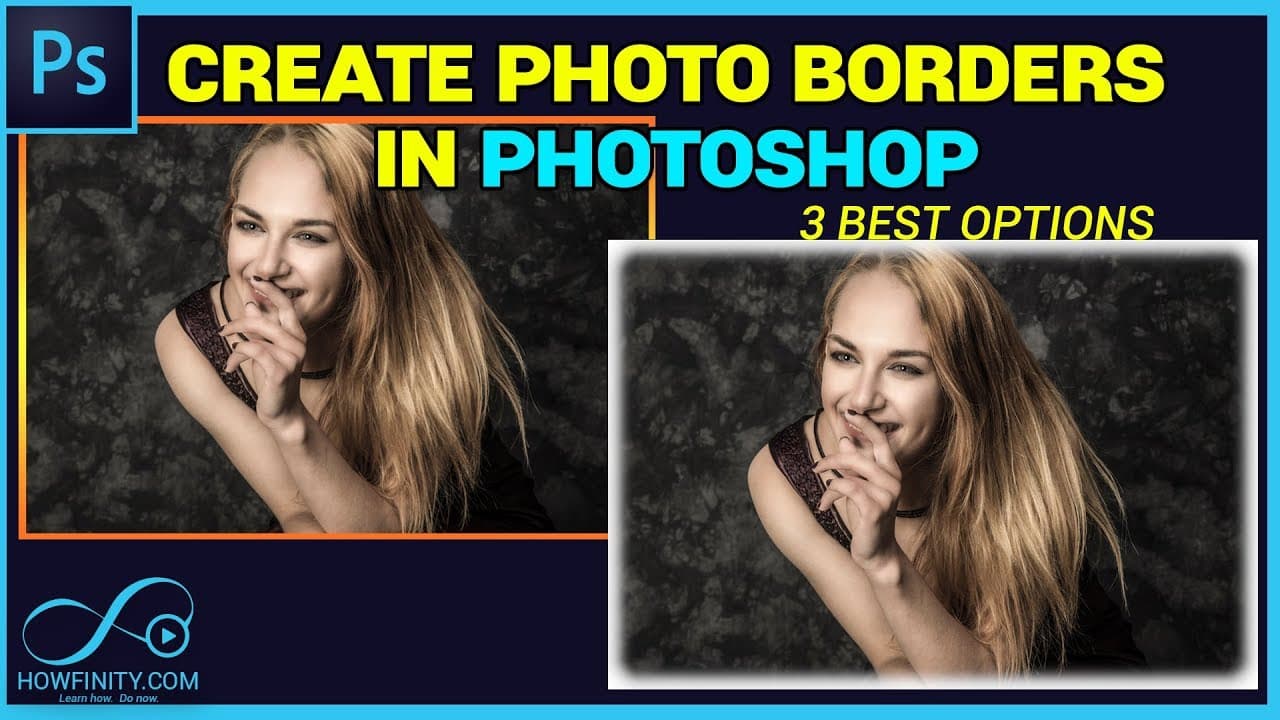
Learn three simple methods to add borders to your images in Photoshop, including using layer styles, camera raw filter, and the crop tool.
Transcript
In this video, I'm going to show you my three favorite ways to add a border to any image in Photoshop. Let me show you the first and the easiest way first. Let's unlock our image. I'm going to double click that and unlock this image and to add a border, I just have to double click and go to layer style and in layer style, there is a stroke option a... Read More
Key Insights
- 💨 Photoshop provides three simple ways to add borders to images: using layer styles, the camera raw filter, or the crop tool.
- 🧘 Layer styles offer quick and easy options to add borders with control over position, color, opacity, and size.
- 👻 The camera raw filter allows for more stylistic control with adjustable vignetting, producing borders that can be sharp or soft.
- 🎙️ The crop tool combined with a solid color layer enables the creation of borders with any color, size, and opacity.
- ❓ Additional layer styles like pattern overlay or texture can be applied to enhance the border's appearance.
- 👤 Experimenting with different methods will help users find the best-fit border style for their images.
- 🎨 These techniques are versatile and can be applied to any image, providing creative freedom in designing borders.
Install to Summarize YouTube Videos and Get Transcripts
Explore YouTube Video Summarizer or Get YouTube Transcript Extractor
Questions & Answers
Q: How can I add a border to an image using layer styles in Photoshop?
To add a border using layer styles, unlock the image layer, double-click it, and go to layer style. Select the stroke option and choose outside, inside, or center for the border position. Adjust the color, opacity, blend mode, and size as desired.
Q: What is the second method to add a border in Photoshop using the camera raw filter?
After unlocking the image layer, go to Filter > Camera Raw Filter. Click on the FX icon and adjust the vignetting settings to create the desired border style. Control the sharpness or softness of the border by changing the feather number.
Q: How can I add a solid color border using the crop tool in Photoshop?
Unlock the image layer, add a solid color layer beneath the image, and choose the desired border color. Drag the solid color layer under the image layer. Select the crop tool (shortcut: C) and extend the crop area outside the image to create the border. Adjust the fill color, opacity, and other layer styles as preferred.
Q: Can I customize the border further using other layer styles in Photoshop?
Yes, you can double-click on the solid color layer and apply additional layer styles like pattern overlay or texture to further customize the border. You have the flexibility to adjust colors, opacities, and other settings to achieve the desired effect.
Summary & Key Takeaways
-
The first method involves adding a border using the layer style in Photoshop, where you can choose the position, color, opacity, and size of the border.
-
The second method utilizes the camera raw filter to create a border with adjustable vignetting, allowing for more control over the border's style.
-
The third method involves adding a solid color layer beneath the image and extending the crop area to create a border.
Read in Other Languages (beta)
Share This Summary 📚
Summarize YouTube Videos and Get Video Transcripts with 1-Click
Try YouTube Summary with ChatGPT & Claude or YouTube Transcript Generator
Explore More Summaries from Howfinity 📚




Summarize YouTube Videos and Get Video Transcripts with 1-Click
Try YouTube Summary with ChatGPT & Claude or YouTube Transcript Generator