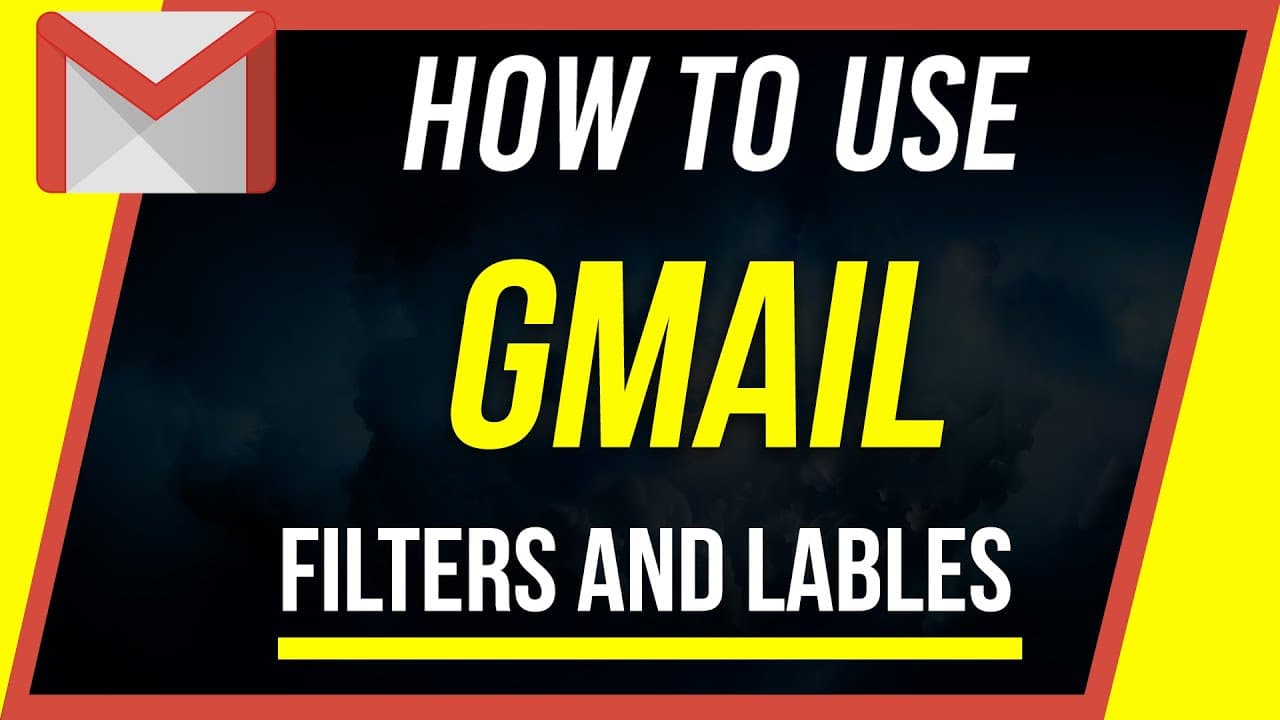
How to Use Gmail Labels and Filters
TL;DR
Learn how to clean up your Gmail inbox and improve productivity by creating filters and labels.
Transcript
everyone in today's how-to video I want to show you how to create filters and labels inside of Gmail and filters is gonna help you clean up your email box over here and labels is really gonna just help you with productivity and seeing the emails that you care about most so log in to the Gmail accounts where you want to apply labels and filters and ... Read More
Key Insights
- 💌 Gmail's filters can be accessed through the search box on the main page or within individual emails, providing flexibility in organizing emails.
- 💌 Labels in Gmail help prioritize important emails and make them easily identifiable, even when they are moved out of the primary inbox.
- 💌 Filters can be set to automatically skip the inbox and move emails to specific folders, streamlining email organization.
- 👻 Creating filters and labels in Gmail can significantly improve productivity by reducing clutter and allowing for quick identification of important emails.
- 🏷️ Gmail's labeling feature also offers customization options such as changing label colors for easy visual recognition.
- 🥶 Unsubscribing from unwanted emails is an important step in keeping the primary inbox clean and clutter-free.
- 💌 Gmail's filters and labels can be applied to different categories of emails, such as work-related or personal emails, making it easier to manage multiple accounts.
Install to Summarize YouTube Videos and Get Transcripts
Explore YouTube Video Summarizer or Get YouTube Transcript Extractor
Questions & Answers
Q: How do filters and labels in Gmail help with email organization?
Filters in Gmail allow you to automatically sort incoming emails based on specific criteria, while labels help categorize and prioritize important emails for easier management.
Q: Can filters skip the inbox and move emails to different folders?
Yes, filters can be set to skip the inbox and automatically move emails to designated folders. This helps keep your primary inbox clean and organized.
Q: How can labels be created in Gmail?
Labels can be created in Gmail by going to the Settings tab, selecting the Labels section, and choosing to create a new label. Labels can be nested within other folders or kept as standalone categories.
Q: Can filters and labels be applied to multiple conversations?
Yes, both filters and labels can be applied to multiple conversations. This allows you to quickly categorize and organize groups of emails that meet specific criteria.
Summary & Key Takeaways
-
Filters in Gmail allow you to organize emails by specific criteria such as sender, subject, size, or attachments.
-
Labels in Gmail help you categorize and prioritize important emails, making them easier to find and manage.
-
Filters can be created both from the main page and within individual emails, while labels are managed in the settings menu.
Read in Other Languages (beta)
Share This Summary 📚
Summarize YouTube Videos and Get Video Transcripts with 1-Click
Try YouTube Summary with ChatGPT & Claude or YouTube Transcript Generator
Explore More Summaries from Howfinity 📚


Summarize YouTube Videos and Get Video Transcripts with 1-Click
Try YouTube Summary with ChatGPT & Claude or YouTube Transcript Generator