How to Use the Samsung Galaxy S23 as a Beginner
TL;DR
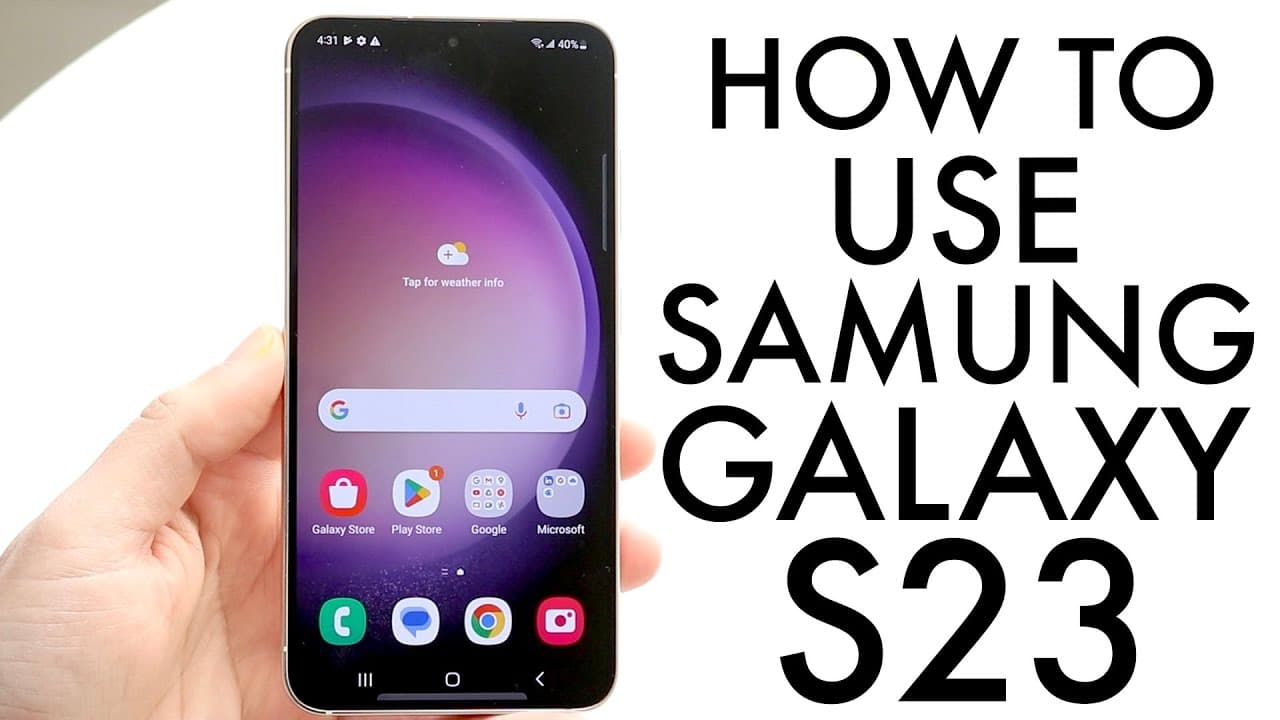
To effectively use the Samsung Galaxy S23, start by inserting your nano SIM card and follow the straightforward setup process. Familiarize yourself with the touchscreen features, including navigation through the home screen, accessing notifications, and personalizing settings for an optimized experience. Regularly check for software updates to enhance performance and security.
Transcript
hello everyone the Samsung Galaxy s23 has officially came out so let's go and take a look at it and see how exactly to use this specific device now I'll definitely tell you this is a very good device I'm very glad you picked it up and it's a great choice it's going to last you a very long time and you know this is probably going to be one of the be... Read More
Key Insights
- 👤 The Samsung Galaxy S23's design prioritizes a large, uninterrupted display, enhancing the user experience by eliminating clutter.
- 😫 Initial set-up is user-friendly, especially for those already familiar with Android systems; the process is mainly self-explanatory.
- 👪 Customization options are extensive, offering users the ability to personalize how their home screen and notification settings appear and function.
- 📣 The phone encourages exploring both basic and advanced settings for optimizing performance, such as modifying brightness and navigation preferences.
- 👤 Regular software updates are crucial for maintaining the phone’s performance and security, and users are advised to check for these updates on setup.
- 💨 Gesture navigation offers an alternative way to interact with the device, adding versatility to standard navigation buttons.
- 🈂️ Wireless charging and reverse charging capabilities make the Galaxy S23 a practical choice for users who value modern charging solutions.
Install to Summarize YouTube Videos and Get Transcripts
Explore YouTube Video Summarizer or Get YouTube Transcript Extractor
Questions & Answers
Q: What are the key physical features of the Samsung Galaxy S23?
The Samsung Galaxy S23 showcases a sleek design primarily focused on the display, with no front buttons and a minimalist side layout. It includes a USB-C charging port, SIM card ejector, and a triple camera system on the back. Additionally, it supports wireless charging and reverse wireless charging, making it a versatile device for various user needs.
Q: How can I set up my SIM card in the Samsung Galaxy S23?
To set up your SIM card, locate the SIM card slot at the bottom right of the device. Use the provided SIM eject tool to pop the tray out. Insert your nano SIM card into the tray and push it back into the slot. Once successfully placed, the phone will detect the SIM if it’s compatible, allowing you to connect to your network.
Q: What are the different ways to interact with the Samsung Galaxy S23's display?
Users can interact with the S23’s display via tapping the power button or double-tapping the screen to wake it. Swiping down from the top accesses notifications and quick settings, while swiping up reveals the app drawer. Users can also use gesture-based navigation for a more seamless experience.
Q: How can I customize my home screen and app settings?
Customization starts by long-pressing app icons on the home screen. You can rearrange their positions, remove them, or add new widgets. Additionally, the bottom dock remains consistent, allowing users to drag apps from the app drawer and organize them easily, enhancing efficiency and personalization of your home screen.
Summary & Key Takeaways
-
The Samsung Galaxy S23 features a minimalist design with a large touchscreen and essential buttons positioned conveniently for easy access.
-
Setup involves inserting a nano SIM and navigating through initial settings, which are manageable for users familiar with Android interfaces.
-
The guide covers practical usage tips, including navigating the home screen, utilizing notifications, and customizing settings for an enhanced user experience.
Read in Other Languages (beta)
Share This Summary 📚
Summarize YouTube Videos and Get Video Transcripts with 1-Click
Try YouTube Summary with ChatGPT & Claude or YouTube Transcript Generator
Explore More Summaries from Simple Alpaca 📚


Summarize YouTube Videos and Get Video Transcripts with 1-Click
Try YouTube Summary with ChatGPT & Claude or YouTube Transcript Generator