How to open the full right-click menu (Windows 10 liked menu) by default on Windows 11
TL;DR
Learn how to change the Windows 11 right-click menu to resemble Windows 10’s functionality.
Transcript
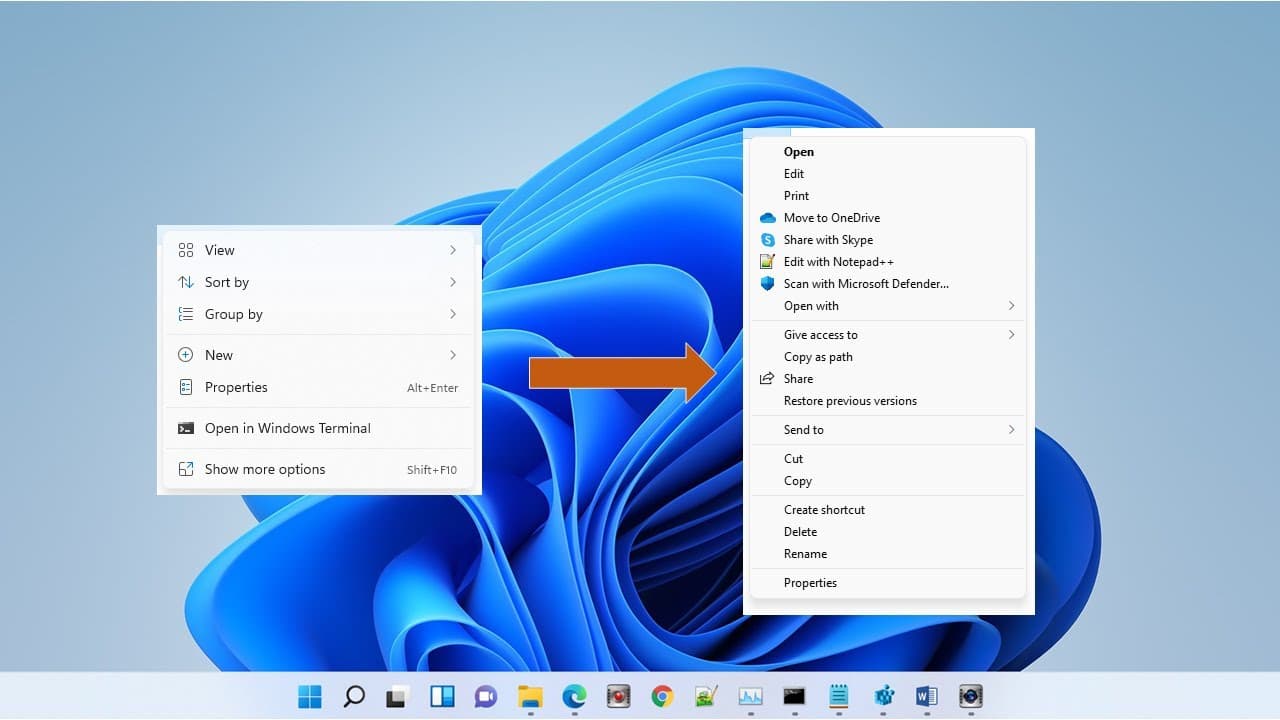
hello in this video i will show you how to change the right click manual for example when you have a windows 11 the right click manual is like this when you click show more option it will show the more option but in windows 10 will have all the options in the right click you even don't need the click show more option so how to change that back to t... Read More
Key Insights
- 👤 The video focuses on a specific customization option for Windows 11, aimed at enhancing user experience.
- 🥹 Backing up the registry is a crucial step in any modification to avoid unwanted outcomes.
- 🔨 The customization process requires basic familiarity with tools like the Registry Editor and Command Prompt.
- 👤 Many users prefer the Windows 10 layout due to its straightforward access to options.
- 🗯️ Quick access to all right-click functions may improve workflow for users who perform repetitive tasks.
- 🤩 The key creation involves adding specific registry values which could also be documented for future reference.
- 👤 The visual comparison between the Windows 11 and Windows 10 menus highlights user preference trends.
Install to Summarize YouTube Videos and Get Transcripts
Explore YouTube Video Summarizer or Get YouTube Transcript Extractor
Questions & Answers
Q: Why would someone want to change the right-click menu in Windows 11 to resemble that of Windows 10?
Many users find the new Windows 11 right-click menu less efficient because it requires an extra click to access more options. Reverting to the Windows 10 style allows quick access to all functions, enhancing productivity and usability for those accustomed to the previous version.
Q: What is the purpose of exporting the Registry Editor before making changes?
Exporting the Registry Editor serves as a backup to safeguard against potential mistakes during the modification process. If the changes do not work as intended or cause issues, users can easily restore their previous settings by importing the backup, minimizing risk and saving time.
Q: What specific steps are involved in the process to change the right-click menu?
The process involves several steps: first, access the Registry Editor; second, export it for backup; then, enter a command in the Command Prompt to create a new registry key. Lastly, restart Windows Explorer to apply the changes and view the updated context menu.
Q: Can the command mentioned in the video be used without modification?
Yes, the command can be directly copied from the video description and pasted into the Command Prompt. However, users should pay attention to specific details, such as running the Command Prompt with admin privileges to ensure that the command executes successfully.
Summary & Key Takeaways
-
This video demonstrates how to customize the right-click context menu in Windows 11 to display all options directly, similar to Windows 10.
-
The process involves using the Registry Editor to modify specific keys and create a backup for safety.
-
After executing the change and restarting Windows Explorer, users will observe a reversion to the traditional context menu style.
Read in Other Languages (beta)
Share This Summary 📚
Summarize YouTube Videos and Get Video Transcripts with 1-Click
Try YouTube Summary with ChatGPT & Claude or YouTube Transcript Generator
Explore More Summaries from E Micro Tech 📚

Summarize YouTube Videos and Get Video Transcripts with 1-Click
Try YouTube Summary with ChatGPT & Claude or YouTube Transcript Generator