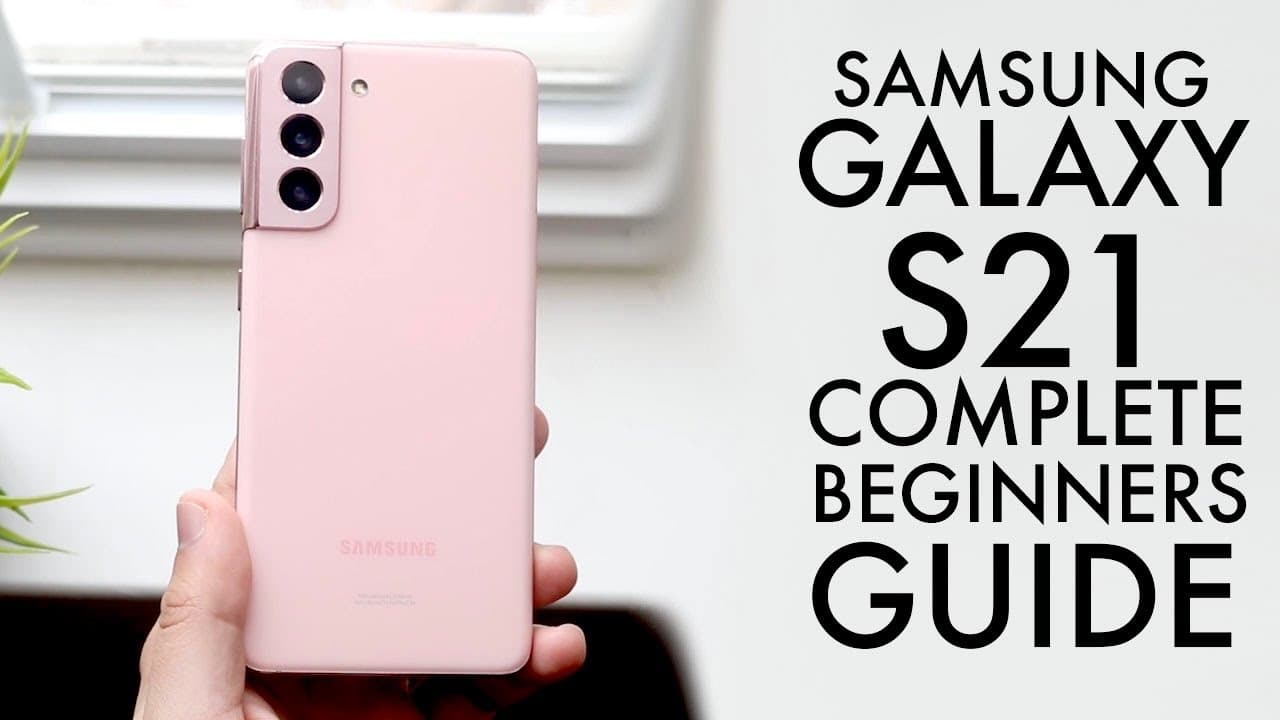
How To Use Your Samsung Galaxy S21! (Complete Beginners Guide)
TL;DR
This content provides a comprehensive beginner's guide for Samsung Galaxy S21 users.
Transcript
welcome back everyone you may have just bought in your samsung galaxy s21 so let's go ahead and do a little bit of a beginner's guide for it and what better way to start than this awkward angle now when you first buy your samsung galaxy s21 you're pretty much going to come into this panel whether you have the s21 s21 ultra whatever the case is befo... Read More
Key Insights
- ☠️ The Samsung Galaxy S21 features essential hardware controls such as power and volume buttons while foregoing the micro SD card slot for storage.
- 🤘 Initial device setup requires selecting a Wi-Fi network and signing into a Google account, which is crucial for syncing services.
- 👤 The control center provides quick access to settings such as brightness, Bluetooth, and notifications, streamlining user interaction with the device.
- 👤 Users can modify the navigation system to use gesture-based controls for a more modern and fluid experience on the device.
- 💻 Taking and sharing screenshots is straightforward, critical for capturing information quickly, while screen recording provides a way to document activities on-screen.
- 👤 The system settings offer user-friendly customization of sound, display, and security, allowing users to personalize their device usage experience.
- 😒 Dark mode not only enhances visual comfort but also contributes to battery conservation, making it a useful feature for extended device use.
Install to Summarize YouTube Videos and Get Transcripts
Explore YouTube Video Summarizer or Get YouTube Transcript Extractor
Questions & Answers
Q: What are the basic buttons and ports on the Samsung Galaxy S21?
The Samsung Galaxy S21 features a power button, volume buttons, a USB Type-C port for charging, a SIM card eject hole, and a triple camera setup on the rear. Notably, it lacks a micro SD card slot, meaning storage expansion options are limited. Users should handle the device with care as specific parts can break upon impact, despite the plastic back being somewhat durable.
Q: How can I eject the SIM card from the Samsung Galaxy S21?
To eject the SIM card, find the SIM card eject tool included in the box. Locate the small hole on the bottom left side of the device, insert the tool into the hole, and apply gentle pressure. The SIM card tray will pop out, allowing you to insert or replace your SIM card. Ensure that you insert the card correctly to avoid connection issues.
Q: What steps should I follow for the initial setup of the Samsung Galaxy S21?
Upon turning on your Galaxy S21, you will need to select your Wi-Fi network and enter the password. After connecting, you may choose to copy data from another Android device or skip this step. It's essential to sign in with your Google account for syncing apps and data, and setting up a password for security is highly recommended.
Q: How do I take a screenshot on the Samsung Galaxy S21?
To take a screenshot, simultaneously press the power button and the volume down button and hold them until you see a screen capture animation on the display. A notification will pop up at the bottom, allowing you to access and edit the screenshot. This function is useful for sharing content quickly with others.
Q: Can I enable dark mode on my Samsung Galaxy S21? If so, how?
Yes, you can enable dark mode to enhance battery life and reduce eye strain. To activate it, open the settings app, navigate to the display section, and select 'Dark mode.' This will change the overall appearance of your UI to a darker theme, which is less bright and easier on the eyes during low-light conditions.
Q: How do I change the navigation buttons to gestures on the Galaxy S21?
To switch from navigation buttons to gestures, go to settings and select 'Display.' Scroll to 'Navigation bar' and choose the 'Swipe gestures' option. This will remove the navigation buttons, allowing you to use gestures instead, such as swiping up to return to the home screen or access the multitasking panel more efficiently.
Q: How can I utilize screen recording on my Samsung Galaxy S21?
To record your screen, pull down the control panel, find the screen recording toggle, and if necessary, add it through the edit menu. Once selected, tap to start recording, and follow the countdown. After finishing, you can find the video in your gallery and share it or edit it like any other video file.
Q: What is reverse wireless charging, and how do I enable it?
Reverse wireless charging allows your Samsung Galaxy S21 to charge other wireless devices. To enable it, go to settings, then battery and device care, select the battery option, and enable 'Wireless power sharing.' Place a compatible device on the back of your Galaxy S21 to begin charging it. Remember to monitor battery levels, as this feature can drain the phone’s battery quickly.
Summary & Key Takeaways
-
The guide covers essential features of the Samsung Galaxy S21, including how to use buttons, eject the SIM card, and set up the device.
-
It explains the user interface elements, such as the lock screen, home screen, control center, and settings menu, along with navigation options.
-
Key functionalities such as taking screenshots, screen recording, enabling dark mode, and using wireless charging are also detailed for new users.
Read in Other Languages (beta)
Share This Summary 📚
Summarize YouTube Videos and Get Video Transcripts with 1-Click
Try YouTube Summary with ChatGPT & Claude or YouTube Transcript Generator
Explore More Summaries from Simple Alpaca 📚


Summarize YouTube Videos and Get Video Transcripts with 1-Click
Try YouTube Summary with ChatGPT & Claude or YouTube Transcript Generator