How can I find out when MS Office 365 user account was created
TL;DR
Learn how to check when a Microsoft 365 user was created using PowerShell.
Transcript
so as administrator of the microsoft 365 you can check when the user was created to do that you need open the power shell from the windows 10 remotely and then if you didn't install exchange online management you need install that first for how to install that you can search my channel video there is a video said how to fix microsoft 6365 cannot ch... Read More
Key Insights
- 👤 Microsoft 365 administrators can manage user accounts and configurations using PowerShell, enabling efficient monitoring.
- ♿ The installation of Exchange Online Management is a prerequisite for accessing many administrative functions in Microsoft 365 environments.
- 🎭 Understanding how to navigate PowerShell commands is essential for administrators to perform tasks effectively and accurately within the system.
- 👤 The command provided facilitates the retrieval of the user creation date, a vital piece of information for user management and auditing processes.
- 💁 There are resources available in the form of videos for users who may need assistance installing or troubleshooting Microsoft 365 components.
- 👤 Maintaining accurate user account records is crucial for compliance and operational transparency within organizations.
- 👤 Familiarity with Microsoft 365's PowerShell commands can significantly enhance the effectiveness of IT administrators in managing user accounts.
Install to Summarize YouTube Videos and Get Transcripts
Explore YouTube Video Summarizer or Get YouTube Transcript Extractor
Questions & Answers
Q: What initial steps must be taken before checking the user creation date in Microsoft 365?
Before checking the user creation date, you need to open PowerShell on your Windows 10 system. If Exchange Online Management is not installed, you must install it first. Instructions for installing Exchange Online Management can be found in related video content which guides users through fixing profile photo issues as well.
Q: How do you connect to Exchange Online after installing the necessary tools?
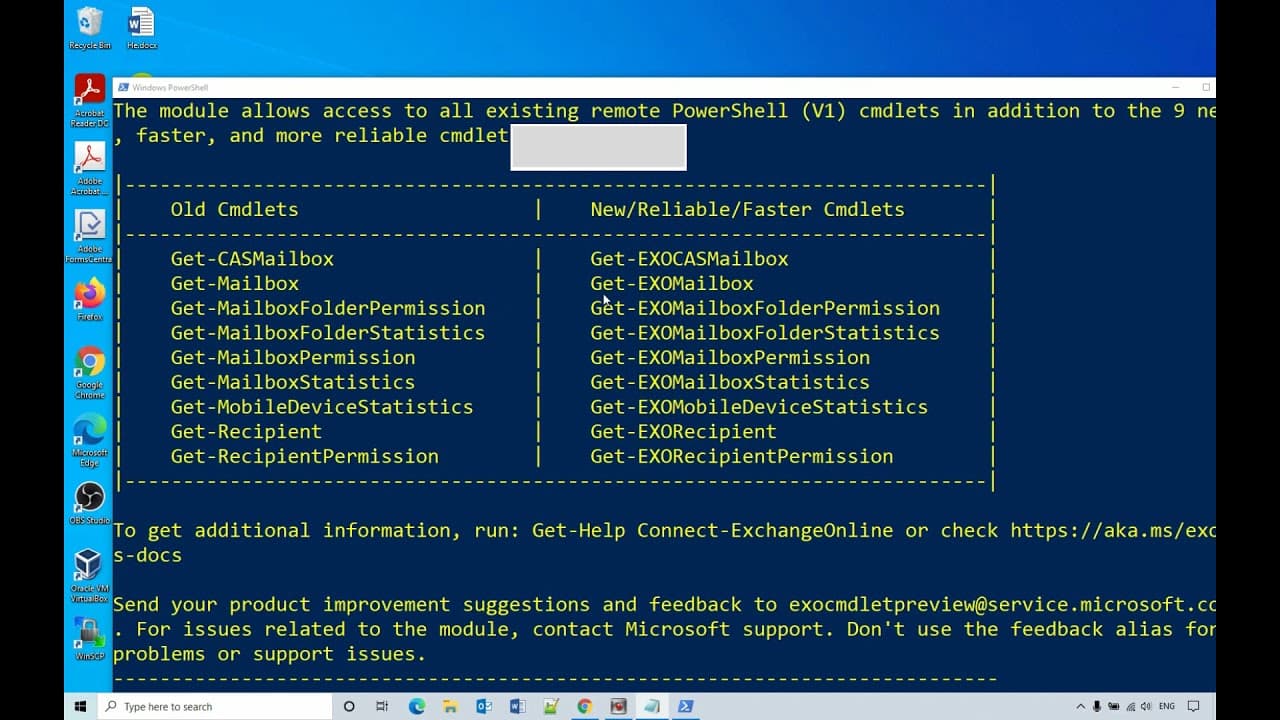
After installing Exchange Online Management, connect to Exchange Online by entering the command "Connect-ExchangeOnline" in PowerShell. After hitting enter, a sign-in window will pop up. Here, you need to sign in using your administrator credentials, which will then enable a remote session for further commands.
Q: What command is used to retrieve the creation date of a user in Microsoft 365?
To find the user creation date, you should use the command "Get-Mailbox -Identity [email protected]." Replace “[email protected]” with the correct user’s email address. Upon executing this command, you’ll receive details, including the creation date of the user’s account in the system.
Q: Can you explain the importance of the email address in the command to check the user creation date?
The email address in the command is crucial because it identifies the specific user account you want to check. If the email address is incorrect or not formatted properly, the command will not return the accurate user creation date, leading to potential confusion or errors in administrative tasks.
Summary & Key Takeaways
-
The content provides instructions for Microsoft 365 administrators to check user creation dates through PowerShell in Windows 10.
-
It emphasizes the necessity of installing Exchange Online Management if it's not already installed and refers to available resources for installation guidance.
-
An example is given for executing a PowerShell command to retrieve the user creation date, highlighting the importance of using the correct email address.
Read in Other Languages (beta)
Share This Summary 📚
Summarize YouTube Videos and Get Video Transcripts with 1-Click
Try YouTube Summary with ChatGPT & Claude or YouTube Transcript Generator
Explore More Summaries from E Micro Tech 📚

Summarize YouTube Videos and Get Video Transcripts with 1-Click
Try YouTube Summary with ChatGPT & Claude or YouTube Transcript Generator