How to add waiting list form using Gravity Forms on WordPress
TL;DR
Learn how to set up a registration form and a waiting list using Gravity Forms.
Transcript
hello today i will show you how to add a reading list using the gravity form so my goal is when we can set a limitation for the gravity form for registration and when the limit is reached we'll show another form on the same page so the user can enter their name to the waiting list now i will show you how to do that first let's uh let's create a sim... Read More
Key Insights
- 👻 Gravity Forms allows users to create advanced forms with features like entry limitations and waiting lists.
- 👂 The tutorial provides a step-by-step approach to building a registration system that can automatically redirect users to a waiting list once limits are reached.
- 💁 Users can collect essential information efficiently through the registration form, maintaining an organized database of participants.
- 👤 It emphasizes the importance of user experience by ensuring that users are informed when a capacity limit is reached through appropriate messaging.
- 💁 Templates in Gravity Forms enable users to save time for future registrations by reusing existing form setups.
- 👂 The integration of waiting list functionality is beneficial for events with limited capacity, enhancing administrative efficiency.
- 🤪 The tutorial highlights the significance of testing forms to ensure all settings operate as intended before going live.
Install to Summarize YouTube Videos and Get Transcripts
Explore YouTube Video Summarizer or Get YouTube Transcript Extractor
Questions & Answers
Q: What is the main purpose of the video?
The video aims to teach viewers how to create a registration system using Gravity Forms that includes a waiting list feature. By setting a limit on the number of entries, the user can gather submissions until a specified limit is reached, after which another form will collect names for the waiting list.
Q: How do you set entry limitations in Gravity Forms?
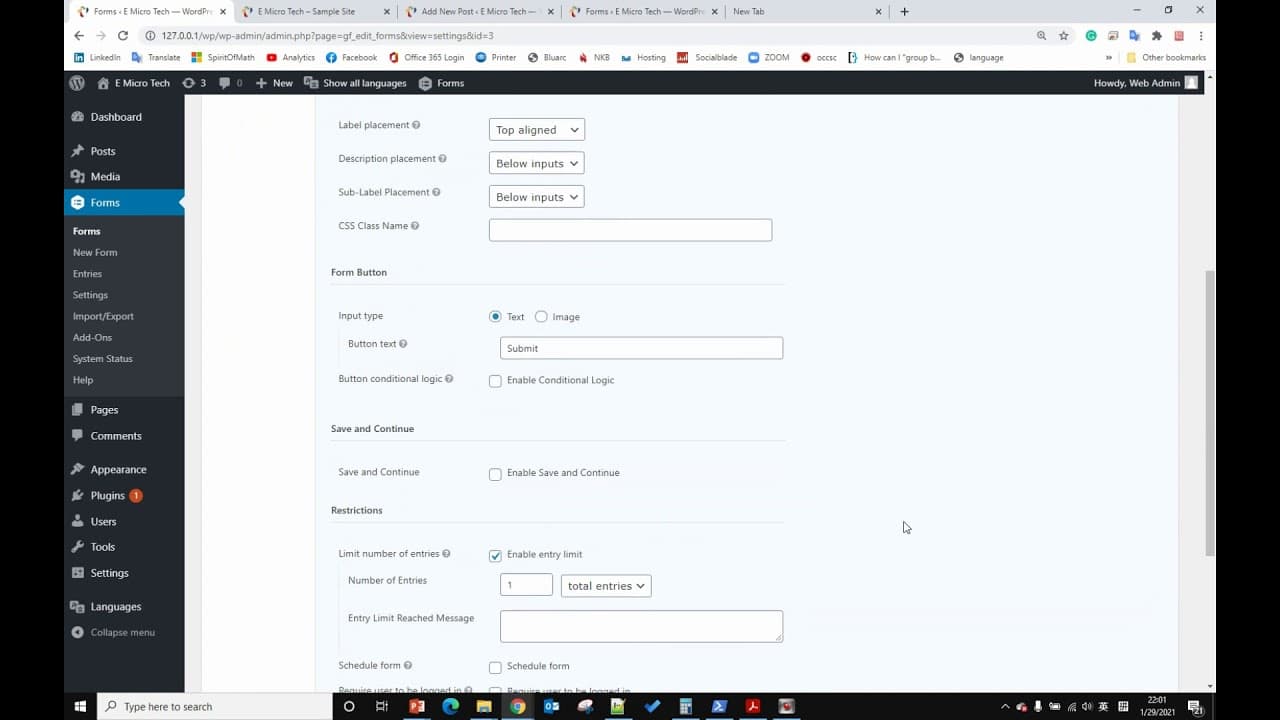
To set entry limitations in Gravity Forms, you need to navigate to the settings of the registration form. Under the limitation section, you can specify the maximum number of entries allowed. This feature ensures that once the limit is reached, users will see a message directing them to the waiting list form instead.
Q: What information is collected in the registration form?
The registration form is designed to collect essential information from users, including their name, phone number, address, and email address. This data is crucial for tracking registrations and enabling effective communication with those who register for the event or service.
Q: How does the waiting list form operate when the registration limit is reached?
When the registration limit is reached, the waiting list form becomes visible to users attempting to register. Instead of seeing the registration fields, users will be prompted with a message to fill out the waiting list form, where they only need to input their name and phone number.
Q: Can the forms be reused for future events?
Yes, the created forms can be saved as templates within Gravity Forms. This feature allows users to easily replicate the registration and waiting list setup for different events without having to start from scratch each time.
Q: What happens after a user submits their registration?
Upon successful submission of the registration form, the user will receive confirmation of their registration. However, if another user tries to register after the limit has been reached, they will see the waiting list form instead of the registration fields.
Q: How do you add the waiting list form to the registration page?
To add the waiting list form to the registration page, you need to copy the shortcode for the waiting list form and paste it into the registration form's settings under the "Untrained Reach Message" section. This allows the waiting list form to be displayed dynamically when the registration limit is hit.
Q: What technical knowledge is needed to implement this tutorial?
Basic familiarity with Gravity Forms and WordPress is necessary to implement this tutorial effectively. Users should understand how to navigate the Gravity Forms interface, set up forms, utilize shortcode, and adjust basic settings to implement the functionality demonstrated.
Summary & Key Takeaways
-
This content demonstrates how to create a registration form using Gravity Forms, where users can input their name, phone number, address, and email.
-
It explains how to set an entry limit for the registration form, after which a waiting list form appears for any additional users.
-
The tutorial covers the technical aspects of linking forms and displaying appropriate messages when the registration limit is reached.
Read in Other Languages (beta)
Share This Summary 📚
Summarize YouTube Videos and Get Video Transcripts with 1-Click
Try YouTube Summary with ChatGPT & Claude or YouTube Transcript Generator
Explore More Summaries from E Micro Tech 📚

Summarize YouTube Videos and Get Video Transcripts with 1-Click
Try YouTube Summary with ChatGPT & Claude or YouTube Transcript Generator