how to use notion 💻💡 notion setup tutorial + free template!
TL;DR
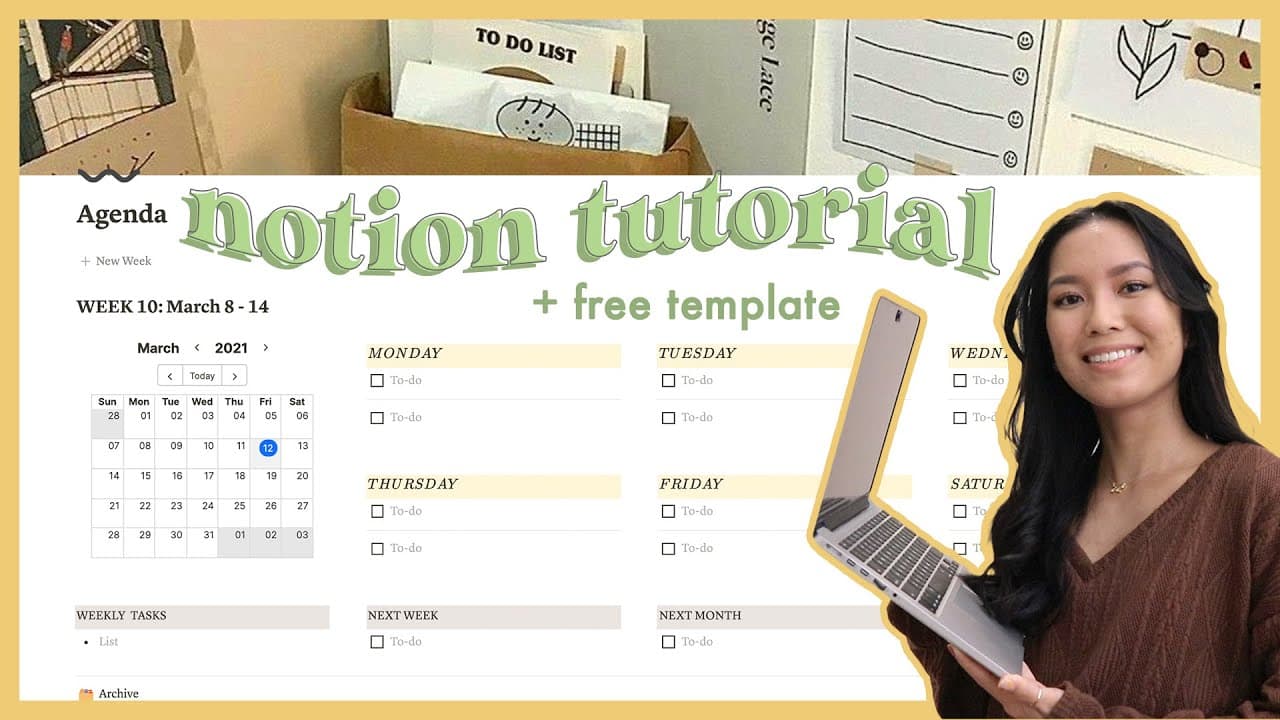
Learn how to customize and set up your Notion workspace with aesthetic pages, fonts, icons, shortcuts, columns, widgets, templates, and linked databases.
Transcript
hello my sweet potatoes it's michelle and today i'm going to show you how to take your notion from this to this and this and this this video is like a part two i already filmed my notion tour video which i will link up here or in the description box but i basically walked you through my entire notion workspace showed you all of my pages a... Read More
Key Insights
- 🎨 Change up the fonts, toggle on small text and full width, and add icons to make your Notion pages more aesthetic and personalized.
- 🔗 Notion doesn't have all the emojis, but you can use the emoji shortcut or find icons from notion.vip or icons8 to make your pages more dynamic.
- ️ Utilize keyboard shortcuts to navigate and format your Notion pages more efficiently, saving time and clicks.
- 🌈 Apply background colors to entire rows by clicking the six dots on the left side, choosing a color, and applying it to the row.
- 📌 Use the option key to duplicate blocks quickly and easily, making it convenient for duplicating tasks or entire pages.
- ✍️ Bulleted lists can be created by simply using the dash key, saving time and making it easier to create organized lists.
- 🗄️ Columns can be created by dragging and dropping blocks, making it a more efficient way to structure your pages and maximize space.
- 📝 Templates and linked databases can be used to create repetitive layouts and maintain consistency in your pages, making it easier to plan, organize, and track various projects.
Install to Summarize YouTube Videos and Get Transcripts
Explore YouTube Video Summarizer or Get YouTube Transcript Extractor
Questions & Answers
Q: How can you change the font and appearance of your Notion pages?
To change the font, simply click the three dots in the top right corner, choose between default, serif, or mono fonts, and toggle on small text and full width. You can also add icons to your main pages by opening the page, clicking "add icon" at the top, and choosing an emoji or using websites like notion.vip for minimalistic black and white icons.
Q: What are some useful keyboard shortcuts for navigating Notion?
Some helpful keyboard shortcuts for Macbook users are: command + control + space to open the emoji shortcut, command + shift + h to copy formatting, command + shift + r to quickly rename a page, and backslash + the desired color to apply a background color to text blocks.
Q: How can you create columns in Notion to optimize space on a page?
To create columns, start by creating blocks and adding a text to make the blocks visible. Then, grab one block, drag it to the end of another block until a blue vertical line shows up, and release. You can add as many columns as needed by repeating this process.
Q: How can you create widgets like a weather widget or a calendar widget in Notion?
To create widgets, you can use websites like weatherwidget.io for weather widgets or indify.com for calendar widgets. Customize the widget's appearance, copy the provided code, and paste it into an embed block on a Notion page. Adjust the size and appearance of the widget as desired.
Summary & Key Takeaways
-
The video provides tips and tricks on how to customize and set up a Notion workspace, including gathering inspiration, changing fonts, adding icons, using keyboard shortcuts, applying background colors, duplicating blocks, organizing columns, creating widgets, setting up templates, and using linked databases.
-
The content also covers creating an archive, formatting templates in databases, and using linked databases to view information in different ways.
-
The creator shares personal experiences and demonstrates step-by-step instructions for each tip, offering a comprehensive guide to optimizing the Notion workspace.
Read in Other Languages (beta)
Share This Summary 📚
Summarize YouTube Videos and Get Video Transcripts with 1-Click
Try YouTube Summary with ChatGPT & Claude or YouTube Transcript Generator