How to Make Any Video Sound Your Ringtone on iPhone
TL;DR
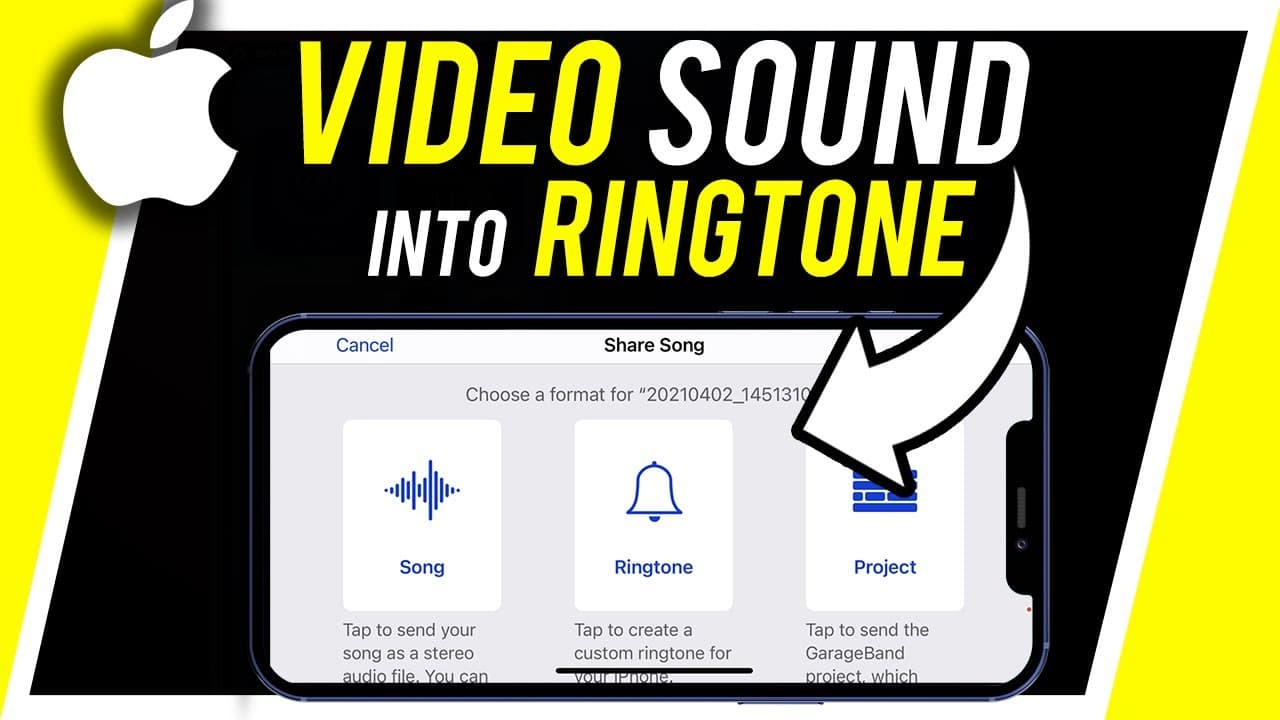
Learn how to convert a video's sound into a ringtone using GarageBand and a ringtone maker app.
Transcript
hey everyone in today's iphone video i want to show you how to turn any video the sound from that video into a ringtone so if you have a video that's playing music that you like it you want to turn that into your ringtone this is going to walk you through that now it's not the easiest thing in the world but i'll show you the simplest way to do this... Read More
Key Insights
- 👂 You need to have the desired video with the desired sound saved on your phone.
- 😀 GarageBand and a ringtone maker app are necessary for converting the sound into a ringtone.
- 👻 GarageBand allows you to customize the audio track, including its duration and selection of specific portions.
- 💾 The resulting ringtone can be saved and used as a standard ringtone on your iPhone.
- 🎼 GarageBand offers the option to create your own custom ringtone from scratch using its music creation features.
- ❓ The process may not be the easiest, but GarageBand simplifies it compared to other methods.
- 😀 The garageband app can be used for various music-related purposes, not just creating ringtones.
Install to Summarize YouTube Videos and Get Transcripts
Explore YouTube Video Summarizer or Get YouTube Transcript Extractor
Questions & Answers
Q: How do I download a video onto my phone for the ringtone conversion?
To download the video onto your phone, open the video, click on the three dots, and select the option to save the video.
Q: Do I need to have GarageBand already installed on my iPhone?
GarageBand may already come pre-installed on your iPhone, but if not, you can download it from the App Store.
Q: Can I use any ringtone maker app for this process?
Yes, there are various ringtone maker apps available. The recommended one in the video is called "Ringtone Maker," but other similar apps should work as well.
Q: How can I edit the audio track in GarageBand?
In GarageBand, you can adjust the duration of the track by dragging the end point. You can also select a specific part of the track by adjusting the in and out points.
Summary & Key Takeaways
-
Download the video containing the desired sound onto your phone.
-
Install the GarageBand and ringtone maker apps from the App Store.
-
Import the video into the ringtone maker app and transfer it to GarageBand.
-
Edit the audio track in GarageBand to suit your preferences, and save it as a ringtone.
Read in Other Languages (beta)
Share This Summary 📚
Summarize YouTube Videos and Get Video Transcripts with 1-Click
Try YouTube Summary with ChatGPT & Claude or YouTube Transcript Generator
Explore More Summaries from Howfinity 📚
Summarize YouTube Videos and Get Video Transcripts with 1-Click
Try YouTube Summary with ChatGPT & Claude or YouTube Transcript Generator