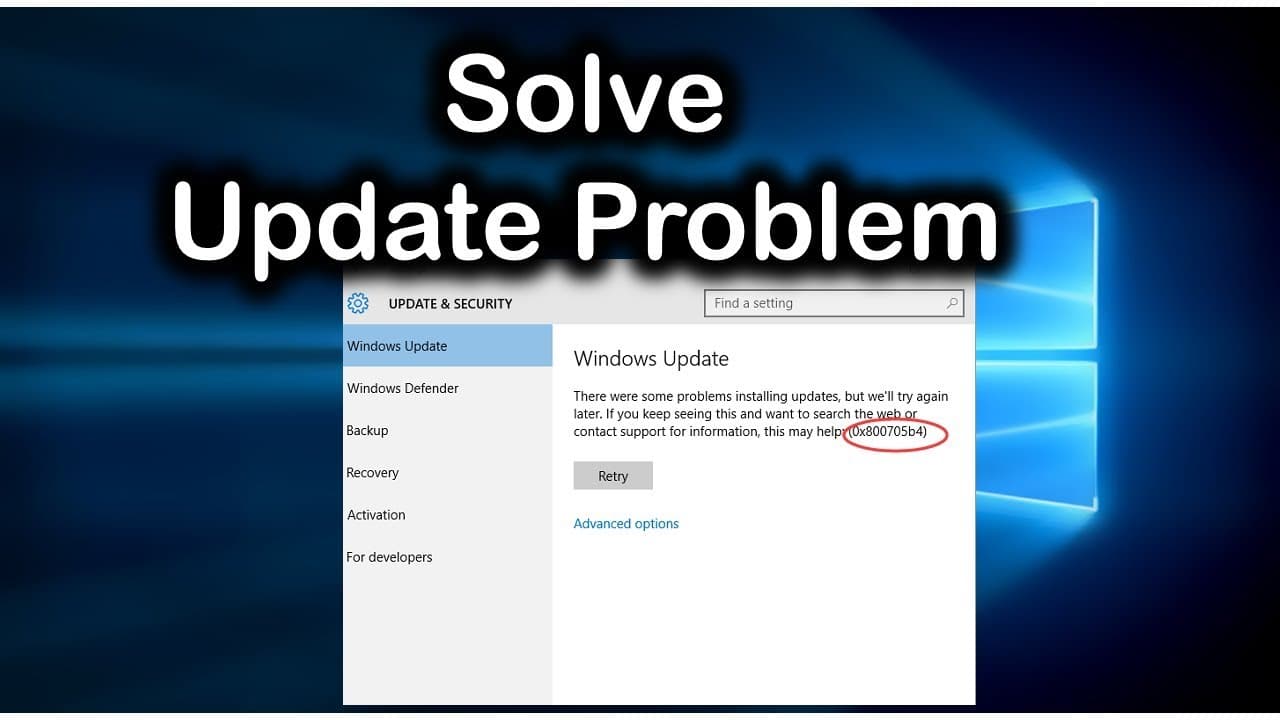
0x800705b4 Error in Windows Update in Windows 10 [Solved]
TL;DR
Follow these steps to fix Windows Update problems effectively.
Transcript
if your windows have been to not working you can follow this step first go to windows siding check update and secured and the frontier try to search for update you cannot still gather IRA message go to troubleshoot troubleshoot windows out that during troubleshoot irritability tag problem fix that give after you're on sharpshooter start working sti... Read More
Key Insights
- 🥺 Regularly checking for Windows updates is crucial for system security and functionality; missing updates can lead to various errors.
- ✋ Stopping background services like the Background Intelligent Transfer Service may be necessary to troubleshoot certain update issues effectively.
- 📁 Deleting temporary Windows Update files can resolve potential conflicts and clear error messages during the updating process.
- 👤 The Windows Update Assistant can serve as a last resort for users whose standard update mechanisms are failing, seeking to restore system performance.
- 👤 Understanding how to navigate through Windows settings and services effectively will empower users to troubleshoot on their own.
- 🔒 Windows Updates often encompass critical security patches; therefore, keeping the system updated is vital for protecting against vulnerabilities.
- 💍 Engaging with online resources to find troubleshooting steps can significantly reduce frustration during technical difficulties.
Install to Summarize YouTube Videos and Get Transcripts
Explore YouTube Video Summarizer or Get YouTube Transcript Extractor
Questions & Answers
Q: What initial steps should I take if my Windows Update is not working?
Start by checking the Windows settings for updates and ensuring that your system is secure. After that, access the troubleshooting options to identify any issues related to Windows Update. This could include settings related to the Background Intelligent Transfer Service and other related services.
Q: How do I stop the Background Intelligent Transfer Service?
To stop this service, open the Windows services application, find the Background Intelligent Transfer Service in the list, right-click it, and select "Stop." It’s important to ensure this service is not running during your troubleshooting, as it can interfere with the update process.
Q: What should I delete from my system to help fix Windows Update issues?
Navigate to your local disk and access the Windows distribution folder. Select all files within this folder and delete them. These files can often contain outdated or corrupted data that may prevent successful updates, so removing them can clear errors and facilitate new updates.
Q: What is the Windows Update Assistant, and how can it help?
The Windows Update Assistant is a tool provided by Microsoft that helps users upgrade their Windows installation to the latest version. If regular update methods fail, downloading and running this assistant can often automatically install the latest updates and resolve errors related to Windows Update.
Summary & Key Takeaways
-
The content provides a step-by-step guide for users facing issues with Windows updates. It emphasizes checking for updates and troubleshooting methods to resolve common problems.
-
Users are instructed to disable specific services like Background Intelligent Transfer Service and delete temporary files related to Windows Update to clear any errors.
-
If the problem persists, the guide suggests using the Windows Update Assistant from Google to automatically run updates and resolve issues.
Read in Other Languages (beta)
Share This Summary 📚
Summarize YouTube Videos and Get Video Transcripts with 1-Click
Try YouTube Summary with ChatGPT & Claude or YouTube Transcript Generator
Explore More Summaries from E Micro Tech 📚

Summarize YouTube Videos and Get Video Transcripts with 1-Click
Try YouTube Summary with ChatGPT & Claude or YouTube Transcript Generator