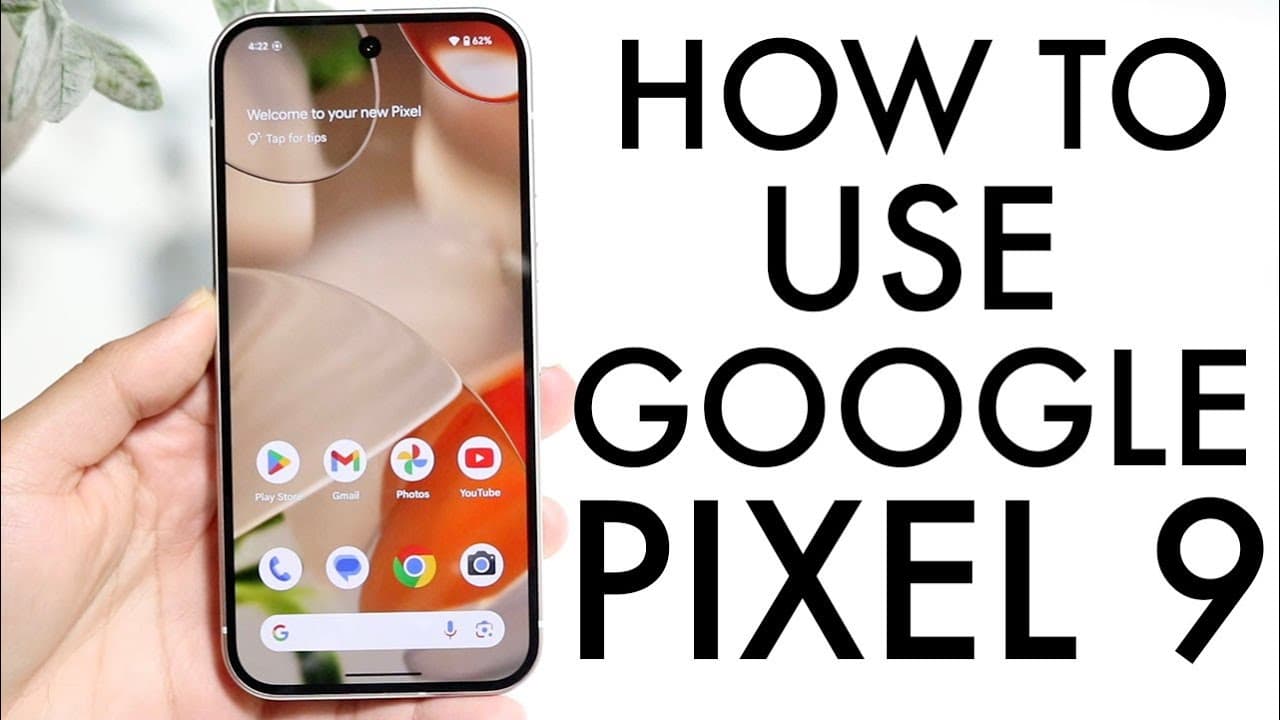
How To Use Your Google Pixel 9! (Complete Beginners Guide)
TL;DR
This video provides a comprehensive tutorial on the Google Pixel 9.
Transcript
so the Google pixel 99 has just officially came out so I wanted to give you a quick introduction on exactly how to use this particular phone it's a beautiful phone it has so much capability and so much quality so hopefully by the end of this you are a pro in a champ on exactly how to use your Google pixel 9 now starting off with the outside this is... Read More
Key Insights
- 👻 The Google Pixel 9’s design features a flat profile that enhances its aesthetic appeal and allows for easy placement on surfaces.
- 👻 Wireless charging capabilities and IP certification allow for increased durability and convenience for users.
- 😄 Users can quickly access the app drawer and search for installed applications with a swipe or through the search bar, emphasizing ease of use.
- 🤟 Gesture-based navigation, such as swiping back to previous pages, enhances the user experience by providing intuitive controls.
- 🛟 The settings application serves as a central hub for troubleshooting, updating software, and adjusting feature settings to optimize phone usage.
- 👻 The dual-camera configuration enhances photography options, allowing users to capture both wide and ultra-wide shots.
- 👤 Customizable quick settings enable users to personalize their access to frequently used functions like Bluetooth and screen recording.
Install to Summarize YouTube Videos and Get Transcripts
Explore YouTube Video Summarizer or Get YouTube Transcript Extractor
Questions & Answers
Q: What are the notable features of the Google Pixel 9's display?
The Google Pixel 9 is equipped with a 120Hz LTPO OLED display, which provides stunning visuals with a high refresh rate. This feature enhances the smoothness of animations and transitions, making interactions feel more fluid compared to standard 60Hz displays. It also boasts high brightness levels, ensuring clear visibility in various lighting conditions. Overall, this display is one of the standout features that contributes to the phone's user experience.
Q: Can you explain the customization options available for the lock screen and home screen?
The Google Pixel 9 allows extensive customization of both the home screen and lock screen. Users can easily change wallpapers, adjust widget placements, and manipulate app icons by long-pressing on the screens. Additionally, specific features enable customization of the lock screen to include shortcuts to essential apps, as well as toggling visibility of notifications. This personalization aspect helps users tailor the device to their preferences and enhances usability.
Q: How can users manage their notifications effectively on the Google Pixel 9?
Notifications on the Google Pixel 9 can be accessed via the notification drawer by swiping down from the top of the screen. From here, users can view, expand, or delete notifications as needed. Additionally, quick toggles for essential settings such as Wi-Fi and Do Not Disturb mode are accessible in this area. Managing these notifications efficiently helps users stay organized and focused on essential tasks without being overwhelmed.
Q: What steps should users follow for initial device setup after purchasing the Pixel 9?
Upon purchasing the Pixel 9, users should perform a software update immediately through the settings menu to ensure they have the latest features and fixes. Additionally, setting up personal accounts, customizing display settings like enabling the 120Hz motion smoothness, and adjusting notification preferences are recommended. It’s also wise to apply a protective case and screen cover to safeguard the device from potential damage during initial handling.
Summary & Key Takeaways
-
The Google Pixel 9 features a stunning 120Hz OLED display, flat-sided design, and a dual-camera setup, showcasing both aesthetic and functional qualities.
-
Users can customize their home screen, lock screen, and notification panel, allowing for an engaging and personalized experience with their device.
-
The settings menu offers comprehensive options for updating, managing apps, and adjusting display preferences, ensuring users get the best performance from their phone.
Read in Other Languages (beta)
Share This Summary 📚
Summarize YouTube Videos and Get Video Transcripts with 1-Click
Try YouTube Summary with ChatGPT & Claude or YouTube Transcript Generator
Explore More Summaries from Simple Alpaca 📚


Summarize YouTube Videos and Get Video Transcripts with 1-Click
Try YouTube Summary with ChatGPT & Claude or YouTube Transcript Generator